RaspAP webgui on Raspberry Pi: the image, the curl installer, and what the repository does not answer
The easiest, full-featured wireless router setup for Debian-based devices. Period.
At a glance
- What is it?
- RaspAP is a PHP web interface for running a wireless access point on Debian-based devices. The repository ships the interface, not the router itself, and several things people search for are simply not in it.
- Who is it for?
- Judge RaspAP on the parts that are pinned down: the prebuilt images, the fixed default network, and the interface tree. Pass on it if your plan depends on a documented uninstall, a comparison with OpenWrt, or a list of the installer's switches, since the README's contents list covers none of them.
- Can I use it commercially?
- Yes, with conditions. GPL-3.0 is a copyleft licence: if you distribute software that includes it, you must release that software's source code under the same licence. Running it internally without distributing it does not trigger that obligation.
- Is it still maintained?
- Yes. The repository received new commits within the last day.
- What is it written in?
- Mainly PHP, according to GitHub's language statistics.
Answers come from the project's GitHub data, last synced on November 14, 2026, and from our analysis. They are not legal advice.
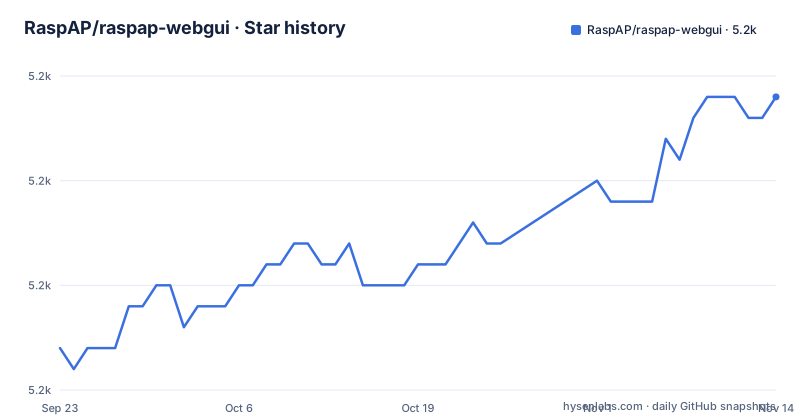
Star history
- RaspAP/raspap-webgui5,234 ★ · +12
| Repository | 2026-09-23 | 2026-11-14 |
|---|---|---|
| RaspAP/raspap-webgui | 5.2k | 5.2k |
12 Stars in the last 52 days, measured from the daily GitHub snapshot. Compare with other projects
Editorial analysis
Two install paths: a prebuilt image or the curl installer
RaspAP gives you two documented ways in. The first is a custom Raspberry Pi OS Lite image, regenerated with each release and offered as an `arm64` or an `armhf` download. Both builds run Debian 13 (trixie) with kernel 6.12, and they are not the same size: 826 MB for the 64-bit image, 799 MB for the 32-bit one. You write the file to a microSD card with Raspberry Pi Imager or balenaEtcher, insert the card, and boot. The image arrives with the current release and the most popular optional components already active.
The second path starts from a clean Raspberry Pi OS install, and the README accepts the 32-bit release, the 64-bit release, and the 64-bit Desktop distribution. Update the kernel and firmware before anything else, then reboot:
sudo apt-get update
sudo apt-get full-upgrade
sudo reboot
Set the WiFi country under the Localisation Options in raspi-config with `sudo raspi-config`.
With that done, the shell hands the whole job to a remote script:
curl -sL https://install.raspap.com | bashThe image path removes the guesswork because you start from a known base. The installer path keeps whatever is already on the card, which is where surprises live.
The access point comes up on 10.3.141.1 with the password ChangeMe
Whichever path you took, the wireless network lands on a fixed configuration. The interface answers at IP address `10.3.141.1`, the admin username is `admin`, the admin password is `secret`, the DHCP range runs from `10.3.141.50` to `10.3.141.254`, the SSID is `RaspAP`, and the wireless password is `ChangeMe`.
Read that list twice if the device is going anywhere near a shared network. The admin pair authenticates the web interface itself, not the wireless link, and behind it sit the DHCP settings, the VPN screens and the per-service controls. The README states that changing those default admin authentication settings is the first action to take after install, and it is the right order: the device is usable, and reachable, the moment it finishes booting.
The installer's switches are documented off the repository
The Quick installer accepts several command line arguments, called switches, that change how the installation runs and that can pull in one of the optional helper tools. The README's Quick installer section does not list the switch names. They sit behind the documentation page the README links to, which means a provisioning script written from this repository alone has to guess at flag spellings, and a wrong flag is only discovered when the script runs against a card you cannot reach remotely.
The same shape applies to the feature surface. VPN provider support, OpenVPN, Tailscale, WireGuard, SSL certificates, ad blocking, security audits, captive portal integration, themes and multilingual options are all named in the README's introduction, and most link out to pages on the project's documentation site. The repository tells you what exists.
That is a normal split for a project of this size, but it does mean the answer to "will this work on my card" is rarely in the tree.
WireGuard ships in the image while the other tunnels do not
WireGuard is the VPN already present in the pre-built OS, and the Quick installer can add it to an existing system when it is missing. Once it is there, the interface handles the local server settings, creates peer configurations, and controls the `wg-quick` service.
OpenVPN support and VPN provider support have their own README sections, and Tailscale and OpenVPN each have a page on the documentation site; read those before relying on them at a remote site.
The interface does expose a general control over services alongside the per-feature screens, so a tunnel that is installed but not running shows up as a service state problem rather than something the feature page troubleshoots for you.
PHP templates and request handlers, and no access point config
The repository is the interface, not the router. The tree is PHP and JavaScript: `index.php` at the root, `ajax/` and `api/` for request handlers, `app/` and `config/` for the application, `includes/` and `templates/` for the pages you actually see, `locale/` for translations, `plugins/` and `plugins-available/` for optional pieces, `installers/` for the shell side, `src/` for asset sources and `dist/` for their output. The top-level listing does not show what `config/` holds.
That division is the thing to understand before filing anything. Settings you change in the browser write into the installed system's service configuration on the device, not into these files, so a DHCP problem is a problem on the card rather than a patch against this repository. Contributors work on templates, handlers and the stylesheet pipeline. The shell side of installation lives in `installers/`.
Translations come through a separate path: `locale/` in the tree and a Crowdin project link in the README.
The asset manifest says 2.6 while the tags say 3.5.8
The stylesheet pipeline has its own manifest, and its version does not track the releases. `package.json` calls itself the RaspAP WiFi Configuration Portal, sets `name` to `raspap`, and pins `version` to `2.6`, while the published tags are 3.5.9 on 2026-11-01, 3.5.8 on 2026-10-02 and 3.5.7 on 2026-09-30.
Two more details in that manifest decide how you build. `publishConfig` points the registry at `https://npm.pkg.github.com/`, so this package is published to GitHub Packages rather than the public npm registry. And the only script defined is `start`, which runs `node_modules/.bin/gulp watch`.
The pinned dependencies are `browser-sync` `^2.26.7`, `del` `^5.1.0`, `gulp` `^4.0.2`, `gulp-autoprefixer` `^7.0.1`, `gulp-clean-css` `^4.3.0`, `gulp-header` `^2.0.9`, `gulp-plumber` `^1.2.1`, `gulp-rename` `^2.0.0`, `gulp-uglify` `^3.0.2`, `huebee` `^2.1.0`, `jquery` `^3.5.0`, `merge-stream` `^2.0.0`, `node-gyp` `^7.0.0` and `startbootstrap-sb-admin-2` `4.0.7`, with `gulp-sass` `^4.0.2` as the single dev dependency. `gulpfile.js` and `yarn.lock` sit next to the manifest, so those are the versions a local build was written against. Do not read 2.6 as the interface version you are about to compile, and note that `node-gyp` at `^7.0.0` dates any native step in this pipeline.
No uninstall entry, no OpenWrt comparison, no rollback
Three things people look for are missing from this repository, and all three matter before you commit a card to it.
There is no removal procedure. The contents list runs from Quick start through to multilingual support, how to contribute and reporting issues, and no entry describes uninstalling RaspAP or returning a card to a clean state. Without one, the practical reset is flashing a fresh image from the latest release page, which means the cost of changing your mind is one full reflash.
There is no comparison with OpenWrt or with any other firmware, and no account of where RaspAP stops and the underlying Debian system starts. And there is no rollback story for a half-finished installer run: the Quick installer is piped straight from a remote URL into bash, so what it left behind is whatever the scripts under `installers/` did.
What the project does offer is an issues page it asks you to read before reporting a problem, which is where that knowledge lives. The last push was 2026-11-01, the same day as the 3.5.9 tag, so the interface itself moves fast. The answers to the awkward questions are on the documentation site or they are not written down.
Editorial conclusion
Judge RaspAP on the parts that are pinned down: the prebuilt images, the fixed default network, and the interface tree. Pass on it if your plan depends on a documented uninstall, a comparison with OpenWrt, or a list of the installer's switches, since the README's contents list covers none of them. Change the admin password and the SSID password before you plug the device into a network anyone else can reach.
Frequently asked questions
How to completely remove RaspAP?
No removal command appears in the README and the contents list has no uninstall entry. Flashing a fresh Raspberry Pi OS Lite image from the latest release page with Raspberry Pi Imager or balenaEtcher is the practical way back to a clean card.
What are the key differences between RaspAP and OpenWrt?
Nothing in this repository compares the two. RaspAP is a GPL-3.0 PHP web interface installed onto Raspberry Pi OS Lite, and its prebuilt images run Debian 13 (trixie) with kernel 6.12, 826 MB for the 64-bit build and 799 MB for the 32-bit one.
Can I use a Raspberry Pi as a web browser?
The README does not raise the question. What it describes is a control panel for the device itself, a responsive mobile-ready interface served at 10.3.141.1, with the admin username admin and the admin password secret.
How do I set up RaspAP?
Either flash a prebuilt Raspberry Pi OS Lite image from the latest release page, or update an existing install with apt-get full-upgrade, set the WiFi country in raspi-config, then run curl -sL https://install.raspap.com | bash. The access point then starts on 10.3.141.1 with the SSID RaspAP.
Official sources
Add this badge to your README
If you maintain this project, the badge below links readers to this analysis and shows its maintenance status from the daily GitHub snapshot. Paste the markdown into your README; add ?metric=license or ?metric=stars to the image URL for a different field.

[](https://hysenlabs.com/projects/raspap-raspap-webgui)Star history chart for your README
[](https://hysenlabs.com/projects/raspap-raspap-webgui)Was this useful?