StockWidget hides itself and stops fetching when you stop looking
A clean desktop stock-watching widget with an always-on-top floating window, freely positionable, requires no installation, and supports the Shanghai, Shenzhen and Beijing exchanges.
At a glance
- What is it?
- StockWidget is a Python and PySide6 desktop quote window that floats above other windows, covers the Shanghai, Shenzhen and Beijing markets plus Hong Kong and US listings, and does nothing but display prices. It pulls quotes from Sina Finance or East Money over requests, has no account or trading path, and ships as a per-version archive for three platforms.
- Who is it for?
- StockWidget fits a Windows, macOS or Linux trader who wants a small always-visible price list over a full terminal and is content with delayed public quotes. It does not fit anyone who needs order entry, level-two depth or a guaranteed price, and the first thing to check after installing is whether turning on force always-on-top is worth having it cover your screenshots.
- Can I use it commercially?
- Yes. Apache-2.0 is a permissive licence: you can use, modify and sell software built on it, as long as you keep its copyright and licence notices.
- Is it still maintained?
- Yes. The repository last received commits 1 day ago.
- What is it written in?
- Mainly Python, according to GitHub's language statistics.
Answers come from the project's GitHub data, last synced on October 22, 2026, and from our analysis. They are not legal advice.
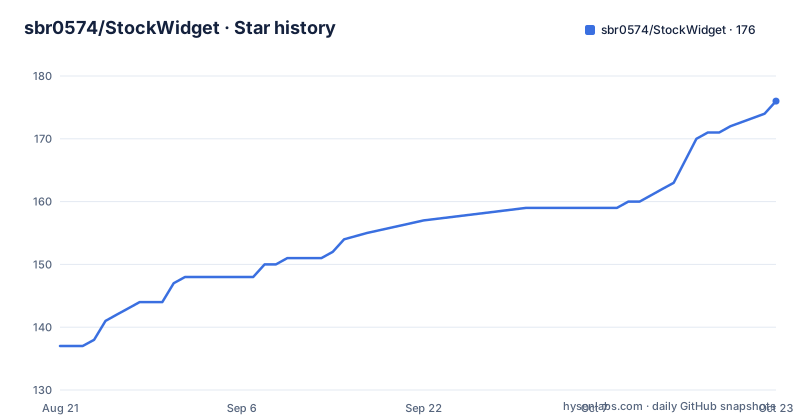
Star history
- sbr0574/StockWidget174 ★ · +37
| Repository | 2026-08-21 | 2026-10-22 |
|---|---|---|
| sbr0574/StockWidget | 137 | 174 |
37 Stars in the last 62 days, measured from the daily GitHub snapshot. Compare with other projects
Editorial analysis
Hiding the floating window pauses its refresh cycle
The window is transparent and frameless, stays above other windows, moves by dragging, and sorts in place. Double-clicking hides it. A right-click menu holds the quick settings, and mouse pass-through is a toggle rather than a default, so the window can sit over a browser without swallowing clicks. Two global hotkeys exist but have to be enabled in the settings before they work, and both can be rebound: `Ctrl+Alt+F` shows and hides the window, `Ctrl+Alt+C` turns mouse pass-through on and off. The detail worth knowing is what hiding costs. While the window is hidden the refresh pauses, and showing it again resumes automatically, which the documentation frames as a way to cut unnecessary requests. A widget that polls a public endpoint and never sleeps is the kind of thing that gets an IP throttled, so the pause is the mechanism that makes leaving it pinned all day tolerable.
Force always-on-top blocks screenshots and other pinned windows
There is one known conflict on Windows and the fix has a cost attached to it. The taskbar and the floating window fight over the topmost position, and the documented answer is to turn on 强制置顶, force always-on-top, in the settings. Once it is on, the widget also blocks screenshots and any other window that wants to sit on top. That is a real trade rather than a rounding error: a screen capture, a screen recording, or a remote session that composites the desktop will now show the quote window over whatever was underneath it. The setting is worth turning on when the conflict is constant and irritating, and worth leaving off when you take captures of the same screen for notes or records.
Quotes arrive from Sina Finance or East Money over requests, and stop there
Market data is fetched with the `requests` library from Sina Finance or from East Money, and the documentation is direct about the consequence: the data carries delay and is for reference only. Two further boundaries are stated plainly. The program displays quotes and contains no account or trading operation of any kind, so there is nothing to log into and no order path to misuse. And the data source is left as a decision for the reader, who is told to judge their own network environment and either route through a proxy or change the source. The pinned dependency set is three entries: `PySide6==6.11.1`, `pyinstaller==6.21.0` and `requests==2.34.2`, so the HTTP layer is a plain synchronous call rather than an async client.
Twelve columns, and the info button only appears on some of them
The watchlist is a table whose columns you assemble by dragging indicators in the settings, so both the content and the order are yours to set. The available indicators are the name, the current price, the change in value, the change in percentage, floating profit, the level-one bid and ask quantities, an order ratio the interface labels 委比, volume, turnover, the average price, and an intraday K-line. Current price and change percentage are on by default, and the price column has a behaviour of its own: it shows an up or down marker when the current price touches the day high or the day low. Four columns open a small settings entry through an info button, and what each one changes is different. The name column sets which market and code to show and how many characters of the name to keep, while volume and turnover each set their own number unit.
Sorting cycles through descending, ascending and off across eight columns
Clicking a column header turns sorting on, and clicking again walks a fixed three-state cycle: descending, then ascending, then no sorting. The cycle is the same on every sortable column, which means a single click never leaves you stuck in one direction. Only eight columns take part. Current price, change, change percentage, floating profit, volume, turnover, average price and the order ratio can be sorted; the name, the bid and ask quantities and the intraday K-line are not in that set, so clicking those headers does nothing. The right-click menu carries a sorting shortcut as well, which matters once a watchlist runs to several screens of rows and re-ordering by price is something you do rather than something you set up once.
Three archives per version, and macOS still needs a manual copy
Each release publishes one archive per platform, named with the version number in place of a placeholder. On Windows 10 and 11 the archive unpacks to a `StockWidget.exe` you run in place. On macOS it unpacks to a `StockWidget.app` that has to be copied into the Applications folder yourself, so the first launch on a Mac is a file operation rather than a double-click. On Linux the archive unpacks to something you start with `./StockWidget` from a terminal in the folder, and the same platform also gets `.deb` and `.rpm` packages if you would rather install than unzip. The packaging route is PyInstaller driven, with a `StockWidget.spec` file at the top level of the repository and `pyinstaller==6.21.0` pinned for it. The documentation also names the Releases pages of the GitHub repository and the Gitee mirror as the only distribution channel.
Source runs need Python 3.13 and a generated Qt resource module
Building from source takes two commands before the program starts. Dependencies come from the requirements file, and the Qt resource file has to be compiled into a Python module that the application imports:
pip install -r requirements.txt
pyside6-rcc resources/resources.qrc -o resources/resources_rc.py
After that the entry point is a plain script:
python main.pyRelease builds and CI both use Python 3.13, so a local interpreter older than that is a source of friction even though the README only says 3.13 is what the project targets. The generated `resources_rc.py` is a build product rather than a checked-in file, which is why the compile step cannot be skipped on a fresh clone. Repository layout is otherwise ordinary: `main.py` at the top, the application package under `stockwidget/`, assets under `resources/`, a `scripts/` directory, a `tests/` directory, and a `.github/` directory for the CI.
The watchlist ships with market code data that is refreshed on its own
You are not expected to type ticker symbols from scratch. The program carries code data for the whole market and updates it periodically, and there are two ways in. Double-clicking an empty area of the list opens a quick add, while the add button opens a browser that filters by instrument type (stock, fund, index or futures) crossed with market (Shanghai, Shenzhen, Beijing, Hong Kong, US or other) and pages through the results. Search accepts several keywords separated by spaces, and they can be a numeric code, a name, a pinyin spelling or an abbreviation, so the same watchlist can be built by typing the code you know or the letters you remember. An entry already in the list is edited by double-clicking it. The program icon is a separate matter: four icons ship with the program and apply immediately, and a custom image or icon file can be uploaded to replace them.
Editorial conclusion
StockWidget fits a Windows, macOS or Linux trader who wants a small always-visible price list over a full terminal and is content with delayed public quotes. It does not fit anyone who needs order entry, level-two depth or a guaranteed price, and the first thing to check after installing is whether turning on force always-on-top is worth having it cover your screenshots.
Frequently asked questions
How do I get StockWidget running on my machine?
Download the archive for your platform from the Releases page, unpack it, and run `StockWidget.exe` on Windows 10 or 11, copy `StockWidget.app` into Applications on macOS, or run `./StockWidget` in the folder on Linux, where `.deb` and `.rpm` packages are also offered. Running from source needs Python 3.13 and a generated Qt resource module.
What is StockWidget used for?
It is a transparent floating window that stays above other applications and lists prices for the Shanghai, Shenzhen and Beijing markets, Hong Kong and US stocks and funds, global indices and futures. It displays market data only and contains no account or trading operation.
Does StockWidget place trades or connect to a brokerage account?
No. The program only shows quotes, fetched with the `requests` library from Sina Finance or East Money, and the data carries delay and is for reference only. There is no login and no order path in the program.
Why does the StockWidget window cover my screenshots on Windows?
That is the documented side effect of turning on 强制置顶, the setting offered as the fix when the taskbar and the floating window conflict over the topmost position. Once enabled, the window also blocks screenshots and other always-on-top windows.
Which columns can StockWidget sort by?
Current price, change, change percentage, floating profit, volume, turnover, average price and the order ratio labelled 委比. Clicking a header cycles through descending, ascending and no sorting, and the right-click menu carries the same shortcut.
Official sources
Add this badge to your README
If you maintain this project, the badge below links readers to this analysis and shows its maintenance status from the daily GitHub snapshot. Paste the markdown into your README; add ?metric=license or ?metric=stars to the image URL for a different field.

[](https://hysenlabs.com/projects/sbr0574-stockwidget)Star history chart for your README
[](https://hysenlabs.com/projects/sbr0574-stockwidget)