sirWest/AudioSwitch: a Windows tray tool for switching audio devices and hotkeys
Switch between default audio input or output + change volume
At a glance
- What is it?
- AudioSwitch is an Apache-2.0 licensed Windows application that switches the playback and recording device, adjusts volume, and puts the whole thing behind a tray icon and global hotkeys. Version 3 rewrote it on .NET 10 and WPF after a long gap, moved its settings from an XML file to JSON with an automatic migration, and added a command line tool that emits text or JSON for scripting.
- Who is it for?
- Adopt AudioSwitch if you move between headsets, speakers and microphones several times a day and want that to be a hotkey rather than a trip through the Windows sound settings, since the app covers the two cases that matter, switching the default device and controlling volume, with a command line tool for scripting on top.
- Can I use it commercially?
- Yes. Apache-2.0 is a permissive licence: you can use, modify and sell software built on it, as long as you keep its copyright and licence notices.
- Is it still maintained?
- Yes. The repository received new commits within the last day.
- What is it written in?
- Mainly C#, according to GitHub's language statistics.
Answers come from the project's GitHub data, last synced on November 7, 2026, and from our analysis. They are not legal advice.
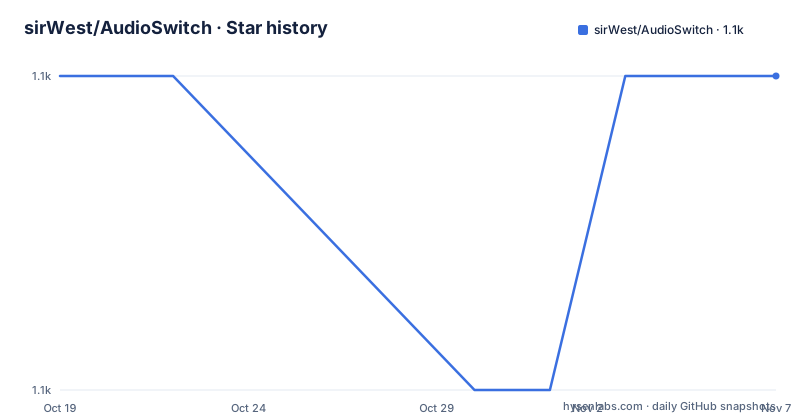
Star history
- sirWest/AudioSwitch1,118 ★ · +0
| Repository | 2026-10-19 | 2026-11-07 |
|---|---|---|
| sirWest/AudioSwitch | 1.1k | 1.1k |
0 Stars in the last 19 days, measured from the daily GitHub snapshot. Compare with other projects
Editorial analysis
What the app is for
AudioSwitch lets you switch your Windows playback and recording devices, adjust the volume, and keep your favourite audio controls close at hand from the system tray or a keyboard shortcut.
That is a small problem, and the interesting part is that the solution has to be very good at being unobtrusive. A tool that gets in the way of the thing you use it for is worse than no tool, so the design is built around the tray icon and the hotkey rather than around a window.
The interaction model is described precisely. You click the tray icon to open your devices and choose the one you want to use. Right-clicking the icon opens the menu and Settings. With quick switching enabled, right-clicking cycles the devices instead, and Shift and right-click still opens the menu. You scroll over the flyout to adjust the volume, and you right-click the volume slider to mute.
So there are three affordances: the flyout for the common case, a right-click cycle for the faster case, and a keyboard shortcut for the case where you are not touching the mouse at all.
Version 3, a long gap, and an AI-assisted rewrite
The README opens with a section the author calls a little catch-up, and it is worth reading because it explains the shape of the current release.
It has been a while, a busy personal life kept the author away from AudioSwitch much longer than expected, and the author thanks the people who stuck around. This version has been converted to .NET 10 and WPF and improved with the help of Codex and the Astra 6 model. The stated conclusion is that AI-assisted coding has made returning to the project much more manageable, and that the author expects it to help work through future issues and requests faster.
Then there is a paragraph that reads like a mission statement for a one person project. The author uses the same AI help every day at work, stays involved here, reviews the code and changes, checks how things behave, and keeps an eye on unnecessary bulk or odd design choices. The aim is a useful, maintainable AudioSwitch that the author can keep looking after.
That framing is unusual in a project README, and it is useful to a reader because it tells you what kind of maintenance to expect. This is one person, back after a gap, using an assistant to catch up, with the emphasis on a smaller and cleaner code base rather than on new features. The releases agree with it, with 3.1 on 2026-10-07, 3.1.1 on 2026-10-09 and 3.2 on 2026-10-12, and the last push to the repository on 2026-10-12.
The feature list, and the parts that are genuinely hard
The features are listed at length, and a few of them are the ones that separate a good implementation of this idea from a bad one.
Device switching from the tray, with a right-click cycle, is the core. Volume and mute for both playback and recording are handled separately, because a microphone and a speaker are different problems. Global hotkeys are provided for device switching, for volume and for mute, and the README's device hotkeys document covers the setup with examples, which matters because a hotkey that silently does the wrong thing is worse than no hotkey.
The most capable option is selecting a specific playback device, recording device, or input and output pair with one shortcut, including optional mute and communications-device settings. Pairing a specific microphone with a specific output is the case people with two different headsets hit constantly, and treating the input and output as one unit is a design decision.
On the display side there is a skinnable on-screen display for volume and device changes, with adjustable position, opacity and display time, and the original skins are still included alongside a default that follows the application's appearance, with the option of using Windows' own playback volume display instead. Device icons can be recoloured, custom icons and images can be imported, and a muted device shows a speaker-and-X badge. Devices can be given friendly names, and the ones you never use can be hidden.
Startup devices can be chosen separately for multimedia and for communications, and the communications device can optionally be switched along with the main one. That distinction is the one Windows makes and most tools ignore, and getting it wrong is why a call sometimes rings on the wrong output.
A command line tool for the parts you want to script
There is an `audioswitch-cli.exe` that takes text or JSON output, and the README describes it as being for scripts and automation.
That is the right way to build a small utility like this, because half the use cases for it are not clicking. A stream deck key that switches to a headset, a script that resets the devices before a meeting, a support tool that reports the current device as JSON. Exposing the same state and the same actions through a machine readable interface is what turns a personal utility into something you can build on.
The technical reference document, `docs/TECHNICAL.md`, is where the command line options, the settings, the installer publishing and the OSD skins are documented, and the README points at it alongside the device hotkeys guide, so the documentation is split by audience, examples for the setup and reference for the behaviour.
There is also an audio error diagnostics entry in the Settings footer, and the application writes to `errors.log` in its local application data directory, which is the sort of detail that saves a support exchange.
The settings moved from XML to JSON, and migrated themselves
Upgrading from an older version is a single step. You start the tray app once and it imports your old `Settings.xml`, your original file is kept, and any existing JSON settings are left in place. Settings now live in `%LOCALAPPDATA%/AudioSwitch/settings.json`.
That is a well handled migration, and the two details make it so. The old file is not deleted, so a user whose upgrade went wrong still has the original configuration, and the import is idempotent in the sense that existing JSON settings are not clobbered.
The feature list also mentions keeping settings backed up with automatic recovery and migration from the legacy app, so the migration is not a one time script but a property of the application.
The rest of the preferences sit alongside the same file, the light, dark or Windows-matched appearance with transparency and supported Windows animations, whether playback and recording are shown together or separately, the OSD skin choice, the position of the device list, and the option to start AudioSwitch when you sign in to Windows.
Building it, and the shape of the solution
The build instructions assume the .NET 10 SDK on Windows, and there are three commands to know.
dotnet build AudioSwitch.sln
dotnet run --project AudioSwitch -- --settings
dotnet test AudioSwitch.sln
The second one is the interesting detail. Running the project with the `--settings` argument opens the settings window directly, which means a contributor can work on the configuration surface without first finding the tray icon in a notification area they may not know is there.
The solution layout shows a conventional split for a WPF application with a separate core library. There is `AudioSwitch/` for the application, `AudioSwitch.Core/` for the shared logic, `AudioSwitch.Cli/` for the command line tool, and `AudioSwitch.Tests/` for the tests, alongside `Setup/` for the installer, `docs/` for the reference material, and `tools/` for build helpers. The `Directory.Build.props` file at the root holds the properties shared across every project, and the `.csharpierignore` file shows that the C# formatting is handled by CSharpier rather than by the default dotnet formatter, with an `.editorconfig` alongside it.
The contribution guide and the technical reference are the two documents to read before changing anything, and the technical reference covers the installer publishing as well, which is the part a contributor is most likely to get wrong.
Where this is the wrong choice
The first wrong case is an older Windows. The application targets Windows 10 and 11, and Windows 7, 8 and 8.1 are not supported by its .NET 10 runtime, with older Windows versions outside the release's scope entirely. If you have a machine on Windows 8.1 that you cannot upgrade, this is not for you, and the previous version of the app was the answer.
The second is the Windows 10 caveat that is easy to miss. Microsoft's official .NET 10 support on Windows 10 is limited to specific LTSC and Enterprise releases, and the README points at the supported operating system list for the details. So on a consumer Windows 10 installation that is not one of those editions, the runtime may not be installable at all, which turns a small utility into a blocker.
The third is a machine without the runtime. The installer uses x64 executables and requires the .NET 10 Desktop Runtime for x64, and it checks for the runtime but does not install it automatically, so the user has to do that step themselves, and the README links to the Windows runtime installation guide.
The fourth is a Linux or macOS user, where the equivalent work is done by the sound settings the operating system already ships, and the extra application is not worth installing.
On the state of the project, the current release is 3.2, published on 2026-10-12, and the repository is not archived with the last push on the same day. The licence is Apache-2.0, the code is C# on WPF, and the README asks for feedback on everyday use, especially device switching, hotkeys, settings upgrades, USB or Bluetooth devices reconnecting, and sleep and resume, which is a list of the four things most likely to break in a tray application that talks to hardware.
Editorial conclusion
Adopt AudioSwitch if you move between headsets, speakers and microphones several times a day and want that to be a hotkey rather than a trip through the Windows sound settings, since the app covers the two cases that matter, switching the default device and controlling volume, with a command line tool for scripting on top. Do not adopt it on Windows 7, 8 or 8.1, because the .NET 10 runtime does not support them, and note that on Windows 10 you need a release that Microsoft's runtime list covers, which means LTSC or Enterprise for the newest .NET. Verify first that the .NET 10 Desktop Runtime for x64 is installed on the machine, since the installer checks for it and does not install it, and that your existing settings survive the upgrade, which the migration from Settings.xml handles on first launch.
Frequently asked questions
What does AudioSwitch do?
It switches your Windows playback and recording devices, adjusts the volume and mutes, for both playback and recording separately, from the system tray or through global hotkeys. It also offers an on-screen display for volume and device changes, friendly device names, and separate startup devices for multimedia and for communications.
Which Windows versions does AudioSwitch support?
Windows 10 and 11. Windows 7, 8 and 8.1 are not supported by its .NET 10 runtime, and Microsoft's official .NET 10 support on Windows 10 is limited to specific LTSC and Enterprise releases, so on other Windows 10 editions the runtime may not be available.
What does AudioSwitch need installed to run?
The installer uses x64 executables and requires the .NET 10 Desktop Runtime for x64. It checks for the runtime but does not install it automatically, and the README points at the Windows runtime installation guide for the download and the supported versions.
How do I migrate my settings to AudioSwitch 3?
Start the tray app once and it imports your old `Settings.xml`. Your original file is kept, any existing JSON settings are left in place, and the settings now live in `%LOCALAPPDATA%/AudioSwitch/settings.json`. The feature list also mentions settings backup with automatic recovery and migration from the legacy app.
Can I script AudioSwitch?
Yes. There is an `audioswitch-cli.exe` that produces text or JSON output for scripts and automation, and the technical reference document covers the command line options, the settings, the installer publishing and the OSD skins, with a separate document giving device hotkey setup examples.
Official sources
Add this badge to your README
If you maintain this project, the badge below links readers to this analysis and shows its maintenance status from the daily GitHub snapshot. Paste the markdown into your README; add ?metric=license or ?metric=stars to the image URL for a different field.

[](https://hysenlabs.com/projects/sirwest-audioswitch)Star history chart for your README
[](https://hysenlabs.com/projects/sirwest-audioswitch)Was this useful?