Decky Loader runs on two ports and can vanish on a SteamOS update
A plugin loader for the Steam Deck.
At a glance
- What is it?
- Decky Loader is the homebrew plugin launcher for the Steam Deck, built in TypeScript and distributed through a desktop installer file or a Konsole one liner. It claims port 8080 and 1337, survives reboots, needs a fresh install after some SteamOS updates, and leaves every file a plugin created behind when you uninstall that plugin.
- Who is it for?
- Decky Loader fits an owner of a Steam Deck who wants plugins such as SDH-CssLoader, SDH-AudioLoader, vibrantDeck, or PowerTools and is willing to keep ports 8080 and 1337 clear and to reinstall after a SteamOS update. Leave it alone if something in your setup already needs port 8080, or if you need a stable loader while writing plugins of your own.
- Can I use it commercially?
- Yes, with conditions. GPL-2.0 is a copyleft licence: if you distribute software that includes it, you must release that software's source code under the same licence. Running it internally without distributing it does not trigger that obligation.
- Is it still maintained?
- Yes. The repository last received commits 17 days ago.
- What is it written in?
- Mainly TypeScript, according to GitHub's language statistics.
Answers come from the project's GitHub data, last synced on November 13, 2026, and from our analysis. They are not legal advice.
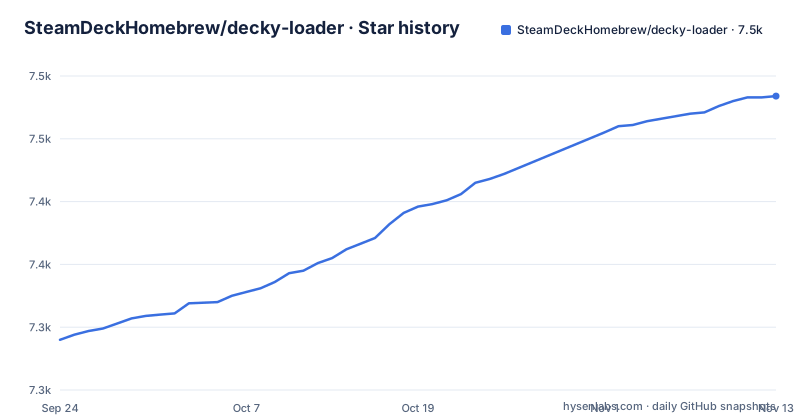
Star history
- SteamDeckHomebrew/decky-loader7,484 ★ · +194
| Repository | 2026-09-24 | 2026-11-13 |
|---|---|---|
| SteamDeckHomebrew/decky-loader | 7.3k | 7.5k |
194 Stars in the last 50 days, measured from the daily GitHub snapshot. Compare with other projects
Editorial analysis
Ports 8080 and 1337 are claimed before any plugin loads
Decky Loader needs port 8080 on the Steam Deck to function, and two conflicts get named specifically. Syncthing may use port 8080, so if you run Syncthing as a service you have to move it, with 8384 named as the recommended port. Anything else sitting on 1337 or on 8080 has to change its port or be uninstalled. The trap is timing. A sync daemon can be installed and working long before you touch Decky, and its own web interface keeps answering on 8080 the whole time. When the loader then fails to appear, the plugin you were trying to run collects the blame, because that is the visible symptom. The consequence is a debugging session in the wrong place: you reinstall a plugin, reload it, try a different version, and none of that touches the port at all. Before you judge a plugin, find out what is already listening on 8080 and on 1337.
A SteamOS update can take the loader with it
Sometimes Decky will disappear on SteamOS updates. The recovery path has three steps and they are ordered. Re-run the installer and install the stable branch again. If that does not work, try installing the prerelease instead. If that still does not work, check the existing issues, and file a new issue if none is there. Notice what that path implies: the fix is a fresh install rather than a repair, so anything you had configured by hand is not guaranteed to come back the way you left it. A SteamOS update can remove the layer that every plugin you rely on sits on top of, and you find out at the next launch. The same document that says Decky stays installed between system updates and reboots also lists this disappearance case. Both statements hold, and the ordering above is the only guidance given for it.
Uninstalling a plugin removes its files and nothing else
Removing a plugin from the Decky menu deletes that plugin's own files and stops short of everything else the plugin wrote. The limit is stated plainly: uninstalling a plugin will only remove its plugin files, not any other files it may have created. No cleanup step is documented. So if a plugin kept settings, cached data, a database, or downloaded assets in its own directory, those survive the uninstall and stay on the device. The consequence surfaces the next time you install the same plugin, because you get whatever the previous run left behind instead of a clean first run, and the difference can read as a regression in the newer version when it is old state resurfacing. If your goal is a full reset, taking the plugin out of the menu is not enough and you have to locate and delete those files yourself. The same menu offers a per plugin version dropdown, which the docs say is not recommended.
The installer either takes your password or installs Decky! for you
At the password step the installer offers two paths. Type your admin password, or allow Decky to temporarily set your admin password to `Decky!`. That temporary password is removed after the installer finishes, and the installation can also be done without an admin or sudo password set at all. If you take the second path and something interrupts the run before it cleans up, the device is left on a known password until you change it yourself, so let it finish rather than closing the window halfway. For anyone already in Konsole there is a one liner that skips the desktop entirely:
curl -L https://github.com/SteamDeckHomebrew/decky-installer/releases/latest/download/install_release.sh | shType your password when prompted. This pipes a remote script straight into sh, so read the script before you run it if you want to know what you are handing root.
First launch means Desktop mode and a branch choice
Installation happens in Desktop mode. You press the button, open the Power menu, and select Switch to Desktop. The downloaded file goes onto the desktop and gets double clicked, you choose a version, then you open the Return to Gaming Mode shortcut on the desktop when the installer finishes. The branch choice decides what the rest of your time on the device looks like. Latest Release is intended for most users and is the latest stable version. Latest Pre-Release is intended for plugin developers, carries the latest changes, and is not guaranteed to be fully stable, so choosing it to chase one newer plugin feature means running everything else on an unstable loader. Afterwards, press the button again and navigate to the Decky menu icon to open the Plugins Browser, where Install adds a plugin. You can also install from a URL in the Settings menu, and plugins from untrusted sources are not recommended.
CORS bypass and Python calls come with unfinished plugin docs
Three loader capabilities matter most to plugin authors. Plugins and the loader communicate in both directions, Python functions can be called from TypeScript React code, and plugins can make fetch calls that bypass CORS completely. That last item means a plugin reaches a local service without a browser cross origin check stopping it, which is the point of the feature and also removes that check as a guardrail. The developer story behind those capabilities is thinner than the feature list. There is no complete plugin development documentation, and the starting points given are the plugin template repository and the wiki. For you as a user the effect is indirect but real: a plugin can reach far more of the device than a browser page normally could, and the only guidance about how that happens lives in a separate site rather than next to the code.
No rollback, no diagnostics, and three buckets for every failure
When something breaks, the documented surface is thin. The README's Common Issues list offers no rollback to a previous loader version, no shell command for inspecting loader state, and no log file to read. What you get instead is a checklist with three branches: a port conflict on 8080 or 1337, disappearance after a SteamOS update, then the issue tracker. Every failure funnels into one of those three buckets, and anything else lands in the third one. The consequence is that you cannot separate a dead loader from a blocked port or a removed one without walking the checklist in order. Recovery means running the installer again. Uninstalling has the same shape: switch to Desktop, run the installer file again, and select `uninstall decky loader`, or in Konsole run
curl -L https://github.com/SteamDeckHomebrew/decky-installer/releases/latest/download/uninstall.sh | shBoth scripts ask for your password when they prompt.
A TypeScript tree with backend, frontend, dist, and Nix flakes
The repository root holds act/, backend/, dist/, docs/, frontend/, and scripts/, next to .envrc, flake.lock, flake.nix, a .vscode directory, and a Chinese README beside the English one. The primary language is TypeScript, the license is GPL-2.0, and the default branch is main. The homepage is decky.xyz, with the wiki at wiki.deckbrew.xyz and the plugin catalog at plugins.deckbrew.xyz. The last push to main landed on 2026-10-27, and the release line runs v3.3.1 on 2026-10-27, v3.3.1-pre1 on 2026-10-27, and v3.3.0 on 2026-10-18, which is the same stable and prerelease split the installer offers you at setup time. The repository is not archived. If you are reading the tree to work on the loader itself, both halves are present, but the plugin contract between them is documented on the wiki rather than in the README.
Editorial conclusion
Decky Loader fits an owner of a Steam Deck who wants plugins such as SDH-CssLoader, SDH-AudioLoader, vibrantDeck, or PowerTools and is willing to keep ports 8080 and 1337 clear and to reinstall after a SteamOS update. Leave it alone if something in your setup already needs port 8080, or if you need a stable loader while writing plugins of your own.
Frequently asked questions
What is a Decky Loader?
It is a homebrew plugin launcher for the Steam Deck, written mainly in TypeScript under GPL-2.0. It injects and loads multiple plugins, stays installed between system updates and reboots, and lets plugins and the loader talk in both directions.
Why is the Decky Loader gone?
Sometimes Decky disappears on SteamOS updates. Re-run the installer and install the stable branch again, try the prerelease if that does not work, and check the existing issues before filing a new one.
Is Decky Loader risky?
It needs port 8080 to function, so Syncthing or any other software on 8080 or 1337 has to change its port or be uninstalled. Plugins from untrusted sources are not recommended, and uninstalling a plugin leaves the other files it created in place.
how to install decky loader
Switch to Desktop from the Power menu, download the installer file, rename decky_installer.desktop.download if Firefox saved it under that name, double click it, then enter your admin password or let Decky set Decky! temporarily before choosing Latest Release or Latest Pre-Release.
how to access decky loader
Press the button and navigate to the Decky menu icon. The Plugins Browser opens from there for installing plugins, and the same menu handles updating, uninstalling, and reloading them.
how to use decky loader in desktop mode
Installation happens in Desktop mode: press the button, open the Power menu, select Switch to Desktop, run the installer there, then use the Return to Gaming Mode shortcut on the desktop.
Official sources
Add this badge to your README
If you maintain this project, the badge below links readers to this analysis and shows its maintenance status from the daily GitHub snapshot. Paste the markdown into your README; add ?metric=license or ?metric=stars to the image URL for a different field.

[](https://hysenlabs.com/projects/steamdeckhomebrew-decky-loader)Star history chart for your README
[](https://hysenlabs.com/projects/steamdeckhomebrew-decky-loader)Was this useful?