Super Productivity's one repo, twelve integrations and three sync options
Super Productivity is an advanced todo list app with integrated Timeboxing and time tracking capabilities. It also comes with integrations for Jira, GitLab, GitHub and Open Project.
At a glance
- What is it?
- The task app is broad by design: eleven issue trackers plus basic CalDAV, boards, focus timers and three sync backends share one TypeScript tree that builds for six platforms. The interesting parts are where the documentation goes vague, where the web build is narrower, and why the compose file ships a database password on purpose.
- Who is it for?
- Super Productivity fits a solo developer or small team that wants one app for tasks, time sheets and issue trackers, and that is willing to pick a distribution channel before it picks features. It does not fit a team that needs a documented list of what the browser build cannot do, a stated guarantee about encryption for the sync backend of its choice, or a compose file meant for production.
- Can I use it commercially?
- Yes. MIT is a permissive licence: you can use, modify and sell software built on it, as long as you keep its copyright and licence notices.
- Is it still maintained?
- Yes. The repository received new commits within the last day.
- What is it written in?
- Mainly TypeScript, according to GitHub's language statistics.
Answers come from the project's GitHub data, last synced on November 13, 2026, and from our analysis. They are not legal advice.
Star history
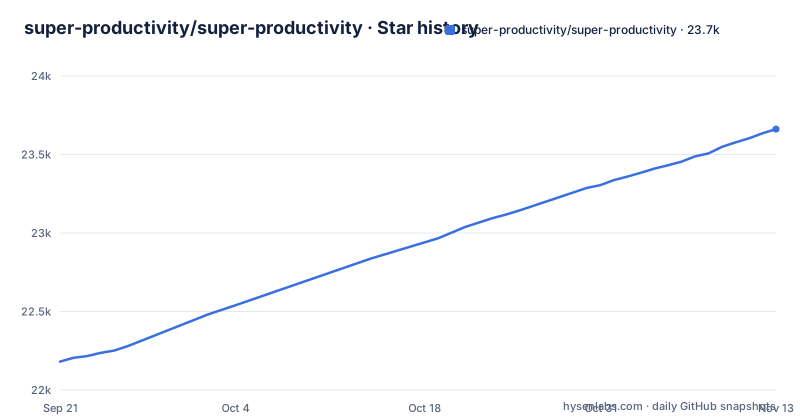
- super-productivity/super-productivity23,662 ★ · +1,481
| Repository | 2026-09-21 | 2026-11-13 |
|---|---|---|
| super-productivity/super-productivity | 22.2k | 23.7k |
1,481 Stars in the last 53 days, measured from the daily GitHub snapshot. Compare with other projects
Editorial analysis
Twelve trackers are integrated, and the calendar one is called basic
The integration list is long enough that the useful question is what each one does. The stated behavior is uniform: auto import tasks assigned to you, plan the details locally, automatically create work logs, and get notified when something changes. The named systems are Jira, Trello, GitHub, GitLab, Gitea, OpenProject, Linear, ClickUp, Redmine, Nextcloud Deck and Azure DevOps. The twelfth entry is different in kind, because calendar support is qualified rather than described: the README calls it basic CalDAV integration and stops there, with no list of which calendar operations are supported.
Two things a reader cannot settle from that description matter a great deal in practice. First, the phrasing distinguishes importing tasks assigned to you from the local planning of their details, which implies the upstream side is a source of assigned work rather than a two way board, and the feature list does not state which of the eleven systems can also write back. Second, the notification promise is unqualified in one direction only: something that changes upstream gets to you, and nothing is said about what happens to a task you rename, complete or reschedule locally. If your workflow needs a ticket closed from inside the app, or a local estimate pushed back to the tracker, that has to be confirmed against the integration page for that specific system before you migrate your board into it.
The browser build is an acknowledged subset, and the gap is not itemized
The one warning note in the feature list is about the web version, and it is a pointer rather than a list: the web version has some limitations, with details on a Web App vs Desktop comparison page in the wiki. That is the entire disclosure. No limitation is named in the README's feature list, so a reader cannot tell from the README whether the missing pieces are native file handling, system tray behavior, global shortcuts, or something else entirely.
The mobile packages make this sharper rather than softer. The tree carries capacitor.config.ts beside android/ and ios/ directories and a fastlane/ directory, which is the packaging layout for shipping the same frontend as an app, so a limitation in the web build is not obviously confined to desktop browsers. The repository also holds a ngsw-config.json for service worker behavior and an nginx/ directory, both of which exist only for browser delivery. The practical advice follows directly: if you plan to work from a phone or a locked down work laptop, the platform decision has to come before the feature decision, and the comparison page has to be read before you migrate your task list in. Starting from app.super-productivity.com and discovering the gap later means redoing your setup, not just switching a view.
Three sync backends, and only one of them carries an encryption claim
Backups and cross device sync are offered three ways. SuperSync is the project's own service, described as end to end encrypted, and the README points at packages/super-sync-server in the repository so you can host it yourself. Dropbox and WebDAV are the other two. That framing implies the self hosted route is the full featured one and the file backends are the compatibility route, but the README does not spell out the difference.
Here is what is genuinely missing. The end to end encryption claim is attached to SuperSync and to nothing else, so whether data written through Dropbox or WebDAV is encrypted by the application or protected only by whatever those providers do is not stated in the feature list. The feature list also does not say whether the WebDAV path supports the same end to end property, whether SuperSync handles conflict resolution between two devices editing the same task, or whether a self hosted SuperSync instance has any operational overhead beyond running the server package. The example environment file lists related variables, all of them commented out with placeholder values:
# GOOGLE_DRIVE_TOKEN=your-token-here
# DROPBOX_API_KEY=your-api-key-here
# UNSPLASH_KEY=your-api-key-here
# WEBDAV_URL=https://your-webdav-server.com
# WEBDAV_USERNAME=your-username
# WEBDAV_PASSWORD=your-password
One tree builds five shells, and the top level build script is Electron only
A single TypeScript tree produces every distribution: electron/ with electron-builder.yaml for desktop, capacitor.config.ts with android/, ios/ and fastlane/ for mobile, snap/ for the Snap package, an Angular configuration in angular.json for the browser, and build/ and scripts/ for the packaging steps. Seven download targets are linked from the README, spanning Flathub, the Snap Store, the Microsoft Store, Google Play, F-Droid, Obtainium and the Apple App Store, while the Obtainium entry points at the GitHub releases page rather than a store.
The build chain is where the shells diverge, and the divergence is visible in the scripts. The default build target is not a web build:
    "build": "npm run buildAllElectron:noTests:prod",
    "build:packages": "node ./packages/build-packages.js",
    "buildAllElectron:noTests:prod": "npm run lint && npm run buildFrontend:prod:es6 && npm run electron:build",
So running the plain build runs linting, then the production frontend build, then the Electron packaging step, in that order. Producing only a browser bundle means invoking the frontend build yourself, and even that path is opinionated: the production variant sets a browserslist environment variable to modern and finishes by running a font removal step, while the development variant uses the Angular development configuration with no browser environment override at all. Someone who wants a self hosted web deployment should expect to choose that script deliberately rather than inherit a sensible default.
Installing from source runs patches and four local package builds first
There is no single install step, because the prepare step builds four internal packages before anything else. The prepare script is the chain that matters, and it runs a patch tool installer, git hooks, environment loading, and then four separate package builds:
"prepare": "husky && ts-patch install && npm run env && npm run sync-core:build && npm run sync-providers:build && npm run shared-schema:build && npm run plugin-api:build",Those four names map onto real directories, since the tree holds packages/ alongside a patches/ directory that the postinstall step applies through the patch tool. The prebuild step adds two more stages before the frontend compiles: it loads the environment and runs a version script that reads git, then calls the package build script at packages/build-packages.js. Mobile artifacts have their own two scripts that shell into android/ and run gradlew assembleRelease or assembleDebug depending on production or staging.
The container build takes a deliberately different route. It pins its stages to a Node 22 base on the build platform, injects photo service keys as build arguments whose defaults are placeholders, and copies only the four package manifests, sources and ts configs plus the shared tsconfig and the tools directory before installing:
# Build stage
FROM --platform=$BUILDPLATFORM node:22 AS build

# Accept build arguments for environment variables with defaults
ARG UNSPLASH_KEY=DUMMY_UNSPLASH_KEY
ARG UNSPLASH_CLIENT_ID=DUMMY_UNSPLASH_CLIENT_ID
That install runs with scripts disabled, as in npm ci --ignore-scripts, so the postinstall patching and the four prepare time package builds are not executed by it. Anyone building the image has to account for that rather than assume the host install path carries over.
The compose file commits a database superuser and binds it to loopback
docker-compose.yaml is not a production template and says so in its comments. The database is a throwaway end to end test database with credentials written straight into a public repository:
  db:
    image: postgres:15-alpine
    environment:
      POSTGRES_USER: supersync
      POSTGRES_PASSWORD: superpassword
      POSTGRES_DB: supersync_db
The port mapping is the interesting part:
    ports:
      - '127.0.0.1:${DB_PORT:-0}:5432'
Loopback binding exists because PostgreSQL superuser access means code execution on the compose network, and the comment spells out the incident that produced the current defaults: a restart policy once brought back a database container from a deleted checkout that squatted a fixed host port on every daemon start, including after a Ctrl-C where teardown never runs. The host port now defaults to zero, meaning ephemeral, so a leftover container cannot block the next run, and the file warns against pinning that value in a shared environment file because every checkout would get the same collision back. The tradeoffs that remain are explicit. The SuperSync port is fixed at 1901, so only one such suite runs at a time regardless, and the single host side consumer pins its own port through the npm run supersync:db script, which also applies the schema.
Version 19.1.0, MIT, and no account anywhere in the product
The privacy posture is the product decision that shapes everything else. The feature list states that no data is collected, that no account or registration is required, and that you decide where your data is stored. Sync runs through SuperSync, which you can also host yourself, Dropbox or WebDAV.
The release line moves steadily: v19.3.1 on 2026-10-25, v19.3.0 on 2026-10-23 and v19.2.0 on 2026-10-11, with the manifest matching the newest release at version 19.3.1 and the default branch at master. The last push is dated 2026-11-02, so development is current rather than archived. Licensing is MIT, with the manifest naming Johannes Millan as author, and the repository root carries a .signpath/ directory. What none of that gives you is a compatibility or migration statement between releases, and the repository holds ARCHITECTURE-DECISIONS.md, AGENTS.md and CLAUDE.md for contributors rather than a release notes file for users, so an upgrade across several versions is something you verify against your own data.
Editorial conclusion
Super Productivity fits a solo developer or small team that wants one app for tasks, time sheets and issue trackers, and that is willing to pick a distribution channel before it picks features. It does not fit a team that needs a documented list of what the browser build cannot do, a stated guarantee about encryption for the sync backend of its choice, or a compose file meant for production. Before committing, open the wiki comparison of web and desktop, read the tracker integration you actually need to know whether writes go both ways, decide between SuperSync and a file backend, and accept that every credential in .env.example ships commented out.
Frequently asked questions
What is super productivity?
An advanced todo list app with timeboxing and time tracking, written in TypeScript under the MIT license. It plans tasks with sub-tasks, projects and tags, lays a day out on a planner and schedule timeline, offers boards including a built in Kanban and an Eisenhower Matrix, and produces time sheets and work summaries you can export to a company time tracking system.
Is super productivity free?
The manifest and the repository LICENSE are both MIT, and the feature list states that it is free and open source and always will be.
Is super productivity safe?
The project states that it does not collect any data, requires no account or registration, and leaves storage decisions to you. Sync choices are an end to end encrypted service called SuperSync that you can host yourself, Dropbox, or WebDAV, and the repository root carries a SECURITY.md file.
is super productivity open source
It is, under the MIT license, with the manifest naming Johannes Millan as author and the default branch at master. The manifest version is 19.3.1, matching release v19.3.1 published on 2026-10-25, with v19.3.0 on 2026-10-23 and v19.2.0 on 2026-10-11 preceding it.
how to use projects in super productivity
Projects are the planning unit: you plan and categorize tasks using sub-tasks, projects and tags, color code them, attach notes and files, and add project level bookmarks for links, files and commands. The README gives no step by step walkthrough and points to the wiki pages for first steps, the reference and how to guides.
what is project backlog in super productivity
The README's feature list does not mention a backlog. The nearest features are the planner, the schedule timeline shown next to calendar events, boards with the built in Kanban and Eisenhower Matrix views, and automatic import of tasks assigned to you from trackers including Jira, GitHub, GitLab, OpenProject, Linear and Azure DevOps.
Official sources
Where developers are discussing it
Posts on Hacker News, dev.to and Lobsters that link to this repository, found by our scan of those communities. 0 in the last 30 days; newest first.
- Calendar Math vs. Duration Math: Lessons From an Open-Source Bugdev.to · Oct 11, 2026 · 10 points · 8 comments
Add this badge to your README
If you maintain this project, the badge below links readers to this analysis and shows its maintenance status from the daily GitHub snapshot. Paste the markdown into your README; add ?metric=license or ?metric=stars to the image URL for a different field.

[](https://hysenlabs.com/projects/super-productivity-super-productivity)Star history chart for your README
[](https://hysenlabs.com/projects/super-productivity-super-productivity)Was this useful?