Obico Server: Self-Hosted Setup for 3D Printing
Obico is a community-built, open-source smart 3D printing platform used by makers, enthusiasts, and tinkerers around the world.
At a glance
- What is it?
- Obico Server gives OctoPrint and Klipper users a self-hosted platform with AI-based print-failure detection, a Django interface, and optional hardware acceleration. Docker simplifies deployment, but network, email, upgrade, and accelerator configuration still require care.
- Who is it for?
- Obico Server fits operators who want their own smart-printing control plane and can administer Docker, network addresses, email credentials, and persistent application data. It is a poor fit for someone expecting a single installer or assuming that GPU hardware is required.
- Can I use it commercially?
- Yes, with strict conditions. AGPL-3.0 is a network copyleft licence: if people use a modified version over a network, for example as a hosted service, you must offer them its source code under the same licence.
- Is it still maintained?
- Yes. The repository last received commits 1 day ago.
- What is it written in?
- Mainly Vue, according to GitHub's language statistics.
Answers come from the project's GitHub data, last synced on November 7, 2026, and from our analysis. They are not legal advice.
Star history
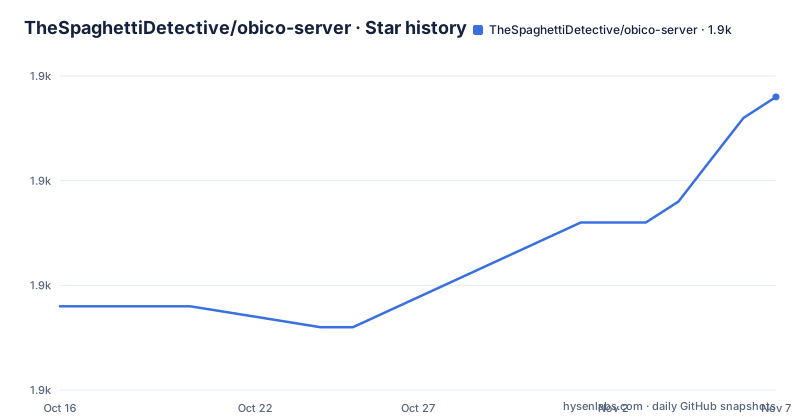
- TheSpaghettiDetective/obico-server1,929 ★ · +10
| Repository | 2026-10-16 | 2026-11-07 |
|---|---|---|
| TheSpaghettiDetective/obico-server | 1.9k | 1.9k |
10 Stars in the last 22 days, measured from the daily GitHub snapshot. Compare with other projects
Editorial analysis
What Obico Server Adds to OctoPrint and Klipper
Obico Server gives makers a self-hosted service for smart 3D printing features, including failure detection based on a Deep Learning model. The project is aimed at makers, enthusiasts, and other tinkerers who already use a printer client such as OctoPrint or Klipper. The README links to public time-lapses for viewing how the failure-detection model works on real print data.
The repository does not present Obico Server as printer firmware or as a substitute for OctoPrint or Klipper. It is a server that those clients must be able to reach. The server provides the Obico application, its web interface, supporting services, and a machine-learning API, while printer-side integration remains with OctoPrint or Klipper.
A self-hosted deployment can use a private LAN address. The machine running OctoPrint or Klipper only needs a route to the Obico Server. Public internet exposure is therefore not a documented requirement of the basic installation. Reverse proxies are mentioned for more advanced network arrangements, but the core configuration is an IP address and the port `3334`.
The project does not document model accuracy, supported failure classes, or hardware requirements for inference. It says an NVIDIA GPU is optional and can increase the number of printers handled, but it provides no benchmark or throughput figures. Detection quality and capacity should therefore be checked against the linked public examples and the project's server guide rather than inferred from the existence of the model.
How Obico Server's Docker Services Connect
The repository layout and `docker-compose.yml` show that Obico Server is a multi-service application rather than one process. The `web` service builds from the `backend` Dockerfile, mounts `backend` at `/app` and `frontend` at `/frontend`, and depends on Redis. It is the principal application tier exposed for browser access.
Its configuration shows that the web application uses a database, Redis, an internal media host, and a separate machine-learning API. The default database is SQLite at `/app/db.sqlite3`, Redis is addressed through `redis://redis:6379`, and the machine-learning API is addressed through `ML_API_HOST`, defaulting to `http://ml_api:3333`. Internal media uses `INTERNAL_MEDIA_HOST`, defaulting to `http://web:3334`. Docker service names therefore form part of the internal network contract.
The Compose file also accepts settings for email delivery, HTTPS behavior, public-site status, CSRF trusted origins, social login, sign-up, Sentry, Telegram, Twilio, Pushover, Slack, and an LLM API. These entries establish that the application has integration points for those services. They do not establish that every integration is complete, enabled, or required for a basic installation. The README links setup instructions for the OctoPrint plugin and mobile app but does not include those complete procedures in the repository page.
A fresh installation is initially reachable only on localhost according to the README. Extending access to a LAN or another host requires the correct Django site identity, while a reverse proxy changes the expected host and port. This network coupling is the architecture's main adoption constraint. Starting the containers alone does not complete printer integration.
Installing Obico Server on Linux
The documented software prerequisites are Docker, Docker Compose V2.0 or higher, and git. The README warns that an old Docker version can cause problems and points users to Docker's installation documentation. An email account with SMTP access is also needed for email delivery, although the quick-start commands do not show the environment variables required to configure it.
On Linux, clone the `release` branch and start the stack as follows:
git clone -b release https://github.com/TheSpaghettiDetective/obico-server.git
cd obico-server && sudo docker compose up -d
The README says initial startup can take 15 to 30 minutes. Once startup is complete, open `http://localhost:3334` on the same computer. The page should be the Obico Server login page. If the browser initially reports that it cannot connect, the README recommends waiting a few more minutes because the web container may still be starting.
The README gives separate startup commands for Mac and Windows using `docker-compose`, while the Linux example uses `docker compose`. The documented Linux sequence is the shortest first run because it does not require changing the Django site before checking localhost.
That local check is important. Moving to a LAN address, cloud VM, or reverse proxy introduces a separate site-configuration stage. Operators should not treat a reachable localhost login as proof that OctoPrint or Klipper on another device can connect.
Configuring the Django Site for Printer Connectivity
For access from another device, first assign or identify the server's LAN IP address. The README recommends a static IP because changing addresses can disrupt client connections. A private address is acceptable, but OctoPrint or Klipper must have a route to it. The server does not need a public IP for the basic LAN deployment described by the project.
Open the Django administration page through the server's address and port:
http://your_server_ip:3334/admin/The documented initial credentials are username `[email protected]` and password `supersecret`. After login, the README describes a user password page at `http://your_server_ip:3334/admin/app/user/1/password/`. Changing the documented initial password is an explicit setup step, especially when the server will be reachable beyond localhost.
Django also stores the site's domain identity. Open `http://your_server_ip:3334/admin/sites/site/1/change/` and set `Domain name` to `your_server_ip:3334`. The value must not include `http://`, `https://`, or a trailing slash. The README specifically warns against deleting the original site and adding a new one because of Django site behavior. Save the existing site record instead.
When a reverse proxy is used, the README says `Domain name` must contain the reverse proxy's IP and port. This makes host, port, proxy path, and Django's stored site identity interdependent. A visually correct browser URL is not enough if Django generates URLs against a different domain.
Building the RK3588 NPU Deployment
The standard deployment does not require accelerator hardware, but the repository documents a separate path for RK3588 boards using NPU acceleration. This path is not interchangeable with the ordinary Linux command without preparation. The required base image is not published on Docker Hub, and its build expects an exact image name.
Build the base image and start the RK3588 Compose overlay with these commands:
cd obico-server
sudo docker build --platform linux/arm64 -f ml_api/Dockerfile.base_rk3588 \
  -t thespaghettidetective/ml_api_base:1.4-rk3588 ml_api
sudo docker compose -f docker-compose.yml -f docker-compose-rk3588.yml up -d --build
The README warns that `--build` matters if the standard deployment was started previously. Both paths use the same image name, so Compose may otherwise retain the existing image and leave the NPU unused. That is a concrete failure caused by image reuse, not merely a performance preference.
The README does not quantify NPU performance or provide a compatibility checklist for individual RK3588 boards. It does show that acceleration is board-specific and tied to `docker-compose-rk3588.yml`. Operators should therefore treat this path as a separate deployment mode. For a generic x86 computer without an NVIDIA GPU, the ordinary Docker Compose deployment is the only path documented in the README.
Upgrade Boundaries, AGPL-3.0, and Operational Gaps
The repository is not archived, and its last push was on 2026-10-16. The repository has no GitHub releases. Because the README instructs users to clone the `release` branch, branch history is the available upgrade reference, but the README does not define a release cadence, version compatibility policy, or migration procedure.
The README does not document rollback, application backups, SQLite backup timing, Redis persistence, production database guidance, or recovery after a failed upgrade. Those omissions matter for a server attached to active printers. An operator cannot infer from the Compose variables alone whether changing `DATABASE_URL`, rebuilding images, or replacing configuration will preserve data and service compatibility.
The repository declares the `AGPL-3.0` license and includes a `LICENSE` file. That is the confirmed licensing fact. This review does not interpret the license's network-service obligations or advise how to modify and distribute Obico Server. Organizations with compliance requirements should examine the repository license through their normal legal process.
Email setup is another operational boundary. The README says Gmail will not work because Google removed support for allowing SMTP access. Yahoo is mentioned as a possible alternative, but the project says it has not tried it. SMTP host, port, username, password, TLS, and sender settings appear in `docker-compose.yml`, yet the README page does not provide a complete email configuration tutorial.
Reverse proxies are supported because the site configuration section names them, but the README does not document the proxy configuration itself. Operators need the linked advanced guide before assuming HTTPS termination, forwarded headers, or external URL behavior is correct.
Self-Hosted Obico Server Versus the Hosted Service
The practical alternative is using the hosted Obico service linked by the project instead of deploying `obico-server`. Both approaches concern the same smart-printing platform, but they divide responsibility differently. Self-hosting places the Docker stack, Django site, printer network route, email settings, and application data under the operator's control.
The hosted option removes the commands to clone the repository, build images, start Compose, edit the Django site record, and maintain SMTP access from the local setup procedure. It also shifts server operation outside the self-hosted machine. This operational distinction is documented clearly enough to compare. The README does not provide information for comparing hosted and self-hosted features, pricing, limits, or failure-detection performance.
For a home maker on the same LAN as OctoPrint or Klipper, the self-hosted route is most relevant when keeping control of the service matters and a computer can remain available to it. A hosted service is more relevant when operating containers and maintaining network configuration is unwanted overhead. Neither choice should be selected solely from the phrase "open source," because the README does not establish whether the hosted service includes every feature present in the server branch.
The first technical check for self-hosting is reachability: confirm that the printer client can route to the server address and port. The first account check is SMTP access. The first upgrade check is whether rebuilding from `release` will affect existing data, because no GitHub releases or rollback procedure are documented.
Editorial conclusion
Obico Server fits operators who want their own smart-printing control plane and can administer Docker, network addresses, email credentials, and persistent application data. It is a poor fit for someone expecting a single installer or assuming that GPU hardware is required. Verify printer-to-server connectivity, SMTP access, and the implications of running from the `release` branch before connecting important printers, because the repository has no GitHub releases and the README does not define rollback procedures.
Frequently asked questions
How do I install Obico Server on Linux?
Install Docker, Docker Compose V2.0 or higher, and git. Clone the `release` branch, run `sudo docker compose up -d`, and allow the documented startup period of 15 to 30 minutes before opening `http://localhost:3334`.
How do I connect OctoPrint or Klipper to a self-hosted Obico Server?
Give the server an address reachable from OctoPrint or Klipper, then set the existing Django site's `Domain name` to `your_server_ip:3334` without a protocol or trailing slash. The README also links separate configuration guides for the OctoPrint plugin and mobile app.
Does Obico Server require an NVIDIA GPU?
No. The README describes an NVIDIA GPU as optional. A separate local image build and `docker-compose-rk3588.yml` are documented for NPU acceleration on RK3588 boards.
Can I use Gmail for Obico Server email notifications?
The README says Gmail will not work because Google removed the option for allowing SMTP access. It mentions Yahoo as a possible provider but also says the project has not tried it.
Where are Obico Server releases and rollback instructions?
The repository has no GitHub releases, and the README does not document a rollback procedure. Its installation instructions clone the `release` branch, so operators must review branch changes and protect existing data before rebuilding.
Official sources
Add this badge to your README
If you maintain this project, the badge below links readers to this analysis and shows its maintenance status from the daily GitHub snapshot. Paste the markdown into your README; add ?metric=license or ?metric=stars to the image URL for a different field.

[](https://hysenlabs.com/projects/thespaghettidetective-obico-server)Star history chart for your README
[](https://hysenlabs.com/projects/thespaghettidetective-obico-server)Was this useful?