Ignite turns Swift components into a static Build folder
A static site generator for Swift developers.
At a glance
- What is it?
- Ignite is a static site generator for Swift developers: you write SwiftUI-shaped components and Markdown files, and a local build writes HTML into a folder called Build. Its component model is genuinely different from a template engine, and so is its install, which clones source and writes into /usr/local/bin.
- Who is it for?
- Ignite suits Swift developers who already work in Xcode and want every page to be a Swift value; it suits nobody who wants a theme, a CMS or a build that runs on Linux. The documented route is macOS with Swift 6.0, a cloned repository, make, and an install into /usr/local/bin that can need sudo.
- Can I use it commercially?
- Yes. MIT is a permissive licence: you can use, modify and sell software built on it, as long as you keep its copyright and licence notices.
- Is it still maintained?
- Yes. The repository last received commits 8 days ago.
- What is it written in?
- Mainly Swift, according to GitHub's language statistics.
Answers come from the project's GitHub data, last synced on October 23, 2026, and from our analysis. They are not legal advice.
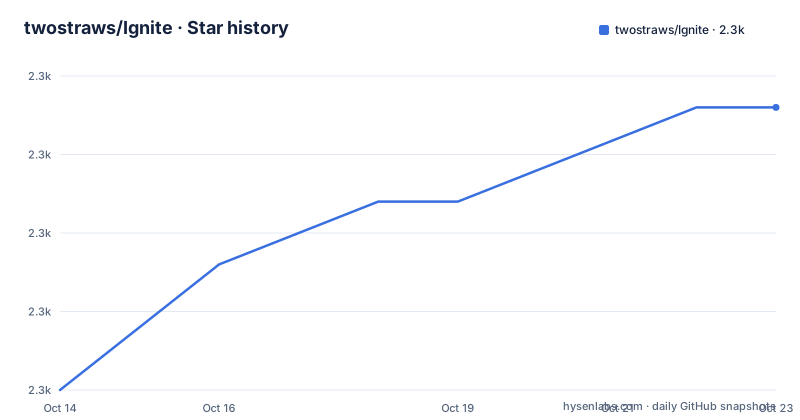
Star history
- twostraws/Ignite2,279 ★ · +9
| Repository | 2026-10-14 | 2026-10-23 |
|---|---|---|
| twostraws/Ignite | 2.3k | 2.3k |
9 Stars in the last 9 days, measured from the daily GitHub snapshot. Compare with other projects
Editorial analysis
SwiftUI-shaped components land as HTML files in Build
Ignite writes static sites from Swift, so the unit of work in a page is a Swift value rather than a template file. Text, Link, Divider and Image are declared the way they would be in a SwiftUI view, and modifiers attach one line at a time. Markdown is not a separate template dialect either, because inline formatting lives inside a component call, and `Text(markdown: "Add *inline* Markdown")` renders it there:
Text("Swift rocks")
    .font(.title1)

Text(markdown: "Add *inline* Markdown")
    .foregroundStyle(.secondary)

Link("Swift", target: "https://www.swift.org")
    .linkStyle(.button)

Divider()

Image("logo.jpg")
    .accessibilityLabel("The Swift logo.")
    .padding()
The project's opening makes its position on what it refuses to be plain, and that position decides what you have to learn. Ignite does not "simply map HTML tags to Swift code", so what you pick up is a component vocabulary rather than HTML nesting. Accessibility is part of the same surface: `.accessibilityLabel` sits on an image the way it would in a native app, which a plain markup generator would not offer.
The output is plain files. `Build` is regenerated every time you build, so nothing important belongs in it, and the documented workflow needs no server to produce the site. A server appears later, and only to look at the result.
Markdown in Content needs a layout or the build warns
Articles take a different route from hand-built views. Markdown files go into `Content` using any subfolder structure, and the build mirrors that tree into `Build` with the `Content` level dropped, so a file named `apps.md` turns into an `apps` folder holding `index.html`:
├── Content
│ └── apps.md├── Build
│ ├── …
│ ├── apps
│ │ └── index.html
│ ├── …That mapping carries a precondition, and it is the first thing a new user runs into. Without a valid layout in place, Ignite issues the warning "Your site must provide at least one layout in order to render Markdown." Layouts come from types you write yourself, and the walkthrough ends at the sentence introducing them, so no shape for a layout type and no way to register one appears anywhere in the setup notes. Article-driven sites, which are the reason most people reach for a static site generator, therefore start life at the least documented corner of the project.
The rest of the folder layout is explicit. `Assets` takes your own subfolders, `Sources` takes the Swift code for the site, and `Includes` takes HTML you have written by hand.
git clone, make, and sudo make install for the CLI
The command-line tool is not downloaded from a registry. It is built from a clone of the repository, then copied into a directory on your path:
git clone https://github.com/twostraws/Ignite
cd Ignite
make
make install
`PREFIX_DIR := /usr/local/bin` in the Makefile decides where that copy lands, which is why a plain `make install` can fail on permissions for an unprivileged account. To choose another location, pass your own directory to the same target:
make install PREFIX_DIR=/my/install/dirWith the tool installed, scaffolding and building a site are two commands:
ignite new ExampleSite
cd ExampleSite
ignite build
The build writes a folder called `Build` next to your sources. Sites are Swift packages that use a fixed folder structure, and the Ignite Starter Template repository already contains it, so a new project begins with those folders rather than an empty directory. Sample code for protocols, elements and modifiers lives in a separate repository called IgniteSamples, which is the quickest way to see what the component set covers before you commit to it.
ignite run --preview starts a server through a copied script
Opening the generated files directly in Finder breaks the page, since a browser loading one file cannot find the stylesheets and JavaScript the rest of the site expects. The documented fix is a local preview server:
ignite run --previewThat opens your browser at the built site, and you refresh it after each Cmd+R build, which is the Xcode build shortcut the setup assumes. How the command reaches a server is never described in the README, but the Makefile shows exactly what sits next to the binary after an install:
install .build/release/IgniteCLI $(PREFIX_DIR)/ignite
install ./server.py $(PREFIX_DIR)/ignite-server.py
chmod +x $(PREFIX_DIR)/ignite
A Swift repository ships `server.py` at its top level, alongside `Package.swift`, `Sources/` and `Tests/`, and the install target copies it into the install directory under a different name. So previewing depends on a second file being installed beside the CLI, the README does not say which interpreter runs it or what happens when it is absent, and only the binary receives the executable bit.
Dropdown, Accordion and CodeBlock go past plain text
Beyond text and links, the component set covers interactive structures. `Dropdown` takes a trailing closure of children and marks itself with `.role(.primary)`. `Accordion` holds `Item` values, each with a label and its own content, and a `startsOpen` flag on the first item sets the initial state. CodeBlock takes a language and a string literal, then highlights source for a dozen languages without a separate highlighter.
Dropdown("Click Me") {
    Link("Accordions", target: AccordionExamples())
    Link("Carousels", target: CarouselExamples())
    Divider()
    Text("Or you can just…")
    Link("Go back home", target: "/")
}
.role(.primary)Accordion {
Item("First", startsOpen: true) {
Text("This item will start open by default.")
}
Item("Second") {
Text("This is the second accordion item.")
}
Item("Third") {
Text("This is the third accordion item.")
}
}
.openMode(.individual)CodeBlock(.swift) { """
struct ContentView: View {
var body: some View {
Text("Hello, Swift!")
}
}
""" }Accordion behaviour is worth reading closely: `.openMode(.individual)` restricts the container to one open item at a time, so the default multi-open behaviour is a switch rather than an accident. Carousels, badges, alerts and tables are named as well, but their code is left to the samples repository.
macOS 14.0 and Swift 6.0 narrow the audience
The badges above the project description set the floor at macOS 14.0 and Swift 6.0, and nothing in the setup describes a Linux route. The preview notes assume Xcode too, telling you to return to it and press Cmd+R after editing, so the documented workflow is a Mac with Xcode and the Swift toolchain already present rather than a self-contained build environment.
Input is narrow as well. The four folders accept Swift code, Markdown posts, hand-written HTML and assets; the README documents no other way to get a page into the output, so anything needing data fetched at build time has to be written by hand. Output is equally plain: files in `Build`, with hosting left entirely to you.
The last push was on 2026-06-18, and the tagged 0.6.3 and 0.6.4 landed on 2026-02-04 and 2026-03-02. Version numbers on this project sit in the 0.x range, where small numbers can still break source compatibility for anyone importing the package, and the README has no upgrade or rollback notes to fall back on.
The install error text and the setup notes disagree
Step 5 of the setup notes answers one question: if the install fails because of permissions, run `sudo make install`. The Makefile answers a different one. Its first failure branch, the one for a missing install directory, prints "Unable to create install directory" followed by "You might need to run `sudo make`" and exits 126, naming no target at all. A user who follows the message runs the default target, which builds the tool and stops, rather than the install target.
The second branch is the one that matches the setup notes: it prints "Installation failed. You might need to run `sudo make install` instead." and only echoes, so make finishes without failing, which means a broken install can pass unnoticed in a script.
There is a third small asymmetry. Only the binary is given an executable bit, and the copied `server.py` is installed without one, even though the preview command is the reason it exists. Two lines of the recipe disagree with each other about the fix for the same failure.
Hand-written HTML in Includes as the alternative path
Ignite itself offers the alternative: skip the component model, put pages into `Includes` as HTML you wrote, keep assets in `Assets`, and serve the folder with anything. What you give up is `.font(.title1)`, `Dropdown`, `Accordion` and inline Markdown in a `Text` call. What you keep is direct control of markup and stylesheets, with no Swift toolchain, no `make`, and nothing written into `/usr/local/bin`. The difference is where page logic lives: components are values in a Swift program that renders files, while `Includes` treats HTML as input rather than output.
That second route suits teams with front-end skills and no appetite for a Swift package. The MIT licence covers the generator's own source and says nothing about the HTML it writes into `Build`, so a site assembled that way carries its own licensing decisions.
For adoption, the deciding question is narrow: does your team already ship Swift code every day? If yes, the component vocabulary costs an afternoon and the Markdown pipeline is worth it once layouts exist. If the answer is no, the same site is faster to build in HTML, and the toolchain Ignite assumes buys nothing.
Editorial conclusion
Ignite suits Swift developers who already work in Xcode and want every page to be a Swift value; it suits nobody who wants a theme, a CMS or a build that runs on Linux. The documented route is macOS with Swift 6.0, a cloned repository, make, and an install into /usr/local/bin that can need sudo. Before adopting it, check the two gaps the project leaves open: the layout type that Markdown output depends on, and the server.py script the install target copies beside the binary for previewing. Ignite is at its best inside an existing Swift shop and at its worst outside one.
Frequently asked questions
What does Ignite need to build a site?
The setup notes assume macOS 14.0 or newer and Swift 6.0 or newer, and they install the command-line tool by cloning the repository, running make, and copying the built binary into /usr/local/bin. Previewing also assumes Xcode, since the documented loop is to press Cmd+R in Xcode and refresh the browser.
How does Ignite turn Markdown files into pages?
Files placed in the Content folder are rendered into the Build folder with the same subfolder structure minus the Content level, so apps.md becomes an apps folder containing index.html. A layout must exist first, otherwise Ignite warns "Your site must provide at least one layout in order to render Markdown."
Can I install the Ignite command-line tool somewhere other than /usr/local/bin?
Yes. The Makefile defines PREFIX_DIR as /usr/local/bin by default, and the documented override is make install PREFIX_DIR=/my/install/dir, which creates that directory and installs the tool there instead.
What is ignite-server.py and why is it installed next to the tool?
The install target copies the repository's server.py into the install directory as ignite-server.py, alongside the ignite binary. The README does not explain how the preview command reaches that script, which interpreter it needs, or what happens if the copy is missing.
Can I use my own HTML inside an Ignite site?
Yes, the Includes folder is for custom HTML you have written yourself, and it is the escape hatch when a page needs markup that no component covers. The other input folders are Assets for files, Content for Markdown posts, Sources for Swift code, and Build, which is deleted on the next build.
How do I see what Ignite components look like before writing a site?
A separate IgniteSamples repository holds sample code covering the protocols, elements and modifiers Ignite provides, and the setup notes also point at the Ignite Starter Template repository for the folder structure a new site expects.
Official sources
Add this badge to your README
If you maintain this project, the badge below links readers to this analysis and shows its maintenance status from the daily GitHub snapshot. Paste the markdown into your README; add ?metric=license or ?metric=stars to the image URL for a different field.

[](https://hysenlabs.com/projects/twostraws-ignite)Star history chart for your README
[](https://hysenlabs.com/projects/twostraws-ignite)Was this useful?