Unidot Importer: translating Unity .unitypackage source assets into Godot 4 resources
Import .unitypackage and other assets designed for Unity Engine as a GDScript addon for vanilla Godot 4.x
At a glance
- What is it?
- Unidot Importer is a Godot 4 addon that reads Unity source assets and translates them into native Godot scenes and resources, with FBX2glTF in the middle for models. It covers meshes, materials, prefabs, animation controllers and terrain, while scripts, shaders, MonoBehaviours and UI still have to be ported by hand.
- Who is it for?
- Adopt Unidot Importer if you are moving a Unity project to Godot 4 and most of your content is meshes, materials, prefabs and animation, since the translation removes the mechanical part of the migration. Skip it if your project leans on MonoBehaviour scripts, custom shaders or Canvas UI, because those are explicitly unsupported and will need manual work regardless.
- Can I use it commercially?
- Yes. MIT is a permissive licence: you can use, modify and sell software built on it, as long as you keep its copyright and licence notices.
- Is it still maintained?
- Yes. The repository last received commits 24 days ago.
- What is it written in?
- Mainly GDScript, according to GitHub's language statistics.
Answers come from the project's GitHub data, last synced on November 7, 2026, and from our analysis. They are not legal advice.
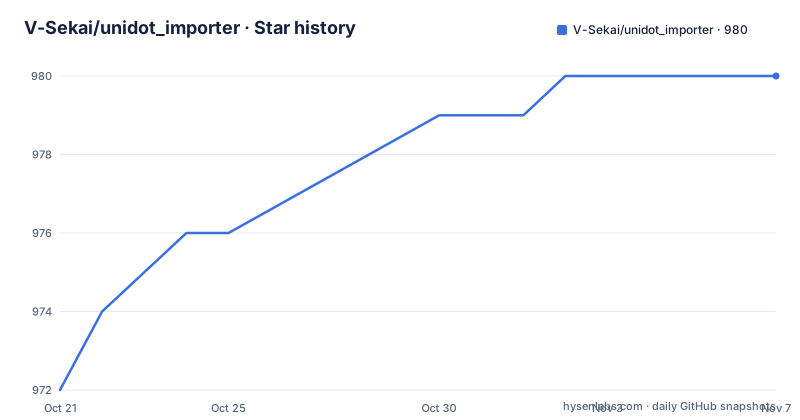
Star history
- V-Sekai/unidot_importer980 ★ · +8
| Repository | 2026-10-21 | 2026-11-07 |
|---|---|---|
| V-Sekai/unidot_importer | 972 | 980 |
8 Stars in the last 17 days, measured from the daily GitHub snapshot. Compare with other projects
Editorial analysis
What Unidot translates and how it differs from a converter
Unidot Importer is a Godot addon that imports .unitypackage assets and other Unity-designed assets for the Godot 4.x engine. The README describes it as a source asset translator and interoperability pipeline, and that word choice is the key to understanding what it does.
It takes original source assets and translates them into Godot native equivalents. A .unity file becomes a .tscn, and a .prefab becomes a .prefab.tscn. Raw mesh, animation and material assets are converted directly into .tres and .res equivalents. FBX files are currently ported to glTF, and the README notes this may be made more flexible in the future.
The practical value is that it works from source rather than from a baked scene. A Unity project can be delivered as a build, and the meshes in that build are the results of a Unity import pipeline you cannot inspect. Unidot goes back to the source assets and translates them, so the Godot side ends up with editable scenes and resources instead of a flat export.
Because it is a translator rather than a permanent dependency, the README states that Unidot may safely be removed from the project when the conversion is complete, with one exception: the file runtime/anim_tree.gd is referenced by scenes and has to be kept even if the rest of the addon is removed.
The audience is a studio or developer porting existing Unity content to Godot, who wants to keep the assets editable afterwards rather than shipping a frozen export.
Installation: the addon path, FBX2glTF and ImageMagick
Installation is a numbered sequence, and three of the steps are external dependencies that are easy to miss.
First, the repository is imported into the project at addons/unidot_importer, either with a git submodule or by unzipping it there. Second, the Unidot Importer plugin is enabled from Project Settings, in the Plugins tab, under Unidot. Third, an installation of FBX2glTF is required from the godotengine FBX2glTF releases page, and its path has to be set in the FBX2glTF.exe path field in the Import category of Editor Settings. The documentation is emphatic that this setting lives in Editor Settings and not in Project Settings, which is the sort of detail that produces a confusing failure when it is set in the wrong place.
Fourth, TIFF and .tif and PSD and .psd support requires ImageMagick or GraphicsMagick to be installed into the system path, or convert.exe copied into the addon directory.
Fifth, the importer is reached from the Project menu, through Tools, then Import .unitypackage, where you select a package or an asset folder.
The version requirements are stated plainly. Please use a version of Godot 4.0 or later with FBX2glTF configured in Editor Settings to run this addon, and the system requirements section adds that Unidot has been tested on Windows, macOS and Linux versions, and currently supports Godot Editor versions 4.0 through 4.2.
That last sentence is a real constraint worth checking against your editor version before you plan a migration around it.
Supported asset types, and the long unsupported list
The README keeps two lists, and the second one is more useful for planning.
Supported types include Mesh, MeshFilter, MeshRenderer and SkinnedMeshRenderer, Material with the standard shader only, Avatar, AnimationClip, the Animator family of AnimatorController, AnimatorState, AnimatorStateMachine, AnimatorTransitionBase and BlendTree, PrefabInstance, scene objects such as GameObject, Transform, Collider, Animator, Light and Camera, Texture2D, CubeMap and Texture2DArray, AssetImporter, AudioClip and AudioSource, Collider and Rigidbody, Terrain with limited support for detail meshes as MultiMeshInstance, and LightingSettings and PostProcessLayer. Both binary and text YAML encoding are supported, and the implementation uses an asset database keyed by GUID.
Unsupported is Shader, where porting must be done by hand, MonoBehaviour for C# script porting, AvatarMask which is waiting for better engine support, Canvas and UI which is not implemented, and PlayableDirector. The list closes with anything not listed above, which is a reminder that an unlisted Unity type is assumed unsupported rather than attempted.
The upstream reality is stated too. Scripts and shaders will need to be ported by hand, however it will be possible to map scripts and shaders to Godot equivalents after porting.
So the realistic split is that a Unity project built mostly from meshes, materials and prefabs converts well, while anything that depends on custom rendering or C# behaviour is manual work in either case. For a material-only shader pipeline, the standard shader restriction is the constraint that matters most.
Humanoid rigs, animation controllers and the one script you cannot delete
Animation is where the translation gets interesting, and where the runtime helper comes from.
Animation and animation tree porting are supported, including the humanoid .anim format, and human armatures are supported including from prefabs, unpacked prefabs and model import. Prefabs and inherited prefabs are translated into native Godot scenes and inherited scenes.
The AnimatorController support relies on a small runtime helper script, unidot_importer/runtime/anim_tree.gd. That is the same file the installation notes tell you to keep even if the rest of Unidot is removed, and it explains why the removal rule is worded the way it is. The scenes that were produced carry a dependency on it, so deleting the addon wholesale leaves a broken reference in the project.
The repository layout backs up the mechanism. There are humanoid/ and skeleton_merge_tool/ directories alongside bone_map_editor_plugin.gd, which is the natural place for a bone mapping tool to live, and vrm_integration.gd for VRM handling. Worker files such as import_worker.gd, meta_worker.gd and thread_worker.gd suggest the import runs work off the main thread where it can, with queue_lib.gd managing that work.
The known issues section is candid about where this still breaks. Models missing UpperChest, Shoulder or Neck bones may animate incorrectly because of a lack of missing bone compensation in Godot's Humanoid retargeter. Unpacked prefabs of humanoid models may malfunction due to retargeting, and while Unidot corrects these cases where it can, some models, especially those with rotated hips and a scaled armature, may malfunction. Non-weight-painted vertices currently go to the skeleton origin rather than the hips, which is bone index 0.
Memory pressure, import order and the editor freezing
The practical guidance for large imports is the part of the documentation you will use most.
On memory, Unidot recommends a system with at least 16GB of RAM for many assets, and says it is uncommon for large imports to take more than 10 to 12GB. Because assets are pre-cached in memory, it is acceptable for some data to be swapped to disk with virtual memory, especially in large imports of thousands of files. The known issues section explains the shape of that consumption: there may be large memory consumption in the earlier phases of the import process, since Unidot pre-parses most assets upfront in the Preprocessing stage, and Godot may read textures from disk while assigning materials.
On freezing, the cause is identified directly. Due to memory constraints, large animation files currently import in the main thread, which could cause Godot to hang or freeze for a long time in animation packs, with a message such as Importing 50 textures, animations and audio. The troubleshooting advice in that situation is to try a smaller import.
On ordering, the guidance is dependency driven: if importing a subset of files, import assets in the correct order, making sure to do materials after textures, and scenes after the models or materials they may need. Using the shift key while selecting assets can ensure you include the needed dependencies.
One more limitation to plan around. Unidot does not indicate clearly when assets are missing GUID references, so models missing referenced data may not import correctly, and reimporting animations after an import can lose the correct track paths because the animations are modified during scene import.
Reading the import logs when something goes wrong
The importer ships with a way to look at what it did, which matters given how many silent failure modes the known issues list contains.
If an import fails, it is possible to view the logs of the most recently completed import, through Project, then Tools, then Show last import logs. The documentation then explains how to use that view: click the yellow or red columns to see all errors in the project, or click a Logs button on a file to see the entire log for it.
There is a caveat about that second path. Clicking the Logs for Assets may take time to collect all logs in the project, but it can be helpful when submitting a bug report, and the Godot console output may also be helpful for the same purpose.
Two other troubleshooting rules are short and practical. It would be good to double check that all dependencies imported, and then try again. And if models in a scene are looking corrupted, it may be due to the scene using unpacked prefabs, in which case replacing them with the original converted .gltf should work.
That last one is a useful hint about how the pipeline works internally. The glTF conversion is the intermediate form, so the .gltf file is the point to compare against when a scene comes out wrong.
Where the project stands and what it depends on
The maintenance picture for Unidot Importer is short and factual. The repository is not archived, the last push was on 2026-10-14, and there are no GitHub releases, so there is no published version to pin to and no upgrade notes to read.
Updates are pointed at the project site unidotengine.org, with documentation at docs.unidotengine.org, and there is a Discord community for support and feedback. The plugin is distributed as a repository you import into your project rather than as a package you install, so keeping it updated means pulling the addon directory again, which is a mild annoyance compared with a versioned dependency in the asset library.
The licence is MIT, with the text in LICENSE.txt at the root of the repository.
The real dependency risk is upstream rather than in the project itself. FBX2glTF, which is used to convert .fbx to .gltf, has some rare bugs, and those would currently affect all FBX imports into Godot Engine. Since every Unity project imports models through that step, a bug there is a bug in your migration, and the importer cannot shield you from it.
One more item to plan around is the editor version range. The system requirements state support for Godot Editor versions 4.0 through 4.2, while the addon itself asks for Godot 4.0 or later. If you are on a newer editor than 4.2, the documentation has not yet claimed support for it.
Editorial conclusion
Adopt Unidot Importer if you are moving a Unity project to Godot 4 and most of your content is meshes, materials, prefabs and animation, since the translation removes the mechanical part of the migration. Skip it if your project leans on MonoBehaviour scripts, custom shaders or Canvas UI, because those are explicitly unsupported and will need manual work regardless. Before importing, configure the FBX2glTF path in Editor Settings rather than Project Settings, install ImageMagick or GraphicsMagick if you use TIFF or PSD textures, and import in dependency order, materials after textures and scenes after the models they reference.
Frequently asked questions
How do I install Unidot Importer in a Godot 4 project?
Import the repository into your project at addons/unidot_importer, using a git submodule or by unzipping it, then enable the plugin in Project Settings under Plugins. Unidot also requires FBX2glTF installed and its path set in the Import category of Editor Settings, and the importer is reached from Project, Tools, Import .unitypackage.
Which Unity asset types can Unidot Importer translate?
Supported types include Mesh and MeshRenderer variants, Material with the standard shader only, Avatar, AnimationClip, the Animator family including AnimatorController and BlendTree, prefabs and inherited prefabs, Texture2D, CubeMap, AudioClip, AudioSource, Rigidbody, Terrain with limited detail mesh support, and LightingSettings and PostProcessLayer. Scripts, shaders, MonoBehaviour, AvatarMask, Canvas UI and PlayableDirector are not supported.
Do I need FBX2glTF and ImageMagick to use Unidot Importer?
FBX2glTF is required, since FBX files are ported to glTF through it, and its path must be set in the Import category of Editor Settings rather than Project Settings. ImageMagick or GraphicsMagick is needed only for TIFF and PSD texture support, either on the system path or by copying convert.exe into the addon directory.
Why does Godot freeze when I import a large animation pack?
Large animation files currently import in the main thread because of memory constraints, which can make Godot hang for a long time with a message such as Importing 50 textures, animations and audio. The documented workaround is to try a smaller import, and to plan for at least 16GB of RAM with around 10 to 12GB typical usage for large imports.
Can I remove the Unidot addon once the import is finished?
Mostly yes, since Unidot is a translator rather than a runtime dependency. The exception is runtime/anim_tree.gd, which is referenced by the converted scenes and has to be kept even if the rest of the addon is removed.
Official sources
Add this badge to your README
If you maintain this project, the badge below links readers to this analysis and shows its maintenance status from the daily GitHub snapshot. Paste the markdown into your README; add ?metric=license or ?metric=stars to the image URL for a different field.

[](https://hysenlabs.com/projects/v-sekai-unidot-importer)Star history chart for your README
[](https://hysenlabs.com/projects/v-sekai-unidot-importer)Was this useful?