Obsidian Outliner for Structured Lists
Work with your lists like in Workflowy or RoamResearch
At a glance
- What is it?
- Obsidian Outliner adds outliner-style list navigation, indentation, folding, selection, and drag-and-drop inside Obsidian. It fits users who want Workflowy-like handling for nested Markdown, but multi-line manipulation remains unsupported.
- Who is it for?
- Obsidian Outliner is a practical choice for Obsidian users who edit nested Markdown lists frequently and prefer outliner controls to ordinary list editing. It is a poor fit for workflows built around multi-line transformations or visual customization outside the built-in Obsidian theme.
- Can I use it commercially?
- Yes. MIT is a permissive licence: you can use, modify and sell software built on it, as long as you keep its copyright and licence notices.
- Is it still maintained?
- Yes. The repository last received commits 1 day ago.
- What is it written in?
- Mainly TypeScript, according to GitHub's language statistics.
Answers come from the project's GitHub data, last synced on November 7, 2026, and from our analysis. They are not legal advice.
Star history
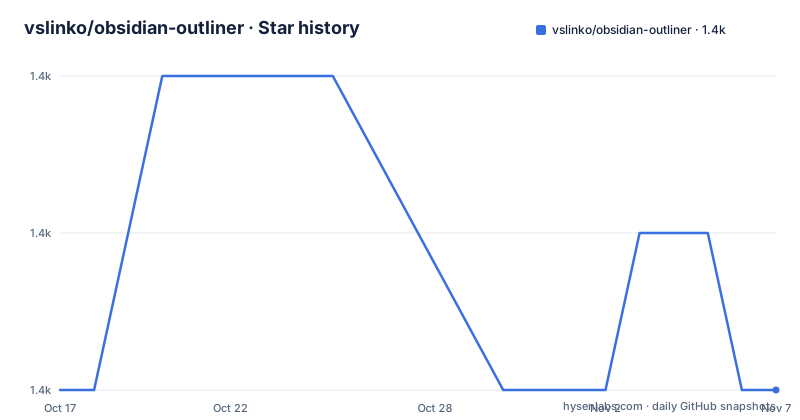
- vslinko/obsidian-outliner1,376 ★ · +0
| Repository | 2026-10-17 | 2026-11-07 |
|---|---|---|
| vslinko/obsidian-outliner | 1.4k | 1.4k |
0 Stars in the last 21 days, measured from the daily GitHub snapshot. Compare with other projects
Editorial analysis
Why Obsidian Outliner Changes Obsidian List Editing
Obsidian Outliner addresses a specific gap in an ordinary Obsidian workflow. Obsidian stores notes as Markdown, but its standard editing behavior does not treat a nested list as a movable outliner unit. The plugin adds commands for moving a list together with its sublists, changing its nesting level, folding it, and selecting either one item or its complete subtree.
The intended audience is stated directly in the README: people who use Obsidian and want list interaction resembling Workflowy or RoamResearch. It does not replace Obsidian or introduce a separate note format. The plugin works with lists in existing vault notes, so it is relevant to research notes, project outlines, meeting notes, and other documents whose meaning depends on hierarchy.
Several behaviors are configurable. List styling, cursor attachment, Enter handling, enhanced Tab behavior, Ctrl+A or Cmd+A selection, drag-and-drop, vertical guides, and debug logging can each be enabled or disabled from the plugin settings. The defaults favor outliner behavior. Tab indentation, cursor attachment, enhanced Enter, subtree selection, and drag-and-drop are enabled by default.
This is a focused editor plugin rather than a general-purpose outlining application. Its scope explains both its usefulness and its boundaries: it changes how people manipulate nested lists, but it does not introduce graph navigation, database views, page references, or collaboration features.
Obsidian Outliner Keyboard and Editor Mechanics
The central mechanism is subtree-aware editing. According to the README, moving a list up or down carries its children with it. Indenting and outdenting likewise apply to the current list and its sublists, rather than moving only the visible line. That distinction matters because ordinary Markdown editing can require repeated changes to keep descendants aligned with their parent.
The plugin also changes Enter behavior. Pressing Enter on an empty item outdents it. When an item has children, Enter creates a new line at the child level. Shift-Enter creates a new note line instead. These rules let users build and leave nested structures without manually reproducing every indentation change.
Cursor handling is another visible editing mechanism. With `Stick the cursor to the content` enabled, cursor movement, deletion, and text selection avoid the bullet position. Selection has two stages: one Ctrl+A or Cmd+A press selects the current list item, while a second press selects the entire list. Folding commands collapse and expand a list with Ctrl plus an arrow on Windows or Linux, and Command plus an arrow on macOS.
The repository is primarily TypeScript and uses Rollup to bundle the plugin into `dist/main.js`. It also contains Jest tests and specification files. The README does not describe the internal editor APIs or exact change algorithm, so the low-level implementation cannot be confirmed from the documentation alone.
Installing Obsidian Outliner Through Community Plugins
The documented in-app installation path is the most direct route for most users. It requires accepting the risk of running a third-party plugin inside the vault. The README also identifies manual installation for users who need to place release files directly.
Within Obsidian, open `Settings > Third-party plugin`, turn off Safe mode, browse the community plugins, and search for `Outliner`. Select `Install`, close the community plugins window, and activate the newly installed plugin. Then open a Markdown note containing a nested list. Press Tab on a list item to indent it, which is a simple first check of the documented outliner behavior.
The plugin does not require a canvas, database view, or separate workspace mode. It changes interaction with list content in the editor. Because several enhancements are enabled by default, users should notice changes for Tab, Enter, selection, and drag-and-drop. If a setting is not wanted, the README lists it in the plugin settings tab and allows that behavior to be disabled.
The README does not document additional environment variables, ports, runtime services, or configuration files for normal use.
Manual Release Installation for an Obsidian Vault
Manual installation uses the files published with the latest GitHub release. The documented destination is the plugin directory inside the target vault. Keeping all three files there matters because `manifest.json` describes the plugin to Obsidian, while `main.js` contains the bundled plugin code and `styles.css` supplies its styling.
The documented file set is:
main.js
manifest.json
styles.css
Place these files in the following vault path:
<vault>/.obsidian/plugins/obsidian-outlinerThe README does not give a shell command for creating the directory, downloading files, or reloading Obsidian, so none is invented here. After placing the files, use Obsidian's plugin interface to enable `Outliner`. This approach is better when community plugin discovery is unavailable or when an administrator controls plugin files. It also transfers responsibility for selecting the correct release and keeping the three files synchronized.
Obsidian Outliner Appearance and Debug Boundaries
The visual enhancements are optional but constrained. `Improve the style of your lists` is enabled by default, while `Draw vertical indentation lines` is disabled. The default click action for a vertical indentation line is `Toggle Folding`. Both list styling and vertical guides are documented as compatible only with the built-in Obsidian theme. That is an important adoption boundary for anyone using a separate community theme.
A theme may still allow keyboard commands to function, but the README does not promise visual compatibility. It also does not explain whether every style can be reproduced through custom CSS. Users who depend on non-built-in presentation should inspect the interaction in their own theme.
The README states compatibility with the `Obsidian Zoom plugin`. It does not explain the nature or version range of that integration, so the confirmed claim is limited: the two plugins are intended to coexist, but every supported combination is not documented.
The plugin also exposes `Debug mode`, disabled by default. When enabled, the README directs users to Obsidian DevTools through Command+Option+I on macOS or Control+Shift+I elsewhere and copy the debug logs. The README does not specify the log format or a support workflow.
Where Obsidian Outliner Falls Short
The clearest documented limitation is multi-line manipulation, which appears under unsupported features. The README links that limitation to issue 3 but does not describe a workaround. Users whose core workflow depends on moving, indenting, outdenting, or transforming several selected list lines as a unit should confirm that the missing behavior does not block their process.
Other boundaries are narrower but relevant. The plugin is for Obsidian and does not offer a standalone interface according to the README. Its visual improvements target the built-in theme. The documentation does not describe undo guarantees, conflict handling for synchronized vaults, database integration, or compatibility with every Obsidian plugin. It would be incorrect to assume any of those capabilities from the shortcut-oriented feature list.
A real alternative is Obsidian's normal list editing with community plugins that operate on selected Markdown text or editor transactions. The difference is scope: that approach applies a transformation to an exact selection, while Outliner exposes commands around a current item and its sublists. A second alternative is a dedicated outliner such as Workflowy or RoamResearch, the applications named by the README. Those products center on their own outlining workspaces, whereas Obsidian Outliner remains inside an Obsidian vault and its notes. The trade-off is direct: Obsidian context and Markdown storage versus a separate outliner application.
Obsidian Outliner Release and Maintenance Signals
The repository was last pushed on 2026-06-27. Recent releases include version 4.10.2 on 2026-06-27, version 4.10.1 on 2026-05-27, and version 4.10.0 on 2026-02-24. The package version in `package.json` is 4.10.2. These are release and maintenance signals, but the README does not publish a support policy or compatibility matrix for Obsidian releases.
For contributors, the package scripts separate development from validation. `npm run dev` starts Rollup in watch mode with the test configuration. `npm run build` produces the ordinary bundle, while `npm run build-with-tests` includes tests in the Rollup configuration. `npm run lint` checks formatting and ESLint rules for `src`, and `npm test` runs Jest with `--forceExit`. The project also provides narrower unit and test-related scripts, but installing the plugin does not require a Node.js workflow.
The project uses the MIT license. Users should review the actual `LICENSE` file and comply with its conditions. The license does not by itself establish compatibility with a particular Obsidian version, theme, or vault configuration.
Editorial conclusion
Obsidian Outliner is a practical choice for Obsidian users who edit nested Markdown lists frequently and prefer outliner controls to ordinary list editing. It is a poor fit for workflows built around multi-line transformations or visual customization outside the built-in Obsidian theme. Before adoption, verify keyboard behavior in a representative vault, confirm compatibility with any theme or companion plugin you use, and check how the enabled defaults affect existing notes.
Frequently asked questions
How do I install Obsidian Outliner?
Open `Settings > Third-party plugin`, turn off Safe mode, browse community plugins, search for `Outliner`, and install it. Close the community plugins window and activate the plugin.
How do I create a nested list with Obsidian Outliner?
Place the cursor in a list item and press Tab to indent it. After it has children, Enter creates a new line at the child level, and Shift-Enter creates a new note line.
Does Obsidian Outliner support multiple themes and multi-line editing?
Its list styles and vertical indentation lines are documented as compatible only with the built-in Obsidian theme. Manipulation with multiple lines is listed as unsupported.
Official sources
Add this badge to your README
If you maintain this project, the badge below links readers to this analysis and shows its maintenance status from the daily GitHub snapshot. Paste the markdown into your README; add ?metric=license or ?metric=stars to the image URL for a different field.

[](https://hysenlabs.com/projects/vslinko-obsidian-outliner)Star history chart for your README
[](https://hysenlabs.com/projects/vslinko-obsidian-outliner)Was this useful?