WinDirStat: the Windows disk analyzer that treats deletion as a separate step
WinDirStat is a disk usage statistics viewer and cleanup tool for Microsoft Windows
At a glance
- What is it?
- A C++ treemap disk analyzer for Windows with seven views, hash based duplicate detection, and cleanup actions that are wired to Windows maintenance tools rather than guessing what is safe.
- Who is it for?
- WinDirStat is at its best when a drive has become a mystery rather than when you want a single number, since the treemap and the largest-files view find the problem in seconds and the duplicate view with hardlink deduplication stops you deleting the same bytes twice. It is the wrong tool if you want cross-platform analysis or a scheduled report, because the compatibility list stops at Windows Server 2025 and nothing here runs elsewhere.
- Can I use it commercially?
- Yes, with conditions. GPL-3.0 is a copyleft licence: if you distribute software that includes it, you must release that software's source code under the same licence. Running it internally without distributing it does not trigger that obligation.
- Is it still maintained?
- Yes. The repository last received commits 1 day ago.
- What is it written in?
- Mainly C++, according to GitHub's language statistics.
Answers come from the project's GitHub data, last synced on October 22, 2026, and from our analysis. They are not legal advice.
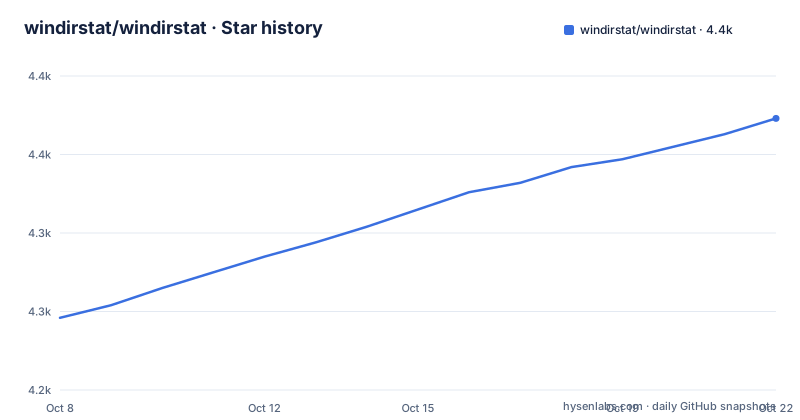
Star history
- windirstat/windirstat4,373 ★ · +127
| Repository | 2026-10-08 | 2026-10-22 |
|---|---|---|
| windirstat/windirstat | 4.2k | 4.4k |
127 Stars in the last 14 days, measured from the daily GitHub snapshot. Compare with other projects
Editorial analysis
Scanning reaches beyond drive letters, and the views come first
The README describes WinDirStat as a disk usage analyzer and cleanup assistant for Microsoft Windows, and the first thing to notice is how many things count as a scan target: local drives, selected drives, individual folders, and command-line targets. The scan controls include refresh, suspend, resume, stop, fast NTFS scanning, multithreading, and elevated privilege support. That combination matters on a real machine, where the drive you actually need to understand is often one you cannot read without administrator rights.
What the scan produces is three views rather than one, and they answer different questions. There is a sortable directory tree for structure, an extension and type breakdown for seeing which category of file owns the space, and the interactive treemap where larger files and folders take up larger areas. On top of those sit All Files, Largest Files, Duplicate Files, Search Results, File Watcher, Extension, and Treemap views, which is a lot of surfaces for one scan, and the distinction matters: the tree and treemap tell you where the space went, the duplicate view tells you whether you have any reason to keep it.
The details pane is unusually wide. Sortable columns include logical and physical size, percentages, item counts, attributes, owner, modified time, free and unknown space, hardlinks, and hash prefixes. Free space and unknown space being visible columns is a small design decision with real consequences: it stops the tool from silently reporting a disk as fuller than it is when something is unaccounted for. Logical versus physical sizing is available throughout, and given that the treemap can be configured to render in either style, the two numbers can also be shown differently in different parts of the interface.
There is a file watcher recording created, deleted, modified, and renamed events, so you can leave a scan running while you work and see what a build actually writes. Scans can be saved and reloaded, and there is CSV import and export, duplicate CSV export, and command-line CSV workflows, which is the route to putting this in a report rather than reading it off a screen.
The treemap can render as KDirStat or SequoiaView, and the README admits it
Most disk analyzers made after 2004 invented a treemap or borrowed one. WinDirStat's own documentation is straightforward about the lineage: the treemap view has configurable KDirStat or SequoiaView styling. Those are two older and better-known Windows disk analyzers, and the option exists so you can pick whichever one you already have muscle memory for, with extension labels in the tiles.
Navigation is the part that decides whether a treemap is usable or decorative. The README lists zooming, parent and child reselection, and navigation that lets you move between a parent directory and the child you clicked into. Without that last part a treemap is a picture, because the only way to drill in is to lose your place at the top level. It also lists logical or physical sizing as a toggle, which is the setting that changes what the picture means on a drive full of sparse files or compressed NTFS volumes.
If you have used KDirStat or SequoiaView, the practical advice is to pick that mode and stop thinking about it. If you have not, the defaults are fine and the styling choice is close to cosmetic.
The comparison question is worth answering plainly, because people ask it constantly. The README does not benchmark itself against other analyzers and makes no claim of being fastest. What it does document is scope: a graphical duplicate finder and file watcher in the same window as the map, plus cleanup actions wired into Windows maintenance tools. Whether that is better than a faster tool depends on whether you want the actions as much as the map.
Duplicate detection hashes files, and it knows about hardlinks and cloud files
Duplicates are found by hash, and the algorithm is configurable rather than fixed. The surrounding safeguards are the part that separates this from a naive implementation. Cloud-file safeguards exist because a synced folder can hold placeholders that look like files but are not what they seem, and hardlink deduplication exists because counting the same bytes once per link is how a duplicate report becomes an instruction to destroy your system. NTFS hardlinks show up as a visible column in the details pane, which means you can see the situation before acting on it.
Filtering runs alongside detection, and the filters are specific: regular expressions, path and name filters, size filters, and reparse-point exclusions. Reparse-point exclusion is the one to understand. Junctions, symlinks, and OneDrive-style reparse points can create apparent duplication, because the same content is reachable through more than one path. A tool that does not exclude them will happily report a match that is not a duplicate.
Actions are available directly from the interface, and they cover more than deletion. You can open items, copy paths, select in Explorer, invoke the Explorer context menu, open Command Prompt or PowerShell at the current location, move files, show properties, delete files, and empty folders or the Recycle Bin. Moving rather than deleting, from a map where you can see the surrounding context, is the safer habit the interface is nudging you toward.
On what is safe to delete, the honest answer is that WinDirStat shows you and does not decide for you. It ships shortcuts for Disk Cleanup, Programs and Features, DISM, shadow copies, defrag, CHKDSK, VHDX optimization, hibernate files, user profiles, Mark-of-the-Web tags, sparse files, and NTFS compression, and it supports user-defined cleanup actions. Anything under a user profile or in a shadow copy list needs a judgement call that a size breakdown cannot make for you. What the tool gives you is a correct picture and a set of actions, in that order.
Package managers first, then seven ways to download the same binary
The README puts package managers ahead of everything else, on the grounds that it also makes future updates easier, and it lists the Microsoft Store, winget, chocolatey, and scoop:
winget install -e --id WinDirStat.WinDirStat
choco install windirstat
scoop install extras/windirstat
Each of those three has a matching upgrade command, so the install decision and the update decision are the same decision:
winget upgrade
choco upgrade windirstat
The scoop route needs `scoop bucket add extras` first, which is the one small piece of friction in an otherwise uniform set.
For everyone else the README documents seven download shapes in a table, and the guidance for the undecided is to take the 64-bit MSI installer. The table distinguishes the Store app, x64, ARM64, and x86 MSI installers, an MSIX bundle for Windows App Installer or Store-style deployment that can carry packages for several CPU types and let Windows pick, plus a zip and a 7z archive for portable use. The 7z entry notes it is usually a smaller download if you already have 7-Zip, and the zip entry notes you extract first and then run the executable for your CPU type. ARM64 support is called out for newer Surface devices and other Snapdragon based laptops, which is the least common thing about a 32-bit-era utility to have kept current.
The download section exists because of a specific problem, and the README names it plainly: the project's popularity has led to unofficial websites that copy the project's name, branding, or downloads, which are not operated by the team, may offer outdated or modified files, and may expose users to malware. That is a good reason to prefer a package manager over typing the name into a search box, and it is worth taking seriously given how much damage a modified disk cleanup utility could do.
The license is GPL v2 and the README rules out changing that
The application is distributed under the terms of the GPL v2, and the README adds a note that reads more like a warning than a license clarification: you are not at liberty to upgrade the GPL version to anything later than v2 at this moment. The repository metadata agrees on GPL-2.0, and the tree holds a `LICENSE.md` alongside a per-application license at `windirstat/res/license.txt`.
GPL v2 is older and stricter in some respects than v3, and the practical consequence is that any distributed derivative carries the same obligations with no dual-licensing escape hatch. The README also says parts of the source code are available under more lenient terms, without saying which parts in the sections available, so if you need to vendor a piece of WinDirStat into something closed, that is a question for the team rather than something the README settles. The logo and its derivatives are under Creative Commons CC BY 3.0, which is the sort of detail that trips up people rebranding a screenshot.
The repository itself is small. The tree contains `windirstat/`, a `setup/` directory, `tests/`, `build.cmd`, and `windirstat.sln`, plus `CHANGELOG.md` and `CONTRIBUTORS.md`. A single Visual Studio solution with a batch build script and a visible tests directory is the shape of a project whose complexity is in the Windows APIs it calls rather than in a large internal architecture. If you want to read the code, the size is manageable. The C++ codebase, 4,110 stars, 255 forks, and 36 open issues round out the picture, and that last number is low enough to suggest the issues get closed.
The project's stated scope is Windows only. The README sends you to the website for background on WinDirStat and for alternative versions on other operating systems, which is a polite way of saying they are not in this repository.
Two beta tags in a week, one stable tag, and a fixed compatibility list
The release cadence is visible in the tags. There are two betas a few days apart, `beta/v2.8.6/2026-09-16` and `beta/v2.8.7/2026-09-20`, against one stable tag, `release/v2.8.0`, published 2026-08-02. Both beta bodies are the same three lines: Release Candidate, and a pointer to the change log for included changes. No feature list is written in the release notes themselves, so if you are deciding whether to run a beta, the answer lives in `CHANGELOG.md`.
The stable release at least documents its own downloads in detail, with a table of direct links and versioned download URLs covering the x64, x86, and ARM64 installers, the portable zip, and a generated downloads block. So the release notes for the version you are considering tell you where to get it, and the change log tells you what changed in it. Those are separate jobs and both exist.
The compatibility list is fixed and worth reading before you install on anything unusual. WinDirStat 2.x has been developed for and tested on Windows 7, 8, 8.1, 10, and 11, plus Windows Server 2008 R2, 2012, 2012 R2, 2016, 2019, 2022, and 2025. The README is careful with the boundary: it may work on older or newer operating systems, but those systems are not supported. Windows Server 2025 in that list is the useful signal, since it is recent enough to show the code is being kept current against new Windows releases rather than merely compiling.
The rest of the feature surface is small polish that tells you what kind of project this is: dark mode, portable settings, Explorer context-menu integration, localization, locale-aware formatting, configurable columns, larger toolbar icons, and high-DPI aware UI behaviour. Locale-aware formatting in particular suggests a user base outside the English-speaking Windows default, which matches the presence of a blog and an active subreddit alongside the GitHub releases.
Editorial conclusion
WinDirStat is at its best when a drive has become a mystery rather than when you want a single number, since the treemap and the largest-files view find the problem in seconds and the duplicate view with hardlink deduplication stops you deleting the same bytes twice. It is the wrong tool if you want cross-platform analysis or a scheduled report, because the compatibility list stops at Windows Server 2025 and nothing here runs elsewhere. Install it with `winget install -e --id WinDirStat.WinDirStat` rather than a manual download, both because updates then arrive on their own and because the project has a documented problem with lookalike sites. The stable line is 2.8.0 from 2026-08-02 with beta 2.8.7 published 2026-09-20, and the last push was 2026-09-23, so the change log is where the current feature set is actually described.
Frequently asked questions
What is WinDirStat used for?
It is a disk usage analyzer and cleanup assistant for Windows. It scans local drives, selected drives, folders, or command-line targets, then presents the result as a sortable directory tree, an extension and type breakdown, and a treemap where larger files take up larger areas.
Is there anything better than WinDirStat?
The README makes no comparison against other analyzers and claims no speed advantage, so there is no published basis for declaring a winner. What it documents is scope: a treemap with KDirStat or SequoiaView styling, hash based duplicate detection with hardlink and cloud-file safeguards, a file watcher, and shortcuts into Windows maintenance tools.
What is safe to delete in WinDirStat?
The tool shows you and does not decide for you. It offers shortcuts for Disk Cleanup, DISM, shadow copies, hibernate files, user profiles, and NTFS compression, plus user-defined actions, but anything inside a user profile needs your own judgement. Hardlink deduplication and cloud-file safeguards exist to stop the duplicate view sending you after files that are not really duplicates.
How to use WinDirStat to clean up a C drive?
Scan the system drive, then work through the Largest Files and Duplicate Files views rather than the treemap alone, filtering by size, path, or extension with regular expressions if needed. Windows cleanup shortcuts for Disk Cleanup, DISM, shadow copies, and hibernate files are built into the interface, and you can move files instead of deleting them while you still have the map in view.
Official sources
Add this badge to your README
If you maintain this project, the badge below links readers to this analysis and shows its maintenance status from the daily GitHub snapshot. Paste the markdown into your README; add ?metric=license or ?metric=stars to the image URL for a different field.

[](https://hysenlabs.com/projects/windirstat-windirstat)Star history chart for your README
[](https://hysenlabs.com/projects/windirstat-windirstat)