Audio loudness, integer labels, and every cut Auto-Editor makes for you
Effort free video editing!
At a glance
- What is it?
- A Nim command line cutter that turns audio loudness into an integer label for every moment, removes the quiet stretches, and hands the result to Premiere Pro, Resolve or Kdenlive. Its reach and its ceiling come from the same fact: one threshold decides the whole file.
- Who is it for?
- Auto-Editor earns a place in a screencast or talking-head pipeline where one loudness threshold matches the footage, and it hands Premiere Pro, Resolve, ShotCut or Kdenlive the boring removals for nothing. It is the wrong tool when silence is not what you want removed, or when joins need audio to blend across them.
- Can I use it commercially?
- Yes. Unlicense is a permissive licence: you can use, modify and sell software built on it, as long as you keep its copyright and licence notices.
- Is it still maintained?
- Yes. The repository received new commits within the last day.
- What is it written in?
- Mainly Nim, according to GitHub's language statistics.
Answers come from the project's GitHub data, last synced on November 14, 2026, and from our analysis. They are not legal advice.
Star history
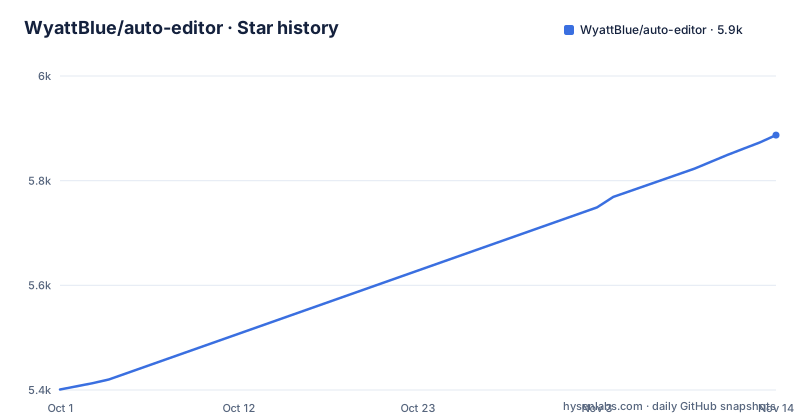
- WyattBlue/auto-editor5,887 ★ · +486
| Repository | 2026-10-01 | 2026-11-14 |
|---|---|---|
| WyattBlue/auto-editor | 5.4k | 5.9k |
486 Stars in the last 44 days, measured from the daily GitHub snapshot. Compare with other projects
Editorial analysis
Every moment gets an integer label, and loudness picks which ones are cut
Auto-Editor's first pass is a classification problem stated in two integers. Every moment in the timeline gets an integer label: `0` is silent and cut by default, `1` is active and kept. What assigns the label is `--edit`, and out of the box the README gives that option as `--edit audio:threshold=0.04,stream=all`. A moment lands on 0 or 1 by comparing its measured audio level against 4 percent loudness, across all streams at once.
That is the whole engine the documentation describes. There is no classifier, no speech model, no content awareness in it: one number, one comparison, one label. Motion is the second measurement on offer and it works the same way.
# cut out sections where the total motion is less than 2%.
auto-editor example.mp4 --edit motion:threshold=0.02
Video editors think in decibels, so the same option accepts a `dB` spelling, and the unit is case-sensitive.
auto-editor example.mp4 --edit audio:-19dB
auto-editor example.mp4 --edit audio:-7dB
auto-editor example.mp4 --edit motion:-19dB
Reading the timeline as integers is what lets methods stack. Two different editing methods go into one `--edit` argument through an `or` expression such as `"(or audio:0.03 motion:0.06)"`. `threshold` is always the first argument inside an edit-method object.
One threshold moves every cut in the file at once
Nothing in the CLI gives you a per-cut decision. `--edit` sets one boundary and it applies to the whole file, so the same 4 percent that cleanly removes pauses in a screencast will leave a music-backed video untouched and will eat the quiet syllables in a noisy room. The tool cannot tell those three files apart, because the comparison it makes is identical in all of them. No noise floor estimate and no separate handling for speech over music appears anywhere in the documentation.
`--margin` is the only other dial, and it does not help with detection at all. It pads each cut after the fact, which is a different problem.
The consequence for the reader is that tuning is empirical. You raise the threshold until real speech starts disappearing, lower it until pauses come back, settle somewhere between, and every round costs a full pass over the source file. On a long recording that is a loop with no shortcut, and no preview mode is documented for it. The inverted export described later is the closest thing to one.
Margin adds silence back, it does not soften the join
`--margin` adds in some silent sections to make the editing feel nicer. That is the entire mechanism: it lengthens the gaps between kept segments and leaves the audio untouched at the boundary itself. No crossfade or fade control is documented, and `auto-editor --help` and the All the Options article are the pointers given for the full option list.
# Add 0.2 seconds of padding before and after to make the edit nicer.
# `0.2s` is the default value for `--margin`
auto-editor example.mp4 --margin 0.2sec

# Add 0.3 seconds of padding before, 1.5 seconds after
auto-editor example.mp4 --margin 0.3s,1.5sec
Two shapes, and the second is the interesting one. `0.2sec` applies to both sides. The pair form gives padding before and after separately, which is how you treat the gap in front of a word differently from the gap behind it.
What you cannot buy here is a cleaner join. If the level shifts or clicks at a boundary, padding only moves that artefact further from the nearest word. On talking-head audio nobody hears it. On footage that was already cut once and re-exported, the output inherits every join it started with, and `--margin` repairs none of them.
Labels above 1 turn one threshold into an action table
Two classes are the common case. The documented escape hatch goes higher: `--edit:N` defines class N and `--when:N` sets what happens to it, with N up to 255, and where classes overlap the higher label wins. Here class 2 is loud speech and the action for class 2 is a speed increase.
auto-editor example.mp4 --edit:2 audio:-12dB --when:2 speed:1.5The same flag takes two extremes when read as a value rather than a label: `--edit 1` keeps everything and `--edit 0` cuts everything. Neither is a caption. Both work as an upper and lower bound when you are checking whether a threshold did anything at all.
Per-track attributes belong to the same expression language, and that matters for anything with more than one audio stream.
# Different tracks can be set with different attribute.
auto-editor multi-track.mov --edit "(or audio:stream=0 audio:threshold=10%,stream=1)"
The parentheses, the `or` and the commas are part of the grammar, and the README quotes the whole argument for that reason. Expect to quote it the same way on any shell.
Where to get the binary, and the single argument that starts the first pass
The README carries no installation command. It links to https://auto-editor.com/installing and leaves it there. The repository layout explains what you would be installing: `ae.nimble` is the package manifest at the root, with `config.nims`, `src/`, `patches/`, `resources/`, `scripts/` and `docs/` around it, and the primary language is Nim. The one install-shaped line in the README is for the project's skills rather than the binary.
npx skills add WyattBlue/auto-editorThe first real run takes one argument, a path to the file.
auto-editor path/to/your/video.mp4No flag means the default, `--edit audio:threshold=0.04,stream=all`, so the first pass removes the quiet stretches and keeps everything above the threshold. If the output comes back unchanged, that is the threshold talking rather than a broken command: raise it until pauses start disappearing.
Two entry points sit outside the command line. The project can be run in a browser at https://app.auto-editor.com/online, and an application can be downloaded from https://app.auto-editor.com/download. Both draw on assets in this repository under the Unlicense, and their own assets sit under a separate proprietary licence.
Exports move the decision to an editor who can hear the take
`--export` writes an interchange file instead of cutting. XML for Adobe Premiere Pro is one target, the same flag writes files for DaVinci Resolve, Final Cut Pro, ShotCut and Kdenlive, and `--export clip-sequence` writes the kept footage as individual clips.
auto-editor example.mp4 --export premiereThat handoff is the real comparison to make. Editing by hand in Premiere Pro or Resolve means one person decides each cut while listening to the take, with room to move it afterwards. A threshold makes the same decision once for every moment in the file and cannot be argued with locally. Neither is better. They absorb mistakes differently: a person absorbs one bad cut, a global number absorbs every bad cut at once.
Before trusting a pass, one export is worth running. Setting `--when-active cut` and `--when-inactive nil` reverses the usual defaults, so you get exactly the footage the tool wanted to remove instead of what it kept.
auto-editor example.mp4 --when-active cut --when-inactive nilReading that file beats re-running with different numbers to discover what the threshold caught.
Public domain source, while release binaries carry their own terms
The repository sits under the Unlicense: the README puts everything in it under the Public Domain, and the LICENSE file is at the root. Two caveats survive that. Binary artifacts in the Releases section may be under various open source licences rather than the Unlicense, so a downloaded executable is not the public domain thing the source is. The online runner and the downloadable application use their own assets under a separate proprietary licence, which is a second reason to read what you install instead of assuming.
Activity is plain in the dates. The latest release is 31.8.0 from 2026-10-30; before it, 31.7.2 went out on 2026-10-03, the same day as the last push, and 31.7.0 on 2026-10-02. A project shipping patch versions days apart is one where automation should pin the version it was written against, and CHANGELOG.md at the repository root is where the differences between two of those tags get written down.
Editorial conclusion
Auto-Editor earns a place in a screencast or talking-head pipeline where one loudness threshold matches the footage, and it hands Premiere Pro, Resolve, ShotCut or Kdenlive the boring removals for nothing. It is the wrong tool when silence is not what you want removed, or when joins need audio to blend across them. Before adopting it, run the inverted export, `--when-active cut --when-inactive nil`, over one representative file and read every segment the threshold decided to drop.
Frequently asked questions
How do I install Auto-Editor?
The README links to https://auto-editor.com/installing for installation and gives no package manager command of its own. The one install-shaped command it does show is `npx skills add WyattBlue/auto-editor`, which adds the project's skills rather than the binary. The binary is built from this Nim package, whose manifest `ae.nimble` sits at the repository root.
How do I use Auto-Editor?
Point it at a file: `auto-editor path/to/your/video.mp4`. With no other flag it runs `--edit audio:threshold=0.04,stream=all`, so the first pass cuts out the dead space. Change the cut with `--edit`, the padding with `--margin`, and the output format with `--export`.
What is Auto-Editor?
A command line application for editing video and audio, written in Nim, that finds dead space by analyzing methods such as audio loudness and removes it. Its repository is under the Unlicense, which the README describes as the Public Domain.
What is the Auto-Editor app?
Two things sit outside the command line: an online runner at https://app.auto-editor.com/online and a downloadable application at https://app.auto-editor.com/download. Both use assets from this repository under the Unlicense, while their own assets are under a separate proprietary licence.
Official sources
Add this badge to your README
If you maintain this project, the badge below links readers to this analysis and shows its maintenance status from the daily GitHub snapshot. Paste the markdown into your README; add ?metric=license or ?metric=stars to the image URL for a different field.

[](https://hysenlabs.com/projects/wyattblue-auto-editor)Star history chart for your README
[](https://hysenlabs.com/projects/wyattblue-auto-editor)Was this useful?