The cleanup tool scans a whole system drive, and the clipboard watcher records what you copy
A multi-function toolbox desktop app, open-source edition: all-in-one processing for audio/video, images, PDF and AI.
At a glance
- What is it?
- A Windows file workbench with sixty-eight tools across twelve categories, plus a command line and an MCP surface, released as a single version number across four components. Three of its features deserve a careful read before anyone installs it: a large-file cleaner that walks a system drive, a clipboard history recorder, and a seventeen-module crypto section inside a general-purpose toolbox.
- Who is it for?
- This is a broad Windows toolbox with a real local-first posture, and the things that make it usable are the small ones: stale asynchronous results are dropped rather than written into a new session, external binaries are reused when they are already on the machine, and the release carries checksums. Three checks before you install it.
- Can I use it commercially?
- Yes. MIT is a permissive licence: you can use, modify and sell software built on it, as long as you keep its copyright and licence notices.
- Is it still maintained?
- Yes. The repository received new commits within the last day.
- What is it written in?
- Mainly JavaScript, according to GitHub's language statistics.
Answers come from the project's GitHub data, last synced on November 15, 2026, and from our analysis. They are not legal advice.
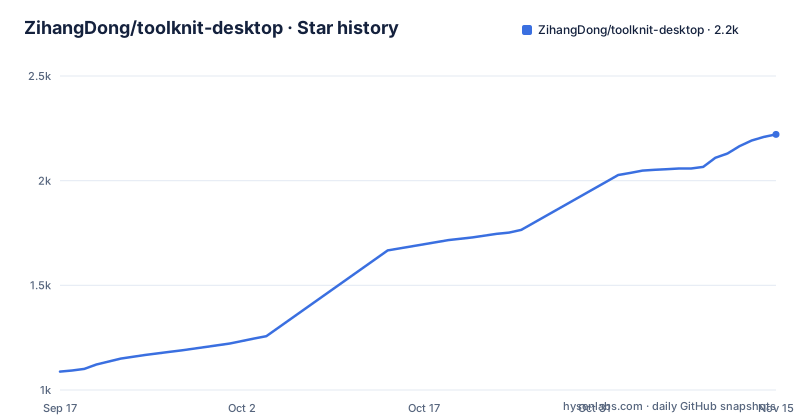
Star history
- ZihangDong/toolknit-desktop2,221 ★ · +1,133
| Repository | 2026-09-17 | 2026-11-15 |
|---|---|---|
| ZihangDong/toolknit-desktop | 1.1k | 2.2k |
1,133 Stars in the last 59 days, measured from the daily GitHub snapshot. Compare with other projects
Editorial analysis
The cleaner walks a system drive, and re-checks before deleting
The 3.0 release added what it calls a safety boundary for cleanup, and it is worth reading in the project's own terms rather than in summary. Large-file cleanup can scan a directory or an entire system drive. It excludes protected system directories, links, and files carrying system attributes, and it re-validates before deleting rather than trusting the scan result from minutes earlier. System-drive cleanup presents caches grouped by risk level rather than as one flat list. And the page says something most tools do not: the scan results still need a human to look at them, and the protection rules cannot replace personal judgement. That last sentence is the one to hold on to. Nothing here makes the feature safe, and the sensible order is a directory first, then a drive, with a backup you have actually tested restoring.
The clipboard watcher records copies made after you enable it
A new feature monitors the Windows clipboard and records what you subsequently copy: text, PNG images, and file paths, kept on a timeline with search, filtering, favourites and image preview, encrypted locally. Two boundaries are stated. It does not import the history the operating system already keeps behind its own shortcut, so nothing predating the app is swept in. And monitoring stops when the program exits. So the exposure is bounded in time, which is the right shape for the feature, but it is still a continuous recorder of your clipboard running in the background for as long as you leave it on, and it will pick up anything you copy, including a password you copied from a manager. That is a decision about defaults worth making yourself rather than inheriting.
Forty-six automation capabilities against sixty-eight tools
The headline numbers are two counts that do not agree. Sixty-eight desktop tools, twelve categories, and forty-six command line and MCP capabilities. The catalogue section explains the gap: a tool's command line and MCP surface is provided after that tool matures, sharing the same input and output contract. So a third of the product has no automation path yet, and the ones that do are the ones a script can rely on. That ordering is defensible for a project shipping both a window and an agent surface, since the contract is harder to keep stable than the button. It also means the MCP count is a moving target rather than a contract, so an agent integration built today will need rechecking when more tools are promoted.
Every external program is downloaded on demand
The media and offline section is really a dependency manager, and its policy is reuse first. The tool detects whether the machine already has a video encoder and an office suite installed, and only downloads its own copy if not. Speech recognition, a local vision model, and the presentation rendering runtime follow the same pattern. That is the right default for something described as local first, because it avoids shipping a hundred megabytes of the same tools twice. The cost is that what the tool can do varies by machine, silently, and a document feature failing is as apt to be a missing runtime as a bug. Three of these dependencies are large and none of them is versioned on the page, so pinning them is left to you.
Seventeen crypto modules, with the old ones labelled
The hashing and cryptography section covers seventeen modules: digests, file hashing, message authentication, and symmetric and asymmetric algorithms. Two details are stated and they are the right two. Algorithms kept only for compatibility are explicitly marked as such, so you can tell the difference between a tool you should use and one you should not. And sensitive data is not written to the history. What the page does not discuss is key handling, which for a section containing asymmetric algorithms is the question a reader would want answered: whether a key you paste lives in memory, in a settings file, or anywhere that outlives the session. Treat that as unstated rather than as safe, and prefer passing material on the command line where the tool allows it.
The documentation you are reading is one language of two
This page is the Chinese readme, and the English version is a separate file at the repository root, linked from a badge near the top. That is a normal arrangement and worth stating plainly because it determines what a non-Chinese reader actually has: one translation, of unknown freshness, against a product whose release notes and in-app text are also Chinese. The rest of the repository root is similarly bilingual in places, with a build guide, a code signing policy, a notice file and a documentation directory alongside the two readmes and the single application directory. The application directory is the only top-level entry with source in it, so the desktop app, the build recipe and the published command line package are three separate download paths.
One version number across four components in two places
The 3.0 release states that the desktop application, the framework it wraps, the native runtime and the published command line package are all at the same version. That is a good discipline and it is unusual to see it written down. The catch is that one of those four components lives somewhere else: the command line tool is installed from a package registry, while the desktop application comes from the releases page on this repository. So checking that your CLI matches your app means comparing two sources, and a mismatch here is the kind of thing that shows up as a capability the window has and the script does not. Downloads for the desktop also carry a checksum file, which is more than most desktop applications bother with. Reading the catalogue is a faster way to understand the product than the headline table: the document category alone holds thirteen tools, from merging and splitting through page numbering, cropping, encryption and decryption to turning a workbook into a document, and the page states that documents, workbooks, passwords and exports are processed on the machine by default. The presentation category adds seven more, including an outline generator and an editable draft, with its rendering runtime downloaded on demand.
Editorial conclusion
This is a broad Windows toolbox with a real local-first posture, and the things that make it usable are the small ones: stale asynchronous results are dropped rather than written into a new session, external binaries are reused when they are already on the machine, and the release carries checksums. Three checks before you install it. Read the cleanup section first, because a tool that scans a system drive and deletes large files is the one part of this product where a bug is expensive, and use it on a directory before you use it on a drive. Decide about the clipboard watcher before you enable it rather than after, since it starts rather than after. And note that the version numbers are unified across four components, one of which is published on a package registry rather than from this repository, so confirming your command line matches your window means comparing two sources. The English documentation, finally, is a separate file from the one this page is written in.
Frequently asked questions
How many tools does toolknit-desktop have?
Sixty-eight desktop tools across twelve categories, up from sixty-five in the previous release, with forty-six command line and MCP capabilities. The catalogue notes that a tool's automation surface is provided once that tool matures, which is why the two counts differ.
Does toolknit-desktop send my files anywhere?
The page states that documents, workbooks, passwords and export results are processed on the machine by default, and describes a local-first policy. The AI tools need a key, and external dependencies such as a video encoder, an office suite and speech recognition are detected and downloaded on demand.
What does the toolknit-desktop clipboard history capture?
Text, PNG images and file paths copied after monitoring is enabled, stored on a timeline with search, filtering and favourites, encrypted locally. It does not import history the operating system already holds, and monitoring stops when the program exits.
Which platforms does toolknit-desktop support?
Windows is the first platform for the desktop build, which is distributed from GitHub Releases with a checksum file. There is also a hosted web version that needs no installation and works from a browser, and a command line tool published on npm for scripting, batch work and CI.
Is there an English version of the toolknit-desktop documentation?
Yes, as a separate markdown file at the repository root linked from the readme. The Chinese readme is the primary one on this page, and the release notes and in-application text are also Chinese.
Official sources
Add this badge to your README
If you maintain this project, the badge below links readers to this analysis and shows its maintenance status from the daily GitHub snapshot. Paste the markdown into your README; add ?metric=license or ?metric=stars to the image URL for a different field.

[](https://hysenlabs.com/projects/zihangdong-toolknit-desktop)Star history chart for your README
[](https://hysenlabs.com/projects/zihangdong-toolknit-desktop)Was this useful?