dfinke/ImportExcel: building and reading xlsx files from PowerShell
PowerShell module to import/export Excel spreadsheets, without Excel
At a glance
- What is it?
- A PowerShell module that writes and reads Excel workbooks without Excel installed, wrapping EPPlus so scripts can produce tables, charts and pivot tables instead of driving the Excel UI.
- Who is it for?
- ImportExcel is the pick for scheduled jobs, CI steps and Linux or macOS hosts where nobody will ever open Excel, because it produces a real xlsx file through a script and needs no desktop install. It is the wrong tool when a human has to hand-edit the result afterwards, or when you need a formula engine that recalculates on open, since the module writes values and formatting rather than running Excel's calculation chain.
- Can I use it commercially?
- Yes. Apache-2.0 is a permissive licence: you can use, modify and sell software built on it, as long as you keep its copyright and licence notices.
- Is it still maintained?
- Yes. The repository last received commits 67 days ago.
- What is it written in?
- Mainly PowerShell, according to GitHub's language statistics.
Answers come from the project's GitHub data, last synced on October 25, 2026, and from our analysis. They are not legal advice.
Star history
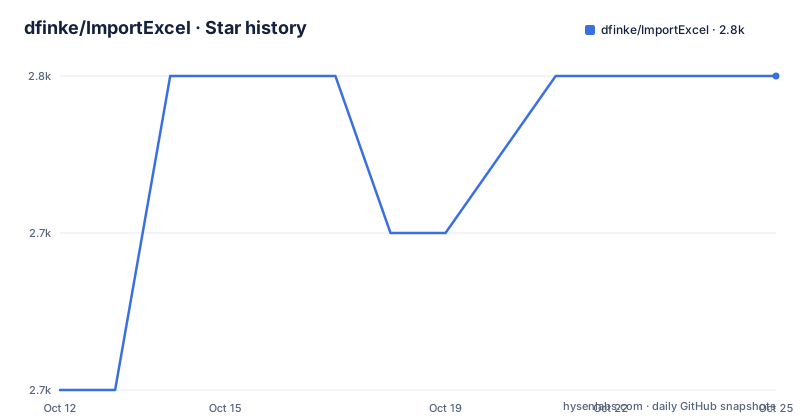
- dfinke/ImportExcel2,750 ★ · +2
| Repository | 2026-10-12 | 2026-10-25 |
|---|---|---|
| dfinke/ImportExcel | 2.7k | 2.8k |
2 Stars in the last 13 days, measured from the daily GitHub snapshot. Compare with other projects
Editorial analysis
Installing the module from the PowerShell gallery
ImportExcel is a PowerShell module published on the PowerShell Gallery, and the listed homepage is the gallery package page rather than a separate docs site. Installation is one command:
Install-Module -Name ImportExcelThere is nothing else to configure. The module has no settings file, no service to start and no dependency on a running Excel process, which is the entire reason it exists. The README states the premise plainly: automate Excel with PowerShell without having Excel installed, on Windows, Linux and Mac.
The repository is Apache-2.0 licensed, is not archived, and its default branch `master` was last pushed on 2026-08-22. The top level of the tree shows how the module is laid out. `ImportExcel.psd1` is the manifest, `ImportExcel.psm1` the loader, `Public/` and `Private/` hold the shipped cmdlets and helpers, `Charting/` and `charting/` are charting work, `Pivot/` covers pivot tables, `InferData/` and `inferdata/` deal with inferring column types, and `__tests__/` is the test suite. `EPPlus.dll` sitting in the root is the giveaway about how this works: the module is a PowerShell surface over an existing .NET Excel library rather than a from-scratch writer of the xlsx format.
Turning CSV data into a workbook with Export-Excel
The quickest way to see what the module does is the README's create a spreadsheet example. It parses an inline CSV block into PowerShell objects and pipes them into `Export-Excel`, which writes the workbook:
$data | Export-Excel .\salesData.xlsxThe rest of that example is a here-string of CSV with columns for Region, State, Units and Price, and nine rows of sales data. Because the input is ordinary PowerShell objects, the source does not have to be a CSV file. The README says the same pipeline works with JSON and database output, so the practical shape is: get objects from wherever they live, pipe them to `Export-Excel`.
The output is a real `.xlsx` file, not a renamed CSV, which is what makes the rest of the module's features possible. Once the file exists, adding formatting, charts or pivot tables is a parameter on the same cmdlet rather than a separate export step.
Reading a workbook back into PowerShell objects
The inverse direction is a single call. `Import-Excel` turns a workbook into a PowerShell array of objects:
$data = Import-Excel .\salesData.xlsx

$data
Dumping the array in the console shows what you get back, one row of typed properties per line:
Region State        Units Price
------ -----        ----- -----
West   Texas        927   923.71
North  Tennessee    466   770.67
East   Florida      520   458.68
Because the result is a normal array of objects, everything else in PowerShell applies to it: filtering, grouping, sorting, and piping into `Export-Csv` or another database cmdlet. That is the pattern the README's conversion section relies on. For a workbook with several sheets, one line splits every sheet into its own CSV file:
(Import-Excel .\yearlyRetailSales.xlsx *).GetEnumerator() |
ForEach-Object { $_.Value | Export-Csv ($_.key + '.csv') }
The workbook the README uses for that demo has twelve sheets of retail data. The `*` asks for every sheet, the enumerator gives you name and value pairs, and the `ForEach-Object` block writes each one out using the sheet name as the file name.
Charts and pivot tables as export parameters
Charting is where this module earns its keep, because the alternative in a headless environment is no chart at all. The README builds a chart definition object first and then passes it into the same `Export-Excel` call:
$chart = New-ExcelChartDefinition -XRange State -YRange Units -Title "Units by State" -NoLegend

$data | Export-Excel .\salesData.xlsx -AutoNameRange -ExcelChartDefinition $chart -Show
The chart is described as a separate object with an X range, a Y range, a title and a legend switch, which means chart settings are named rather than positional. The pivot table path works the same way, declaring which field is a row and which field is aggregated:
$data | Export-Excel .\salesData.xlsx -AutoNameRange -Show -PivotRows Region -PivotData @{'Units'='sum'} -PivotChartType PieExploded3D`AutoNameRange` appears in both examples, and the pivot call also asks for a three-dimensional exploded pie as the pivot's chart type. The `-Show` flag opens the result in Excel when one is available, which is a convenience on a Windows desktop and simply does nothing useful elsewhere. The repository carries both `Charting/` and `Pivot/` directories and an `Examples/Charts/` folder, and the README points to more than a hundred example folders under `Examples/` covering conditional formatting, data validation, images, hyperlinks and custom number formats.
Where the release history sits against the branch
One thing worth knowing before you pin a version is that the tagged releases and the branch are at different places in time. The three most recent releases are v7.8.10 published on 2024-10-21, v7.8.9 on 2024-06-21 and v7.8.7 on 2024-05-13. The change notes for those are small: v7.8.10 removed a flagged URL, v7.8.9 opened XLS files read-only for `ConvertTo-ExcelXlsx`, and v7.8.7 added a chart data script alongside an argument completer fix.
Meanwhile `master` was pushed on 2026-08-22. That gap is normal for a module distributed through a gallery, where a maintainer chooses when to publish, but it means `Install-Module` gives you the last tagged build rather than the newest commit. Anyone who needs a recent fix has to install from source, and the tree supports that: `InstallModule.ps1` and `PublishToGallery.ps1` are both in the repository, alongside `azure-pipelines.yml` and a `CI/` directory that cover the build and publish path. There is also `changelog.md` and a `SUMMARY.md` at the top level, so the history exists in the repository even when the gallery lags.
The gap between scripted xlsx and Excel itself
The honest limitation is that ImportExcel produces a file, it does not run Excel. Formulas can be written into cells, but nothing here evaluates them the way Excel's calculation engine does, and features that depend on Excel being open, such as live external data connections or a refresh on open, are outside what the module can promise. Any report whose numbers must come out right when a person opens it is better served by computing the values in the script and writing them as data.
There is a second question people ask before choosing this: what about a cloud spreadsheet API or a Python library such as openpyxl. Those give you the same file format from another language, and they are the right answer if your surrounding code is not PowerShell. The specific reason to pick this module instead is that it is native PowerShell, so it drops into an existing script without a second runtime, and it covers the reporting features, charts, pivot tables, conditional formatting and images, that a plain format library often leaves you assembling by hand.
The other practical limit is documentation depth. The README is a front page with four worked examples and a long list of links, pointing to videos, blog posts by other authors and the `Examples/` folders in the repository. The command reference lives on the PowerShell Gallery and in the markdown under `mdHelp/`, so the detail a new user needs is one hop away rather than on the page itself.
Editorial conclusion
ImportExcel is the pick for scheduled jobs, CI steps and Linux or macOS hosts where nobody will ever open Excel, because it produces a real xlsx file through a script and needs no desktop install. It is the wrong tool when a human has to hand-edit the result afterwards, or when you need a formula engine that recalculates on open, since the module writes values and formatting rather than running Excel's calculation chain. Note the release cadence before pinning: the latest tagged version is v7.8.10 from 2024-10-21 while the default branch `master` was pushed on 2026-08-22, so a gallery install can lag behind the source. Start with `Install-Module -Name ImportExcel` and the CSV to workbook example, then work through the `Examples/` folders before writing your own formatting calls.
Frequently asked questions
How to import excel file in PowerShell?
Install the module with `Install-Module -Name ImportExcel`, then call `Import-Excel` with the path to the workbook. The file comes back as a PowerShell array of objects, one per row, with a property per column, which you can then filter, group or pipe into other cmdlets.
How do I import and export data from Excel?
Both directions are single cmdlets. `Import-Excel .\book.xlsx` reads a sheet into PowerShell objects, and `Export-Excel .\out.xlsx` writes a pipeline of objects out as a workbook. To turn a workbook with several sheets into one CSV per sheet, enumerate all sheets and write each value out with `Export-Csv`, as the README's yearly retail sales example does.
Does ImportExcel need Microsoft Excel installed?
No. The module is a PowerShell wrapper over the EPPlus library, and `EPPlus.dll` sits in the repository root, which is why it works on Linux and macOS as well as Windows with no desktop install. The only thing that needs Excel is the optional `-Show` switch on export, which opens the finished workbook.
Official sources
Add this badge to your README
If you maintain this project, the badge below links readers to this analysis and shows its maintenance status from the daily GitHub snapshot. Paste the markdown into your README; add ?metric=license or ?metric=stars to the image URL for a different field.

[](https://hysenlabs.com/projects/dfinke-importexcel)Star history chart for your README
[](https://hysenlabs.com/projects/dfinke-importexcel)Was this useful?