Notero: syncing Zotero items and notes into Notion
A Zotero plugin for syncing items and notes into Notion
At a glance
- What is it?
- Notero is a Zotero plugin that writes items, notes and PDF annotations into a Notion database and keeps a link attachment on each Zotero item. It suits researchers who already run their reading list in Notion, and it stops being useful the moment you want two-way editing.
- Who is it for?
- Adopt Notero if your references live in Zotero and your reading notes, task list and manuscript pipeline already live in Notion, and if you are willing to keep a Notion database whose schema matches what the plugin writes. Skip it if you need edits made in Notion to flow back into Zotero, if you are pinned to Zotero 7, 8 or 9 (that requires v1.2.3), or if you would rather not grant a third-party plugin access to a Notion workspace.
- Can I use it commercially?
- Yes. MIT is a permissive licence: you can use, modify and sell software built on it, as long as you keep its copyright and licence notices.
- Is it still maintained?
- Yes. The repository last received commits 80 days ago.
- What is it written in?
- Mainly TypeScript, according to GitHub's language statistics.
Answers come from the project's GitHub data, last synced on November 7, 2026, and from our analysis. They are not legal advice.
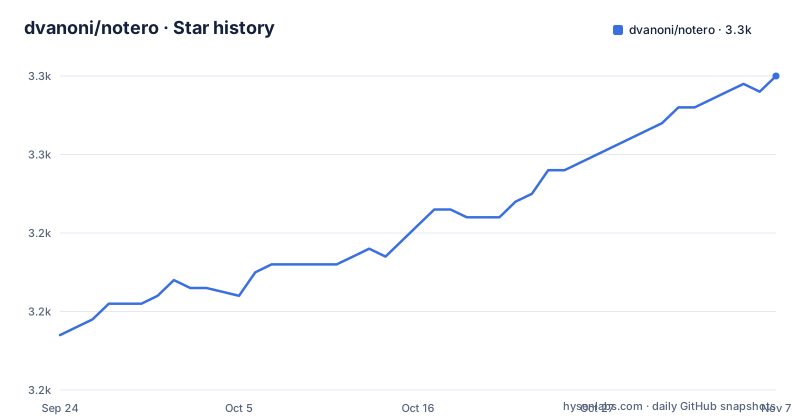
Star history
- dvanoni/notero3,260 ★ · +33
| Repository | 2026-09-24 | 2026-11-07 |
|---|---|---|
| dvanoni/notero | 3.2k | 3.3k |
33 Stars in the last 44 days, measured from the daily GitHub snapshot. Compare with other projects
Editorial analysis
The gap Notero fills between a reference manager and a writing workspace
Zotero stores references, PDFs and notes. Notion stores pages, databases and the drafts people actually write in. Neither one reads the other, so the usual workaround is copying citation metadata by hand into a Notion database row and pasting a link back into Zotero. Notero is aimed at people who have already decided Notion is where their reading notes, task list and publication pipeline live, and who do not want that manual copy step.
The README lists the intended payoff plainly: references, reading notes, analytical tables and drafts in one location; easy linking to references while writing in Notion; custom views that filter and sort a reference list by project, tag or author; backlinks from any note or draft that mentions a reference; and relations from a reference to entries in other databases such as projects, tasks or manuscripts in a publication pipeline. That last item is the real argument. A Zotero collection can be sorted and searched, but it cannot express a relation to a manuscript record that also links to an outlet and a deadline. A Notion database can.
This is not a general Zotero-to-Notion exporter for one-off migrations. It is a live link between a monitored Zotero collection and a Notion database, and it assumes you will keep both.
How the sync actually works: monitored collections, a tag, and a link attachment
Notero watches the Zotero collections you list in its preferences. When an item is added to or modified within one of those collections, the plugin does three things, according to the README: it saves a page with the item's properties (title, authors and so on) into the Notion database named in preferences, it adds a notion tag to the Zotero item, and it adds an attachment to the item that links to the Notion page.
That link attachment is the part worth understanding before you commit. It is not decoration. The README states the attachment is also the reference Notero uses to find the corresponding Notion page for a given Zotero item, which is how updates reach the right page instead of creating duplicates. If you delete the attachment, you have removed the plugin's pointer.
There is a deliberate trade-off documented in a note: to keep sync-on-modify from writing to Notion repeatedly, Notero does not notify Zotero when it adds the tag and link attachment. The consequence is that those two artifacts may not show up in the Zotero interface right away, and you may have to click to a different item and back before they appear. That reads like a small annoyance and it is one, but it is also the price of not triggering an endless modify loop.
Sync-on-modify can be turned off entirely with the Sync when items are modified option. Manual sync is available from context menus: right-click a collection and choose Sync Items to Notion, or select one or more items and choose Sync to Notion.
Notes, PDF annotations and the extra step Zotero makes you take
Zotero notes attached to an item can be pushed into Notion as content of that item's page. Manual sync works through the same Sync to Notion context menu entry. Automatic syncing is a separate preference, Sync notes, and when it is on, notes sync whenever they are modified. There is also a cascade: when a regular item is synced, all of its notes sync too if they have not already.
PDF annotations are where the flow gets less automatic. Notero does not read annotations out of a PDF directly. The README's procedure is to extract them into a Zotero note first: select the item or PDF, open the context menu, choose Add Note from Annotations, and optionally enable highlight colors from the menu at the top-right of the note panel. Only then does the resulting note travel to Notion.
That is a reasonable division of labour, since Zotero already owns annotation extraction, but it means the promise of your highlights appearing in Notion is conditional on a manual step per PDF. Anyone who reads a lot of PDFs should decide up front whether they will actually perform that step, because Notero will not do it for them.
Installing Notero and getting one item into Notion
Version matters before anything else. The README states the latest release of Notero requires Zotero 10 or above, and that support for Zotero 7, 8 and 9 lives in Notero v1.2.3. Check your Zotero version first; installing the current release on an older Zotero will not work.
Download the .xpi file from the project's download page or from the Assets section of the latest release page. Firefox users are told to right-click the download link and choose Save Link As. Then open the Zotero Plugins Manager through Tools, Plugins, and install the file either by dragging it into the Plugins Manager window or by using Install Plugin From File in the gear menu at the top-right of that window.
# Notero is installed from a downloaded .xpi file, not from a package manager.
# 1. Download the latest .xpi from https://notero.vanoni.dev/download
# 2. Zotero: Tools -> Plugins
# 3. Drag the .xpi into the Plugins Manager window, or use
#    "Install Plugin From File..." in the gear menu (top-right)
# 4. Zotero: Tools -> Notero Preferences...
After installation, open Notero's preferences from Tools, Notero Preferences, or from the sidebar in the main Zotero preferences window. The next step is the Notion connection, started with the Connect to Notion button in those preferences. The README notes that before version 1.0.0 you had to create your own Notion internal integration and paste its secret into Notero; that is no longer required, because Notero now uses a public integration with an authentication flow provided by Notion. If you set up an older version, the Upgrade Connection button in the preferences switches you over, after which the old internal integration can be deleted from the Notion integrations page.
Once connected, choose the Zotero collections to monitor, add or update an item in one of them, and the item should appear as a page in the configured Notion database. The README's own five-step summary is exactly this sequence: install, connect and configure the database, choose collections, add or update items, watch them sync.
Where Notero is the wrong tool
The direction of travel is one way. Notero writes into Notion and uses a link attachment on the Zotero side to find the page again, but nothing in the README describes Notion edits flowing back into Zotero. If your workflow is to triage and rewrite in Notion and expect the Zotero record to follow, Notero does not do that, and no preference documented here changes it.
It is also a plugin, not a service. It runs inside Zotero, so items only sync when Zotero is running and the plugin is active. There is no server component and no queue described in the README. A team that wants a shared, always-on reference database updated by people who never open Zotero is outside what this does.
The dependency on a public Notion integration is another boundary. Connecting Notero means granting it access to a Notion workspace through Notion's own authentication flow. The repository carries a PRIVACY.md file, which is the place to read about what the plugin handles, but the decision itself is yours: if policy forbids third-party plugins touching your workspace, Notero is not an option regardless of how well it fits.
Finally, the invisible-tag behaviour is a genuine friction point, not a bug to wait out. The README is explicit that the notion tag and the link attachment may not appear immediately and that you may need to navigate away and back. Anyone building a workflow that depends on seeing those markers instantly should plan around that.
Notero compared with using Zotero and Notion side by side
The obvious alternative is not another plugin. It is the manual loop: keep references in Zotero, keep a Notion database for reading notes and project tracking, and paste titles, authors and links across by hand, or use Zotero's own citation tools when writing and skip Notion for references altogether.
The difference in approach is where the source of truth sits. With the manual loop, Zotero is the reference store and the Notion database is a hand-maintained index that you control completely: any property, any name, no plugin deciding what a row looks like. With Notero, the Notion page is generated from the Zotero item's properties, and the link between the two is carried by an attachment the plugin adds to the item. You gain automatic creation and updates, and you give up the freedom to restructure the Notion side without considering what the plugin writes.
The manual loop also has no version constraint, no authentication flow, and no plugin running inside Zotero. It costs time on every item, and that cost is the whole reason Notero exists. If your library is small or your Notion use is occasional, the manual loop is the cheaper choice. If you add references weekly and want them to land in a database with relations and backlinks, the manual loop is the thing you are trying to escape.
Licence, releases and what maintenance looks like
Notero is MIT licensed, and the LICENSE file sits at the top level of the repository alongside PRIVACY.md and CHANGELOG.md. MIT is permissive: it allows use, modification and redistribution with the licence text retained. That is a statement about the licence terms, not legal advice about your situation, and if you plan to redistribute a modified build you should read the file yourself.
On cadence, the evidence in the repository is concrete. The last push to the default branch was on 2026-08-20, and the most recent releases are v2.1.0 on 2026-08-19, v2.0.0 the same day, and v1.2.3 on 2026-04-29. The project is not archived. Two major-version releases landing within minutes of each other on 2026-08-19 suggests a coordinated release process rather than a steady drip, and the CHANGELOG.md is the file to read before upgrading.
The upgrade cost is dominated by the Zotero version requirement. Because the current line needs Zotero 10 or above, anyone on an older Zotero is pinned to v1.2.3 and will not receive later fixes until they move Zotero forward. The release notes also flag a migration path for people who set up Notero before 1.0.0 with their own internal integration: the Upgrade Connection button in the preferences performs the switch, and the old integration can then be deleted from the Notion integrations page. That is a one-time action, not an ongoing cost.
For development, package.json shows a pnpm workspace with scripts for build, test, typecheck, lint and format, plus a zotero.config.example.json at the top level to copy from. Building the plugin yourself is possible, but for normal use the .xpi release is the path the README describes.
Editorial conclusion
Adopt Notero if your references live in Zotero and your reading notes, task list and manuscript pipeline already live in Notion, and if you are willing to keep a Notion database whose schema matches what the plugin writes. Skip it if you need edits made in Notion to flow back into Zotero, if you are pinned to Zotero 7, 8 or 9 (that requires v1.2.3), or if you would rather not grant a third-party plugin access to a Notion workspace. Before committing a real library, verify three things: that your Zotero version is 10 or above, that the Notion database you point Notero at has the properties the plugin expects, and that the tag and link attachment it adds to items behave the way you want, since the README notes those may not appear immediately.
Frequently asked questions
How do I install Notero in Zotero?
Download the latest .xpi file from the project's download page or the Assets section of the latest release page, then open Zotero's Plugins Manager via Tools, Plugins and either drag the file in or use Install Plugin From File in the gear menu. The README states the latest release requires Zotero 10 or above.
How do I set up Notero with a Notion database?
Open the Notero preferences from Tools, Notero Preferences, click Connect to Notion to start the authentication flow, then choose the Zotero collections to monitor and the Notion database to write into. Since version 1.0.0 you no longer create your own Notion internal integration or paste a secret.
How do I use Notero to sync items and notes?
Items in monitored collections sync when modified unless you uncheck Sync when items are modified, and you can sync manually by right-clicking a collection and choosing Sync Items to Notion, or selecting items and choosing Sync to Notion. Notes sync automatically when the Sync notes preference is enabled, and PDF annotations must first be extracted into a Zotero note with Add Note from Annotations.
What is Notero?
Notero is a Zotero plugin for syncing items and notes into Notion. It saves a page with the item's properties into a configured Notion database, adds a notion tag to the Zotero item, and adds an attachment linking to the Notion page.
Official sources
Add this badge to your README
If you maintain this project, the badge below links readers to this analysis and shows its maintenance status from the daily GitHub snapshot. Paste the markdown into your README; add ?metric=license or ?metric=stars to the image URL for a different field.

[](https://hysenlabs.com/projects/dvanoni-notero)Star history chart for your README
[](https://hysenlabs.com/projects/dvanoni-notero)Was this useful?