Godot Tools for VS Code: what the official extension actually adds
Godot development tools for VSCode
At a glance
- What is it?
- The Godot Engine project ships its own VS Code extension. Here is what it covers file by file, how the headless language server works, and where it stops.
- Who is it for?
- Godot Tools is the right extension for anyone writing GDScript in VS Code, because it gets completions from the engine itself rather than from a grammar file. It is not a replacement for the Godot editor: scene tree editing, the inspector and C# debugging all stay elsewhere.
- Can I use it commercially?
- Yes. MIT is a permissive licence: you can use, modify and sell software built on it, as long as you keep its copyright and licence notices.
- Is it still maintained?
- Yes. The repository last received commits 43 days ago.
- What is it written in?
- Mainly TypeScript, according to GitHub's language statistics.
Answers come from the project's GitHub data, last synced on October 23, 2026, and from our analysis. They are not legal advice.
Star history
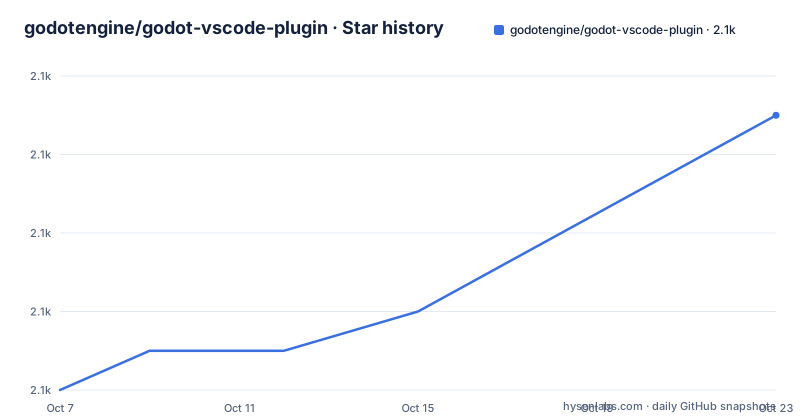
- godotengine/godot-vscode-plugin2,139 ★ · +7
| Repository | 2026-10-07 | 2026-10-23 |
|---|---|---|
| godotengine/godot-vscode-plugin | 2.1k | 2.1k |
7 Stars in the last 16 days, measured from the daily GitHub snapshot. Compare with other projects
Editorial analysis
Language support split across gd, tscn and gdshader files
The README divides the extension's language work across three file types, and that split is more informative than a flat feature list. GDScript files get syntax highlighting, autocompletion, full typed GDScript support, definition jumps on ctrl+click, hover previews that carry doc comments, a built-in formatter, and display of script warnings and errors. Scene and resource files, meaning .tscn and .tres, get highlighting, inlay hints for External and Sub Resources, an in-editor Scene Preview, and the same ctrl+click behaviour on res:// paths. Shader files get syntax highlighting and little else.
Two details are worth pulling out. Hovering a res://resource/path link previews the target instead of forcing a jump, which matters in a project where one scene references forty others. And ctrl+click has a second mode: on a symbol it opens the Godot documentation rather than the definition, so you can read what a built-in class does without leaving the file.
The version floor is stated plainly. Versions 1.0.0 and later support Godot 3.2 or later, the README claims all features fully support Godot 4, and package.json sets the editor requirement at `"vscode": "^1.96.0"`. Activation is gated on `workspaceContains:project.godot`, which is why the extension only appears in windows opened on a Godot project. The tree also holds a `syntaxes/` directory, so plain TextMate grammars back up the highlighting even where the language server is not running.
Headless language server mode for Godot 3.6 and 4.2
`godotTools.lsp.headless` decides how completions get computed. When the extension is configured with it, and the engine is above 3.6 or above 4.2, the extension attempts to launch a windowless instance of the Godot editor and use that instance as its language server. The engine is therefore the completion engine, running without a window so it does not fight with the editor you are typing in.
That architecture explains most of the feature list. Typed GDScript support, real definition jumps and doc-comment hovers all require a process that has the engine class database in memory. A static analyser guessing types from syntax alone could not answer what a node returns at runtime.
The cost is process management. A windowless editor instance has to start, stay alive and be shut down, and the two path settings decide where it comes from. When that server cannot start, the features that depend on it fall back to whatever plain text analysis can do, which is why connection failure leads the README's own troubleshooting questions.
Pressing F5 to debug a GDScript project
The debugger is configured through launch.json rather than through the extension's settings, and the minimal file is four lines:
{
	"name": "Launch",
	"type": "godot",
	"request": "launch"
}
The full form shows how much of the engine you can steer. The `scene` key accepts `main|current|pinned|<path>`, which matches the three launch targets the README lists: current project, current file, pinned file. There is an explicit `address` and `port` pair for the debug connection, an `editor_path`, and a block of engine command line flags including `profiling`, `single_threaded_scene`, `debug_collisions`, `debug_paths`, `fixed_fps`, `time_scale` and `disable_vsync`, all passed through to the engine rather than interpreted by the extension. Anything the flags do not cover goes in `additional_options`.
{
	"name": "Launch",
	"type": "godot",
	"request": "launch",
	"project": "${workspaceFolder}",
	"address": "127.0.0.1",
	"port": 6007,
	"scene": "main|current|pinned|<path>",
	"editor_path": "<path>",
	"time_scale": 1.0,
	"fixed_fps": 60,
	"additional_options": ""
}
The inspector inside the debug view is more than read only. Integers, floats, strings and booleans can be edited with the pencil icon, the active scene tree refreshes from a button in the top right, and the Eye icon next to a node brings it to the fore so you can see it without hunting through the tree. The catch is scope: this debugger is for GDScript, and the README points C# users at a separate extension.
Pointing the extension at the right Godot executable
`godotTools.editorPath.godot3` and `godotTools.editorPath.godot4` are the two settings that matter most on a machine with more than one engine installed, since they are separate keys per major version. On macOS the path is the executable inside Godot.app rather than the app bundle. Release 2.6.0 added the ability to specify `editorPath` using an environment variable, which is the hook to use in a container or a CI image where the engine lives somewhere different per machine.
The reverse direction is configured inside Godot. To make VS Code the script editor, the README walks through Editor Settings, then Text Editor > External, then Use External Editor, then an exec path and exec flags. The macOS executable it names is:
/Applications/Visual Studio Code.app/Contents/MacOS/Electronand the exec flags it recommends are `{project} --goto {file}:{line}:{col}`, which is what makes the editor jump to the right line when Godot asks it to open a file. Three more Godot settings make the round trip less annoying: Auto Reload Scripts on External Change, Save on Focus Loss, and Import Resources When Unfocused. Together they remove the manual reload step that otherwise makes an external editor feel slower than the built-in one.
Where the extension stops and the Godot editor starts
The boundary is worth stating without softening. Godot Tools is a language client, not an editor. Scene tree editing, node creation, the inspector layout and the visual shader editor remain in the Godot editor, and the README's command palette keeps the boundary visible with entries such as Open workspace with Godot editor and List Godot's native classes. The Scene Preview for .tscn files is a preview, and the `gddoc` custom editor registered in package.json is a read-oriented view for Godot documentation files.
There is also a language gap and a feature gap. The debugger does not cover C#, which the README routes to C# Tools for Godot. The GDScript feature list does not name code folding, and neither do the 2.6.0 or 2.7.1 release notes, so anyone coming from an editor with folding by default should not expect it here. The README's own questions are candid about the rest: it asks why the language server fails to connect, why IntelliSense is not showing script members, and calls out a Linux drag and shift drop problem by name.
One more thing the README does not explain is what happens to project state when the headless server crashes mid session. Given that completions depend on a live engine process, that is the first failure mode worth having in mind before you rely on the setup.
Release history, the 2.7.x property rename, and building from source
Three releases appear in the repository's release history, and each one is a useful signal. Version 2.6.0, published on 2026-01-28, added support for `uid://` references in hovers and document links, a formatter option that puts two spaces before end-of-line comments, and the environment variable path for `editorPath`. Version 2.6.1 on 2026-02-03 fixed a broken LSP connection handshake that made VS Code reconnect constantly. Version 2.7.1 on 2026-06-17 is the current line and its notes are mostly debugger work: quality-of-life improvements and a property rename where members in object instances lost their prefix, so `Member/Foo` became `Foo`, while inherited properties gained one, `Parent1/Foo`. There is also a note explaining that 2.7.1 is identical to 2.7.0, which had to be republished because 2.7.0 reached the Marketplace with outdated commits.
The default branch is master, the licence is MIT, and the last push was on 2026-09-10. The tree shows this is a normal TypeScript extension project with `tsconfig.json`, `biome.json`, a `package-lock.json`, `configurations/`, `syntaxes/` and a `test_projects/` directory, and package.json carries both a `test` script running `vscode-test` and a `test:engine` script running `tools/run_tests.ts`. That second script is the interesting one, since it points at real engine integration tests rather than only mocked language server behaviour. Building from a checkout takes the usual three steps:
cd godot-vscode-plugin
npm install
npm run compile
For most people the Marketplace build is the right answer, since the README calls it the recommended path and it updates itself. GitHub Releases exist for pinning an older version, and a nightly build follows the master branch.
Editorial conclusion
Godot Tools is the right extension for anyone writing GDScript in VS Code, because it gets completions from the engine itself rather than from a grammar file. It is not a replacement for the Godot editor: scene tree editing, the inspector and C# debugging all stay elsewhere. Check your Godot version against the headless language server requirement of 3.6 or 4.2 and above, decide whether you want the Marketplace build or a VSIX from a GitHub release, and read the 2.7.1 note about the inspector property rename before upgrading.
Frequently asked questions
Can you write Godot code in VS Code?
For GDScript, yes. The extension gives .gd files syntax highlighting, autocompletion, full typed GDScript support, definition jumps on ctrl+click, hovers with doc comments and a built-in formatter. The visual side of Godot stays in the Godot editor, which you can open from the command palette or hand off to VS Code with Godot's own external editor settings.
Does Godot have visual coding?
Inside VS Code, no, and the extension does not try to be one. It adds definition jumps, hovers, inlay hints for External and Sub Resources and a Scene Preview for scene files, while scene tree editing and the inspector stay in the Godot editor. Godot itself can be configured to launch VS Code as its external script editor instead.
Does VSCode support gdscript (V4) code-folding?
Code folding is not named in the README's list of GDScript features, which covers highlighting, autocompletion, hovers, definition jumps, the formatter and typed support. The repository does ship its own grammar files in the syntaxes/ directory, where folding rules would live, and the 2.6.0 and 2.7.1 release notes do not mention folding either.
Official sources
Add this badge to your README
If you maintain this project, the badge below links readers to this analysis and shows its maintenance status from the daily GitHub snapshot. Paste the markdown into your README; add ?metric=license or ?metric=stars to the image URL for a different field.

[](https://hysenlabs.com/projects/godotengine-godot-vscode-plugin)Star history chart for your README
[](https://hysenlabs.com/projects/godotengine-godot-vscode-plugin)Was this useful?