Video Speed Controller: rewriting playbackRate on every HTML5 element
HTML5 video speed controller (for Google Chrome)
At a glance
- What is it?
- A Chrome extension that writes directly to the playbackRate of every HTML5 video and audio element on a page, with a 0.07x to 16x range, per-domain rules and a fightback mode against players that reset the rate. It changes playback in the browser and never re-encodes a file.
- Who is it for?
- Adopt it if you are a Chrome user who watches lecture and course video daily and wants a remembered per-site speed without opening each player's own menu every time. Skip it if you need Firefox, a mobile build, or re-encoding of a file that already exists on disk, since none of those are in this repository and no amount of configuration will add them.
- Can I use it commercially?
- Yes. MIT is a permissive licence: you can use, modify and sell software built on it, as long as you keep its copyright and licence notices.
- Is it still maintained?
- Yes. The repository last received commits 17 days ago.
- What is it written in?
- Mainly JavaScript, according to GitHub's language statistics.
Answers come from the project's GitHub data, last synced on November 15, 2026, and from our analysis. They are not legal advice.
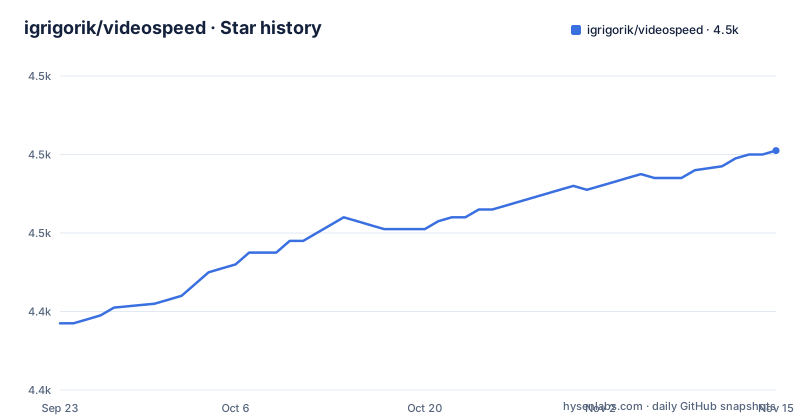
Star history
- igrigorik/videospeed4,481 ★ · +44
| Repository | 2026-09-23 | 2026-11-15 |
|---|---|---|
| igrigorik/videospeed | 4.4k | 4.5k |
44 Stars in the last 53 days, measured from the daily GitHub snapshot. Compare with other projects
Editorial analysis
Closing the gap between reading speed and speech speed
Reading runs at roughly 250 to 300 words per minute, speech closer to 150, and slide presentations nearer 100. This extension exists to close that gap for anyone watching HTML5 media in a browser: lecture recordings, course videos, podcast players, long interviews. Its range spans 0.07x to 16x in configurable increments, which covers both directions. Slowing a dense lecture down to 0.5x and pushing a wind-down interview to 2x are the two ends of one control.
The audience is narrow and easy to describe: a Chrome user who opens YouTube, Coursera, a podcast site or a local file and wants the speed changed without hunting for that site's own settings panel every time. It is not an editor. Nothing is re-encoded and no file is written; the media element's playbackRate property is the only thing touched.
One overlay, every media element, written straight to playbackRate
HTML5 media elements expose a native playback rate API, and most player interfaces either hide that control or restrict it to a short preset list. The extension attaches to every video and audio element on the page and writes to that rate directly, then draws a draggable overlay showing the current value. Because the indicator can be repositioned anywhere on the video, it avoids colliding with a site's own control bar.
The shortcuts act on the same property. D increases speed, S decreases it, and R returns it to 1.0x. G toggles between the current value and a preferred speed, so one key can bounce between 1x and, say, 2x while you scrub back over something you missed. Z rewinds by 10 seconds, X advances by 10, M sets a marker at the current position and J jumps back to it. Custom CSS rules can restyle or move the overlay when a layout pushes it off screen.
Speed fightback turns a race with the player into a loop
Some players treat a rate change as an error state and snap playbackRate back to 1.0x. The speed fightback option answers that directly: once you choose a speed, the extension re-applies it when the site attempts to reset it. That is the mechanism behind working on streaming players rather than only on a bare video tag.
It is also why the extension is opinionated rather than invisible. With fightback off, a player that enforces 1x wins and you are back to the site's menu. With it on, you are running a loop against the page's own script. That is fine for personal viewing and not something to leave enabled on a shared machine, since the effect applies to every site you open.
Installing from the Web Store, then D on any playing video
The README's install link points end users to the Chrome Web Store: open the Video Speed Controller listing, add it to Chrome, and the controller appears on any page carrying HTML5 media. There is no configuration step before first use. Press D on a playing video and the rate rises one increment, S drops it, R returns it to 1.0x, and V hides the controller entirely when the site's own controls are enough.
For working on the extension itself, the build is a Node script and the engines field requires ^22.22.2, ^24.15.0 or >=26.0.0, so an older runtime will not do.
npm run buildThat bundles the extension through scripts/build.mjs, and npm run dev reruns the same build in watch mode. Tests run on vitest:
npm run testThe end-to-end script builds first and then drives a browser through tests/e2e/run-e2e.js with puppeteer, and a separate tlc script sits alongside it.
Lint and format are wired to eslint and prettier over src and tests, with husky and lint-staged preparing the commit path.
Per-domain defaults, a full disable switch, and the refresh tax
Per-site rules are where this stops being a set of keyboard tricks. A default speed can be pinned to a domain, so a lecture site opens every video at 2x, and the same settings page can disable the controller completely on sites where an overlay is unwelcome. Remember speed, when you choose it, carries the last value across sessions and tabs: convenient for podcasts, wrong for anything where a stray fast playback matters.
Every key is remappable, modifier combinations from Ctrl, Shift and Alt are supported, and multiple preferred-speed toggles with different values can be added from the settings page. The rough edge sits in the workflow rather than the feature set: the page must be refreshed after changes before they take effect, which the README states plainly.
Where the controller stops: no Firefox, no mobile, no file output
The ceiling is the browser. This is a Chrome extension distributed through the Chrome Web Store, and the repository entries hold no Firefox manifest, no mobile package and no Android project, so a request for those platforms has no answer here. Remapping that needs a refresh is a second, smaller cost.
The third catches the most people. A local recording can be played at a different speed in the browser when local-file access is enabled for the extension. The extension changes playback only; to create a new file at that speed, use a transcoder. Players that ship their own controls can also resist, and while fightback re-applies the chosen rate, that is a race the extension wins rather than a permission the site granted.
The browser's own speed menu, and what the repository shows about upkeep
One alternative is the playback speed menu supplied by a site's player, where available; the difference is scope rather than the underlying media property. Both write to the same HTMLMediaElement property. The built-in control belongs to the page, offers only the values that page permits, and is absent when the site exposes nothing; the extension injects its own UI on any page with an HTML5 element, holds a fixed 0.07x to 16x range, and can re-assert the value after a player resets it. The price of that reach is a script running against every site you visit.
For upkeep, the repository shows a project still moving: package version 0.11.1, released 2026-08-15, with the last push on 2026-10-29. Licence is MIT, copyright 2014 Ilya Grigorik, which matters if you fork or redistribute a build of your own.
Editorial conclusion
Adopt it if you are a Chrome user who watches lecture and course video daily and wants a remembered per-site speed without opening each player's own menu every time. Skip it if you need Firefox, a mobile build, or re-encoding of a file that already exists on disk, since none of those are in this repository and no amount of configuration will add them. Verify one thing first: that the sites you watch most serve HTML5 media elements at all, since every shortcut, per-domain rule and fightback behaviour hangs on that property existing. If a page has no media element, the extension has nothing to act on there.
Frequently asked questions
How do I install Video Speed Controller?
Add it from the Chrome Web Store listing for Video Speed Controller. The README's install link points there; the build scripts in the repository exist for working on the extension itself.
How do I use Video Speed Controller in Chrome?
Press D to increase playback speed, S to decrease it and R to reset to 1.0x on any page with an HTML5 video or audio element. V shows or hides the controller, and all of these keys can be remapped in the settings page.
How do I use Video Speed Controller on YouTube?
It works on any site with HTML5 media, YouTube included, by writing directly to the element's playbackRate. If the player resets the speed, the speed fightback setting re-applies the value you chose.
Is a video speed controller free?
The extension is published under the MIT License, copyright 2014 Ilya Grigorik, and is installed from the Chrome Web Store. It does not touch or re-encode your media files.
Can I use Video Speed Controller on my phone?
No mobile build exists in the repository, which covers a Chrome extension only. There is no Android or iOS package in the repository entries.
How do I use the Video Speed Controller extension?
Use the single-key shortcuts for speed, seeking and markers, then open the settings page to set per-site defaults, disable the controller on chosen domains, or remap every key. Changes to shortcuts require a page refresh before they take effect.
Official sources
Add this badge to your README
If you maintain this project, the badge below links readers to this analysis and shows its maintenance status from the daily GitHub snapshot. Paste the markdown into your README; add ?metric=license or ?metric=stars to the image URL for a different field.

[](https://hysenlabs.com/projects/igrigorik-videospeed)Star history chart for your README
[](https://hysenlabs.com/projects/igrigorik-videospeed)Was this useful?