Web Search Navigator: keyboard control for search result pages
Web extension that adds keyboard shortcuts to Google, YouTube, Github, Amazon, and others (Chrome/Firefox/Edge/Safari)
At a glance
- What is it?
- Web Search Navigator is a browser extension that adds configurable keyboard shortcuts to Google search and, optionally, YouTube, Startpage, Brave Search, Google Scholar, Github, Gitlab and Amazon. It is a UI layer over the results page, not a search engine, and its non-Google support depends on permissions you grant by hand.
- Who is it for?
- Adopt Web Search Navigator if you spend your working day in a search results page and want Vim style movement without leaving the keyboard, and if you are willing to install from the Chrome Web Store or Add-ons for Firefox. Do not adopt it if you need the same shortcuts on sites it cannot reach, if you will not enable the optional per-site permissions, or if you require Safari support that is not packaged yet.
- Can I use it commercially?
- Yes. MIT is a permissive licence: you can use, modify and sell software built on it, as long as you keep its copyright and licence notices.
- Is it still maintained?
- Yes. The repository last received commits 3 days ago.
- What is it written in?
- Mainly JavaScript, according to GitHub's language statistics.
Answers come from the project's GitHub data, last synced on November 7, 2026, and from our analysis. They are not legal advice.
Star history
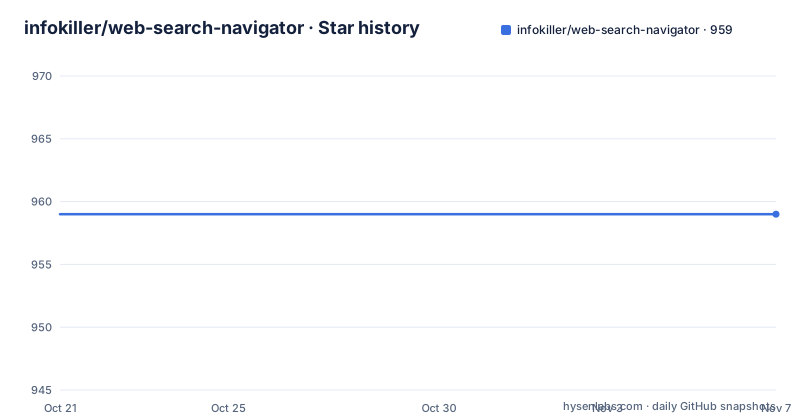
- infokiller/web-search-navigator959 ★ · +0
| Repository | 2026-10-21 | 2026-11-07 |
|---|---|---|
| infokiller/web-search-navigator | 959 | 959 |
0 Stars in the last 17 days, measured from the daily GitHub snapshot. Compare with other projects
Editorial analysis
A shortcut layer over the results page, not a search engine
The extension is described in one line as a browser extension that adds configurable keyboard shortcuts to Google search, YouTube, Startpage, Brave Search, Google Scholar, Github, Gitlab and Amazon. It runs inside Chrome, Firefox, Edge and, experimentally, Safari.
What it does is narrow and worth being precise about. It does not send queries to a different index, does not proxy results and does not change ranking. It binds keys so you can move the selection down a list of results, open the selected entry in a background tab or a new window, jump between the vertical tabs of a result page such as images or news, and step to the next or previous page of results. The effect is that the mouse stays out of the loop while you skim through a search.
The keybinding table in the README shows the core set. The down arrow or j selects the next result, the up arrow or k selects the previous one, the slash or Escape focuses the input search box, Enter or Space opens the selected result, and a modifier with Enter opens it in a background tab. The left arrow or h and the right arrow or l step between result pages, and the letter a moves to the All tab while i moves to the images tab.
The design philosophy is Vim and Colemak shaped, which the repository topics reflect, but the scheme is only a default. The README states that all keyboard shortcuts can be changed, that settings are synched between devices using the same browser profile, and that both key combos and multi-key sequences are supported.
Two runtime dependencies keep the extension small
The package.json is short and its dependency list explains a lot about how the thing works. There are two runtime dependencies: mousetrap at ^1.6.5 and webextension-polyfill at ^0.12.0. Everything else is a development dependency.
Mousetrap is the keyboard handling layer, and using it is why the extension can offer both combos and sequences. A single key press and a chained sequence are different kinds of input, and a binding library that models both lets the options page offer either style. The webextension-polyfill is what lets one codebase target Chrome, Firefox and Edge at once, since each browser ships its own extension API surface and the polyfill presents a common interface.
The build tooling is heavier than the runtime. The devDependencies include gulp and gulp-terser for bundling and minification, eslint with the google config and a TypeScript parser, stylelint for the CSS in src, prettier for Markdown, markdownlint-cli, shellcheck and shfmt for the shell scripts under tools, and web-ext, which is the Firefox packaging and linting tool. A reader can infer from this that the extension ships as a packaged browser bundle, that it has shell tooling as well as JavaScript, and that the project takes linting seriously enough to run four separate checkers.
The repository layout matches that reading. There is a src directory for the extension source, a tools directory for the shell scripts, a vendor directory, a docs directory, and a gulpfile.js as the build entry point.
Installing from a store, or unpacking a release zip by hand
The normal install paths are the stores. Chrome users install from the Chrome Web Store, Firefox users from Add-ons for Firefox, Edge users from Microsoft Edge Add-ons. Store installs get updates automatically, which the README contrasts with the manual route.
The manual route exists and is spelled out. Download the latest release from the GitHub releases page, extract the zip to a directory you will keep, open the extensions page in Chrome at `chrome://extensions`, enable developer mode if needed, disable other existing instances of the extension so Chrome is not confused, then click Load Unpacked and pick the extracted directory. The README marks this path as not recommended, precisely because you lose automatic updates, and it also warns that the directory must not be deleted while you still want to use the extension.
Safari is the odd one out. The README states that Safari is supported on a best-effort basis and is not packaged yet, and points to a linked issue with a comment describing the steps. There is no Safari build target in package.json to confirm against, so treat the Safari path as something you follow from the issue thread rather than from the release artifacts.
Only the visible tab responds to the tab shortcuts
One constraint in the README deserves more attention than it gets, because it changes what the shortcuts can be used for. The note attached to the keybindings says that shortcuts for moving to tabs, images, news and similar, only work when the tab is visible. A background tab receives no key handling for those actions.
That sounds like a limitation and mostly is one in the background, but in a browser tab strip where the results page is in front, it is exactly the behaviour you want. Pressing a to move to the All tab or i to move to the images tab affects the page you are looking at, not a pile of hidden tabs. If you had a background tab react to keys, you would get surprising changes to pages you were not looking at.
The other documented behaviour is about highlighted results. Beyond the key bindings, the extension supports custom CSS rules to control the look of highlighted results, and it supports moving through cards such as Top Stories, Twitter results and videos. Custom CSS is a real lever: it means the highlight style is not fixed by the extension author, though the README does not describe the exact selector names you would target in a user style sheet, so expect to read the source in src to find them.
Optional sites stay switched off until you say otherwise
Google search is the core. Everything else is described as experimental and optional support for YouTube, Startpage, Brave Search, Google Scholar, Github, Gitlab and Amazon, and each has to be enabled in the options page. The README makes a further point that is easy to skim past: the extension does not have permissions for these optional websites unless you explicitly enable them.
That is a permission design worth naming plainly. The extension asks for broad host access so it can work across many search sites, and the way it reconciles that with browser permission models is to hold the optional sites behind an opt-in. The consequence for you is that the optional features will not appear for you on a fresh install until you turn each one on, and each one you enable widens what the extension can read on that site.
The same section explains why custom CSS and per-site options are grouped together: the extension's usefulness beyond Google depends on you configuring it, so a first run with nothing enabled will feel like a Google shortcut tool and nothing more.
Building and linting the extension from the source tree
The build is driven by gulp. The package.json scripts section maps build to gulp and adds a check script that chains every linter. That single command is the closest thing the project has to a one-line quality gate:
yarn run eslint && yarn run stylelint && yarn run shellcheck && yarn run prettier-markdown-checkIt runs eslint over the JavaScript tracked by git while excluding the vendor directory, stylelint over the CSS in src, shellcheck over the shell scripts in tools, and prettier in check mode over the Markdown files. There are separate format targets that rewrite in place, including prettier-markdown-format for Markdown and shfmt-format for the shell scripts. The style of the project is therefore enforced by tooling rather than by review comments.
The repository also carries CI workflows for CodeQL analysis and for linting, visible as badges in the README, and a changelog file. Development documentation sits in docs, and the README explains how to add a new search engine, which tells you that the set of supported sites is meant to grow by editing the source rather than by configuration alone.
A 2023 release tag with commits landing in 2026
The licence is MIT, with the licence text in the LICENSE file. For an extension that injects itself into pages you visit, that permissiveness means anyone can read, modify and redistribute the code, as long as the copyright notice and licence text are kept.
The maintenance picture needs two dates to read correctly. The most recent tagged release is 0.5.2 from 2023-05-29, preceded by 0.4.22 in June 2022 and 0.4.18 in September 2021. The repository is not archived, and the last push to the default branch master was on 2026-10-19. So work on the code base is current, while the version numbers in the stores have not moved since 2023.
That gap has a practical consequence: what you get from the Chrome Web Store or Add-ons for Firefox may lag behind what is in the repository, and the unreleased work is only reachable by building the source tree yourself or unpacking a release artifact. The project is described as lightweight in its feature list, and the dependency list supports that claim, but the version numbering does not tell you which of your installed features correspond to recent commits.
Chrome, Firefox and Edge are listed as supported. Safari is best-effort and unpackaged. Any plan that assumes parity across all four browsers should be checked against that list first.
Editorial conclusion
Adopt Web Search Navigator if you spend your working day in a search results page and want Vim style movement without leaving the keyboard, and if you are willing to install from the Chrome Web Store or Add-ons for Firefox. Do not adopt it if you need the same shortcuts on sites it cannot reach, if you will not enable the optional per-site permissions, or if you require Safari support that is not packaged yet. Verify first that the store listing you install matches the version you expect, since the last tagged release is 0.5.2 from 2023-05-29 while the last push to the default branch master was on 2026-10-19, so the store build and the source tree can differ.
Frequently asked questions
How do I install Web Search Navigator in Chrome?
Install it from the Chrome Web Store, which is the supported route and gives automatic updates. The README also documents loading an unpacked release zip from the extensions page at chrome://extensions, but marks that path as not recommended because you will not get updates automatically.
How do I change the keyboard shortcuts in Web Search Navigator?
All keyboard shortcuts can be customized through the extension options, and settings are synched between devices that use the same browser profile. The extension supports both key combos and key sequences.
Why do the shortcuts for YouTube, Github or Amazon not work?
Support for those sites is experimental and optional, and each has to be enabled in the options. The README also notes that the extension does not have permissions for the optional websites unless you explicitly enable them.
Does Web Search Navigator support Safari?
Safari is supported on a best-effort basis and is not packaged yet. The README points to an issue thread with the steps to follow.
Which browsers does Web Search Navigator run on?
The README lists Chrome, Firefox and Edge as supported, with Safari described as experimental and best-effort. The build depends on webextension-polyfill and gulp-terser to bundle one codebase across those browsers.
Official sources
Add this badge to your README
If you maintain this project, the badge below links readers to this analysis and shows its maintenance status from the daily GitHub snapshot. Paste the markdown into your README; add ?metric=license or ?metric=stars to the image URL for a different field.

[](https://hysenlabs.com/projects/infokiller-web-search-navigator)Star history chart for your README
[](https://hysenlabs.com/projects/infokiller-web-search-navigator)Was this useful?