Obsidian Day Planner: calendar views and time tracking inside your vault
An Obsidian plugin for day planning with a clean UI and a simple task format
At a glance
- What is it?
- Day Planner is a community Obsidian plugin that reads timed tasks from daily notes, Tasks-scheduled items and ICS feeds, then renders them as editable timeline and multi-day views. The trade-off is that it depends on other plugins for the notes it reads.
- Who is it for?
- Adopt Day Planner if you already write timed tasks in Obsidian daily notes and want a calendar view without leaving the vault, and if you accept that Daily Notes or Periodic Notes must be enabled for the plugin to see those notes. Do not adopt it if you need a standalone scheduler that works without Obsidian, or if you need stable time tracking: the README calls that feature experimental and says it can break or change at any time.
- Can I use it commercially?
- Yes. MIT is a permissive licence: you can use, modify and sell software built on it, as long as you keep its copyright and licence notices.
- Is it still maintained?
- Yes. The repository last received commits 31 days ago.
- What is it written in?
- Mainly TypeScript, according to GitHub's language statistics.
Answers come from the project's GitHub data, last synced on November 7, 2026, and from our analysis. They are not legal advice.
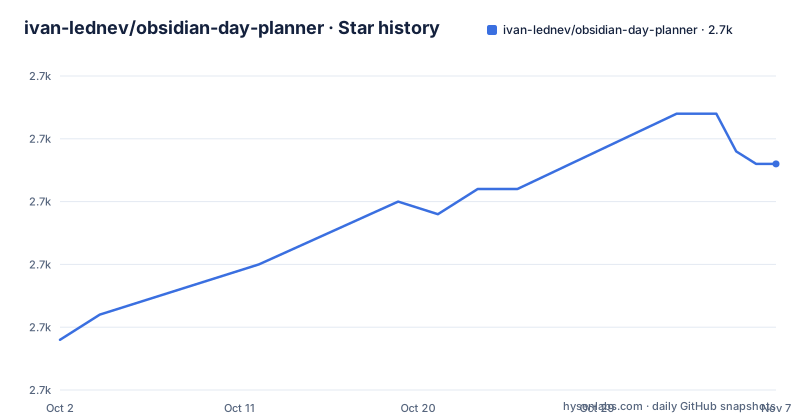
Star history
- ivan-lednev/obsidian-day-planner2,733 ★ · +14
| Repository | 2026-10-02 | 2026-11-07 |
|---|---|---|
| ivan-lednev/obsidian-day-planner | 2.7k | 2.7k |
14 Stars in the last 36 days, measured from the daily GitHub snapshot. Compare with other projects
Editorial analysis
What Day Planner solves, and who it is for
Obsidian stores notes as plain files. It has no built-in day view, so a note full of timed entries stays text until something renders it. Day Planner is that renderer. It is a community plugin that adds editable calendar views and basic time-tracking, and it reads from sources already in the vault rather than asking you to maintain a second schedule.
The audience is narrow and specific: people who already keep daily notes in Obsidian and write tasks with times attached. The README's own example is a heading followed by checkbox lines with a time range, and that format is the whole input contract for the simplest use case. If you do not write times on your tasks, the timeline has nothing to place.
The plugin also pulls from three other places: tasks anywhere in the vault that carry a scheduled date, remote calendars added as ICS links, and clock records stored as Dataview properties. Those sources are additive. You can run it with daily notes alone, or mix in a Google Calendar feed and see both in one column.
How the timeline gets its data: four sources, one view
The architecture is a set of parsers feeding shared calendar views. The README lists four record sources: daily notes, the Tasks community plugin, online calendars, and Dataview clock properties. Each parser produces time blocks, and the views render them together, with remote tasks colored differently from local ones.
The daily-notes parser is the constrained one. The README warns that either the core Daily Notes plugin or the Periodic Notes community plugin must be enabled, because that is what lets Day Planner see and interact with your daily notes. Without one of them, the first source is inert regardless of what you write.
The Tasks integration is broader. Any task in the vault shows up if it carries a scheduled property in one of three formats: the shorthand added by the Tasks plugin, or the Dataview-style `[scheduled:: 2021-08-29]` and `(scheduled:: 2021-08-29)` forms. That means a task can live in a project note rather than a daily note and still appear on the timeline.
Remote calendars come in through ICS links pasted into settings. The README is blunt about the failure mode here: the link must end with `.ics`, or events will not appear. This is a read path only. Day Planner displays what the feed publishes; the README does not describe writing back to Google, iCloud or Outlook.
There are two view surfaces. A sidebar timeline shows today, and a multi-day planner covers a longer range. Both open from the ribbon or from the `Show Timeline` and `Show multi-day planner` commands. A status-bar mini-timeline previews the next three hours.
Installing Day Planner and rendering your first day
Day Planner is a community plugin, so it installs from Obsidian's plugin browser rather than from a package registry. The README does not document a manual install path, so use the in-app browser and search for the plugin name.
Once enabled, the plugin needs a daily-notes source before it can show anything. Confirm that the core Daily Notes plugin is on, then open today's daily note and add a heading plus two timed tasks. The README uses this exact shape:
# Day planner

- [ ] 10:00 - 10:30 Wake up
- [ ] 11:00 - 12:30 Grab a brush and put a little make-up
The heading is what the parser keys on, and each line is a checkbox with a start and end time. After saving, run the `Show Timeline` command from the command palette, or click the timeline icon in the left ribbon. The two blocks should appear as positioned entries on today's column.
To add a remote calendar, open the plugin settings and paste an ICS link. For Google Calendar, the README points at Google's own instructions for a view-only calendar address and repeats the warning that the link has to end in `.ics`. For iCloud and Outlook, the README links to provider instructions; the Outlook path runs through Calendar, then Shared calendars, in the web version.
If you want tasks from other notes on the timeline, add a scheduled property in one of the supported formats. This example, adapted from the README's two-task sample, shows both accepted styles:
- [ ] #task 08:00 - 10:00 This task uses the shorthand format ⏳ 2021-08-29
- [ ] #task 11:00 - 13:00 This task uses the Dataview property format [scheduled:: 2021-08-29]
The Tasks plugin provides a modal for inserting the shorthand, which is less error-prone than typing the hourglass character by hand.
Time tracking is labeled experimental, and that label matters
The fourth feature is clocking in and out of tasks. Right-click a task in the editor to start a clock, then stop it to record the elapsed time or cancel to discard it. Every menu action has a matching command, so you can bind hotkeys. Records are written as Dataview properties, which means they live in your notes as text and survive outside the plugin.
To see them, enable the additional timeline column in settings. Clock blocks sit next to planner entries, and right-clicking or long-pressing one opens a control menu.
The README puts a warning box over this entire section: the feature is experimental and can break or change at any time in the near future, and it invites feedback to shape it. Treat that as a real constraint rather than boilerplate. If you plan to bill hours from these records, you are building on a format the maintainer has explicitly reserved the right to change. The data being plain properties softens the risk, since you keep the raw values even if the rendering changes, but the plugin-side behavior is not settled.
There is also a structural limit worth naming: clock records are tied to tasks. The README describes recording time spent on tasks and viewing records as time blocks. It does not describe a free-standing timer for work that has no task behind it.
Where Day Planner is the wrong tool
The dependency chain is the main one. Day Planner does not create daily notes. It reads them. If Daily Notes and Periodic Notes are both off, the primary source does nothing, and a new user can reasonably conclude the plugin is broken when it is really unconfigured.
Second, this is not a calendar client. ICS support is a read path for published feeds. The README does not document creating events, editing remote events, or two-way sync, and the Outlook section even points to a separate issue thread for organizations that block calendar publishing. If your organization restricts sharing, you may have no feed to paste at all.
Third, the time format is unforgiving. Entries are written as a literal time range in the task text. The README shows `10:00 - 10:30` and nothing else. There is no documented natural-language parsing, no duration shorthand, and no note about time zones for local entries. A task without a time range has no position on the timeline.
Finally, the plugin is Obsidian-only. It is a community plugin distributed through Obsidian's browser, and its data model assumes a vault of markdown files. Anyone who wants a planner that works in a browser tab or on a phone without Obsidian is looking at the wrong project, and the README offers no standalone mode.
How Day Planner differs from the Tasks plugin alone
The obvious alternative is the Tasks community plugin by itself. Tasks is a query engine: you write task lines, add metadata like a scheduled or due date, and it renders the results as a list inside a note. It answers the question of what is outstanding.
Day Planner answers a different question. It takes the same task lines and places them on a time axis, which Tasks does not do. The two are designed to be used together, and the README treats Tasks as an integration rather than a rival: scheduled properties added by Tasks are exactly what Day Planner reads to pull tasks out of arbitrary notes.
So the real difference is spatial versus temporal. Tasks gives you a filtered list you can sort and group. Day Planner gives you a column where a 10:00 task sits above an 11:00 task and the empty hours are visible. If you have never needed to see the gaps in your day, Tasks alone is sufficient and you avoid a second plugin. If the gaps are the point, Day Planner is the layer that shows them.
A second alternative is a general-purpose task manager outside Obsidian. That gets you mobile apps, notifications and collaboration, at the cost of your schedule no longer living in your notes. Day Planner's whole premise is the opposite trade: less reach, but the plan stays in plain text you own.
Maintenance, upgrades and the MIT licence
The repository is not archived, and the last push was on 2026-08-06. The most recent release listed is 0.35.1, published on 2026-07-31, with 0.35.0 two days earlier and 0.34.0 the day before that. Three releases inside four days suggests a burst of fixes rather than a steady cadence, and the README does not publish a support window or a compatibility policy for Obsidian versions.
Upgrade cost is low on the user side. Obsidian's community plugin browser handles updates, and the plugin's data lives in your notes as markdown and Dataview properties, so a version that changes rendering does not strand your content. The clock format is the exception, since the README reserves the right to change it.
Building from source is a heavier proposition. The package scripts include `npm run build` for a production bundle and `npm run dev` for a watch build, and the lint script chains prettier, eslint, stylelint, TypeScript, svelte-check and vitest. The project ships an ARCHITECTURE.md and a CONTRIBUTING.md, and the presence of tests and fixtures suggests changes are expected to come with coverage. That is a contributor concern, not an adopter one.
On licensing: the repository is MIT, which permits commercial and private use and modification. That is a statement about the licence file, not legal advice. The README also states the plugin is free and links to a donation page, so there is no paid tier to evaluate. If you redistribute a modified build, read the LICENSE file yourself for the attribution terms.
Editorial conclusion
Adopt Day Planner if you already write timed tasks in Obsidian daily notes and want a calendar view without leaving the vault, and if you accept that Daily Notes or Periodic Notes must be enabled for the plugin to see those notes. Do not adopt it if you need a standalone scheduler that works without Obsidian, or if you need stable time tracking: the README calls that feature experimental and says it can break or change at any time. Before installing, verify that your daily notes use a time range the plugin can parse, and check whether your calendar provider will give you a read-only .ics link.
Frequently asked questions
Is there a calendar plugin for Obsidian?
Day Planner is a community plugin that adds editable calendar views and basic time-tracking to Obsidian, including a sidebar timeline, a multi-day planner and a status-bar preview of the next three hours.
How do I use Obsidian Day Planner?
Enable the core Daily Notes plugin or the Periodic Notes community plugin, write timed tasks under a heading in a daily note, then run the Show Timeline command or click the timeline icon in the left ribbon. Tasks elsewhere in the vault appear if they carry a scheduled property in one of the supported formats.
Does Obsidian Day Planner work with the Tasks plugin?
Yes. Tasks anywhere in the vault show up on the timeline when they have a scheduled property, either the shorthand added by the Tasks plugin or the Dataview-style [scheduled:: 2021-08-29] and (scheduled:: 2021-08-29) forms.
What is a Day Planner alternative?
The Tasks community plugin used on its own is the closest fit, because it handles the same task lines. It renders them as a filtered list rather than on a time axis, so it shows what is outstanding but not where the gaps in your day are.
Official sources
Add this badge to your README
If you maintain this project, the badge below links readers to this analysis and shows its maintenance status from the daily GitHub snapshot. Paste the markdown into your README; add ?metric=license or ?metric=stars to the image URL for a different field.

[](https://hysenlabs.com/projects/ivan-lednev-obsidian-day-planner)Star history chart for your README
[](https://hysenlabs.com/projects/ivan-lednev-obsidian-day-planner)Was this useful?