wordpress-export-to-markdown for WordPress-to-static-site migration
Converts a WordPress export XML file into Markdown files.
At a glance
- What is it?
- wordpress-export-to-markdown turns a WordPress export XML file into Markdown with frontmatter and optional local images. It suits static-site migrations where repeatable CLI options and resumable output matter more than a hosted conversion service.
- Who is it for?
- Adopt this project when migrating a WordPress export into a file-based static-site repository and you want Markdown, frontmatter, and image handling controlled from the command line. Do not adopt it for converting live pages directly, preserving arbitrary WordPress themes, or replacing an application whose content must remain in WordPress.
- Can I use it commercially?
- Yes. MIT is a permissive licence: you can use, modify and sell software built on it, as long as you keep its copyright and licence notices.
- Is it still maintained?
- Yes. The repository last received commits 126 days ago.
- What is it written in?
- Mainly JavaScript, according to GitHub's language statistics.
Answers come from the project's GitHub data, last synced on November 7, 2026, and from our analysis. They are not legal advice.
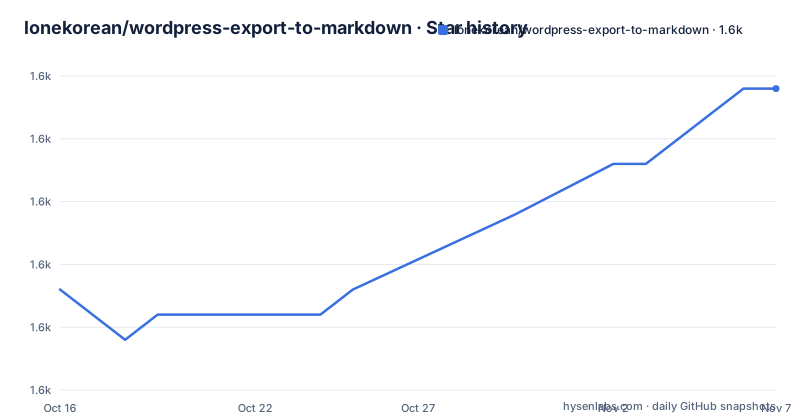
Star history
- lonekorean/wordpress-export-to-markdown1,612 ★ · +8
| Repository | 2026-10-16 | 2026-11-07 |
|---|---|---|
| lonekorean/wordpress-export-to-markdown | 1.6k | 1.6k |
8 Stars in the last 22 days, measured from the daily GitHub snapshot. Compare with other projects
Editorial analysis
Why use wordpress-export-to-markdown for a static-site migration?
wordpress-export-to-markdown addresses a specific stage of a WordPress migration: turning exported content into files that a static-site generator can consume. The source must be a WordPress export XML file containing all relevant content. The result is a collection of Markdown files, rather than a replacement WordPress site or a rendered copy of the original pages.
That boundary makes the project most relevant to engineers and site owners moving from WordPress to generators such as Eleventy, Gatsby, or Hugo. Those generators are named as migration targets in the README, but the converter does not generate the finished site. It prepares the content layer. The target project still needs its own templates, routing, build configuration, and deployment process.
The converter handles several content types documented by the project. Each post becomes a separate Markdown file with frontmatter. Drafts, pages, and custom post types are also saved. Media handling can include images attached to posts and images found in `<img>` tags within post content. Supported image references are changed to point to downloaded copies.
This is a batch migration utility, not a content editing application. The documentation does not describe editing posts after conversion, mapping WordPress shortcodes to arbitrary site-specific components, or preserving a WordPress theme. Users who need those capabilities must inspect the generated Markdown and extend or replace parts of the output where required.
How XML records become Markdown, frontmatter, and image assets
The repository packages several libraries around a document conversion process. `xml2js` is the declared dependency for reading WordPress export XML. `turndown` and `@guyplus++/turndown-plugin-gfm` handle conversion from stored HTML into Markdown and GitHub-flavored Markdown features.
WordPress export files commonly contain HTML rather than Markdown-ready content. The converter therefore changes the representation of the content while preserving metadata in frontmatter. The output is file-based, which makes it suitable for a repository that a static-site generator can build.
Frontmatter selection is configurable. The `--frontmatter-fields` option accepts `author`, `categories`, `coverImage`, `date`, `draft`, `excerpt`, `id`, `slug`, `tags`, `title`, and `type`. The order supplied on the command line is preserved, and absent values are left out. A field can also be renamed by appending an alias, such as `date:created`.
Media is a second path through the process. `axios` is declared for HTTP requests, while `--save-images` selects attached images, images scraped from post body content, both sets, or no downloads. When images are saved, relevant `<img>` tags are updated to reference their new location. The README also documents delays for image requests and Markdown writes, which can be useful when a remote server or local file system produces errors.
Output layout is also part of the conversion model. A post may receive its own folder containing `index.md` and an `/images` directory, or it may become one Markdown file in a shared folder with a shared `/images` directory. Dates can prefix filenames or organize content into year and month folders.
Running the wizard for the first WordPress export conversion
The package declares Node.js `>= 20.12.2` as its supported engine. The README also requires a WordPress export file and recommends exporting "All Content". With both available, the documented starting command runs the package through `npx`:
npx wordpress-export-to-markdownThe command opens an interactive wizard. The wizard asks about the export path, per-post folders, date prefixes, date folders, and image saving. Supplying an answer as a command-line option makes the wizard skip that question. For example:
npx wordpress-export-to-markdown --post-folders=false --prefix-date=trueHere, post files are written into one shared folder and post dates are prepended to filenames. Questions not answered through command-line options remain in the wizard.
The README documents `--wizard=false` as an advanced option for skipping the wizard. It also documents `--input=export.xml` as the input path and `--output=output` as the output path. The documented output folder is created if it does not exist.
Existing files in the output folder are not overwritten and are not downloaded again. The README says this allows progress to resume after a run is terminated early. To start clean, delete the output folder before running the conversion again.
Inspect representative outputs after the command completes. A useful sample set includes a published post, a draft, a page, a custom post type if one exists, and posts containing different image layouts. The documentation does not specify terminal progress output or a final success message, so the generated files and any reported errors are the relevant checks.
Noninteractive controls for filenames, dates, and conversion fields
The converter exposes the wizard's decisions as command-line options, which makes it easier to repeat a migration or encode a known content policy in a script. Date-prefixed filenames can be disabled independently of date directories. The documented forms are `none`, `year`, and `year-month`, where the latter uses nested year and month folders. Posts without dates do not receive date-based organization.
Date values in frontmatter have several controls. `--timezone=utc` selects the timezone using a valid Luxon zone name. `--include-time=false` omits the time by default, while setting it to `true` produces an ISO 8601-compliant value. `--date-format=""` accepts a custom Luxon formatting string and takes precedence over `--include-time`. Quoting can be controlled separately with `--quote-date=false`.
The README gives this complete example for selecting frontmatter fields:
--frontmatter-fields=title,date,categories,tags,coverImage,draftThis selects the listed fields in the supplied order. It also explains that a field can be renamed by appending an alias, so `date:created` changes the `date` key to `created`. Fields without values are left out.
The documentation does not provide a combined command that joins every advanced option, so the options should be understood individually and tested before being used together. The README also does not document a dry-run flag, a validation command, or a report of converted and skipped records. There is no documented rollback command. The practical reset documented for bad output is to remove the output folder and run the conversion again.
Before adopting a configuration for a large site, test it on a smaller export or a selected copy. Check filename conventions, date values, frontmatter keys, and image paths before processing the full export.
Network requests, SSL choices, and operational limits
Image conversion is not entirely local. When `--save-images=all`, `--save-images=attached`, or `--save-images=scraped` selects downloads, the converter must request image files from the URLs embedded in the export. Remote availability, redirects, certificates, timeouts, and rate limits can therefore affect migration reliability.
The project provides `--request-delay=500` to wait between image requests. The README says increasing it may help with timeouts or server errors. A separate `--write-delay=10` controls the pause between Markdown file writes and may help when the file system becomes overloaded.
TLS verification is enabled by default through `--strict-ssl=true`, which the README identifies as the safer option. Setting it to `false` disables strict SSL while images are downloaded. The README excerpt ends while describing this option, so it does not provide complete guidance about the consequences of disabling strict SSL. It is therefore a setting to verify against the hosting environment rather than treat as a routine performance switch.
The output cache behavior is useful for interrupted jobs because existing files are neither overwritten nor downloaded again. It also means that rerunning against the same folder is not equivalent to regenerating everything. A changed conversion policy may produce files with the old policy still present unless the output folder is removed. The output directory therefore contains state from earlier runs, not merely disposable results.
The converter depends on the WordPress export containing usable image URLs. The README documents failures and delays for image requests, but it does not define retry counts, supported URL schemes, duplicate handling, or behavior for an image URL that is no longer reachable.
MIT release history and a direct pipeline alternative
The repository is not archived. Its last push was on 2026-07-05, and that date also corresponds to release `v3.0.6`. Earlier listed releases include `v3.0.5` on 2026-05-11 and `v3.0.4` on 2025-04-26. These dates show repository changes, but the README does not publish a support policy, compatibility matrix, migration guide for each release, or long-term maintenance schedule.
The package is distributed under the MIT license. That permits use, modification, distribution, and integration under the license's conditions, including preservation of its copyright and permission notice. Anyone redistributing modified versions should retain the applicable notice from `LICENSE.md`.
Upgrade effort depends on the contract between the package and the generated site. Node.js `20.12.2` or later is declared, and the package uses ES modules through `"type": "module"`. Changes to frontmatter defaults, folder naming, content conversion, or supported Node.js versions can require checking output and any scripts that consume it. The README does not document automated snapshot tests for migrated content, version pinning guidance for `npx`, or upgrade procedures for existing output folders.
For a custom migration pipeline, the real alternative is to assemble the same stages directly with `xml2js`, Turndown, `axios`, and Luxon. That approach gives an engineering team control over shortcode handling, metadata mapping, and output templates, but it also transfers responsibility for interactive prompts, resumable output, image reference rewriting, and filename conventions. wordpress-export-to-markdown is the more direct choice when its documented conventions match the target site.
Editorial conclusion
Adopt this project when migrating a WordPress export into a file-based static-site repository and you want Markdown, frontmatter, and image handling controlled from the command line. Do not adopt it for converting live pages directly, preserving arbitrary WordPress themes, or replacing an application whose content must remain in WordPress. Verify first that Node.js 20.12.2 or later is available, inspect one converted post and its frontmatter, and compare exported post types and image references against the source export before deleting the original content.
Frequently asked questions
What Node.js version does wordpress-export-to-markdown require?
The package declares support for Node.js `>= 20.12.2`.
Can wordpress-export-to-markdown resume after an interrupted conversion?
Yes, according to the README. Existing files in the output folder are not overwritten or downloaded again, so restarting the same conversion can resume progress. Delete the output folder when a clean conversion is required.
How do I run wordpress-export-to-markdown without the interactive wizard?
Set `--wizard=false` and provide any needed options through command-line arguments. Options left unspecified use their default values.
Which content types does wordpress-export-to-markdown export to Markdown?
The README says it saves posts, drafts, pages, and custom post types. Each post is written as a separate Markdown file with frontmatter.
Can wordpress-export-to-markdown download images referenced inside post content?
Yes. The `--save-images=scraped` option selects images found in `<img>` tags, while `all` combines scraped images with attached images. The converter updates the relevant image references to point to the saved files.
Official sources
Add this badge to your README
If you maintain this project, the badge below links readers to this analysis and shows its maintenance status from the daily GitHub snapshot. Paste the markdown into your README; add ?metric=license or ?metric=stars to the image URL for a different field.

[](https://hysenlabs.com/projects/lonekorean-wordpress-export-to-markdown)Star history chart for your README
[](https://hysenlabs.com/projects/lonekorean-wordpress-export-to-markdown)Was this useful?