Tungsten Edge: A macOS Taskbar That Organizes by Window, Not App
A window-oriented bottom taskbar for macOS, a Dock replacement that organizes by window rather than by app.
At a glance
- What is it?
- Tungsten Edge is an open-source, GPL-3.0 macOS utility that replaces the Dock's app-centric switching with a per-window taskbar. This review covers its mechanism, installation, limitations, and who should adopt it.
- Who is it for?
- Adopt Tungsten Edge if you frequently juggle multiple windows of the same app and want a Windows-style taskbar on macOS. Avoid it if you prefer Apple's Mission Control or Stage Manager, or if you are uncomfortable granting Accessibility permission and running a global event tap.
- Can I use it commercially?
- Yes, with conditions. GPL-3.0 is a copyleft licence: if you distribute software that includes it, you must release that software's source code under the same licence. Running it internally without distributing it does not trigger that obligation.
- Is it still maintained?
- Yes. The repository received new commits within the last day.
- What is it written in?
- Mainly Swift, according to GitHub's language statistics.
Answers come from the project's GitHub data, last synced on October 22, 2026, and from our analysis. They are not legal advice.
Star history
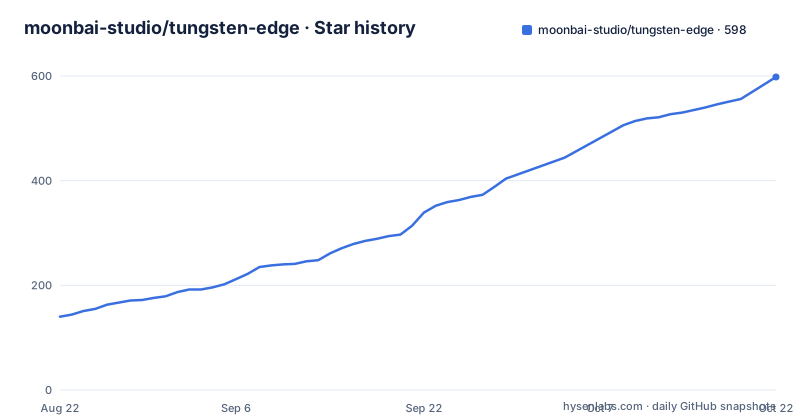
- moonbai-studio/tungsten-edge598 ★ · +458
| Repository | 2026-08-22 | 2026-10-22 |
|---|---|---|
| moonbai-studio/tungsten-edge | 140 | 598 |
458 Stars in the last 61 days, measured from the daily GitHub snapshot. Compare with other projects
Editorial analysis
The Problem: Finding One Window Among Many
Every macOS user who opens multiple windows of the same app knows the pain: click the Dock icon, and all windows leap forward at once. The right-click menu lists them, but the order shifts, and you have to read, find, and click. Mission Control and Stage Manager exist, but they tidy the desktop rather than improve switching. Tungsten Edge solves this by giving every window its own card on a bottom taskbar, so one click takes you directly to the target window. This is aimed at users who work with many windows, especially those who miss the Windows taskbar's per-window clarity.
How It Works: Window Cards and Tab Merging
The core mechanism is window identification, which the README says is where most of Tungsten Edge's engineering lives. Each window gets a card; single-window apps collapse into compact icons to keep the bar lean. Minimized windows keep their card in place. The app uses the macOS Accessibility API to read and manage windows, which is why it requires that permission. A notable feature is smart native-tab merging: for apps like Ghostty and Finder, where tabs are effectively windows, the taskbar keeps a stable card while you switch tabs, avoiding jumping or splitting. The bar supports drag-to-reorder, dragging cards into an app drawer, and multi-display follow by resting the pointer on another screen's bottom edge.
Getting It Running: Installation and Permissions
The recommended install is downloading the .dmg from the official website and dragging the app into Applications. For technical users, Homebrew is available: brew install --cask moonbai-studio/tungsten-edge/tungsten-edge. The README warns that using the short token tungsten-edge requires tapping and trusting the tap first, otherwise Homebrew refuses with 'Refusing to load cask ... from untrusted tap'. On first launch, you must grant Accessibility permission in System Settings > Privacy & Security > Accessibility. As of v0.9.0, the app is signed and notarized, so no right-click workaround is needed. The interface ships in English and Simplified Chinese, following the system language, or you can set it explicitly in System Settings > General > Language & Region > Applications.
The Full-Screen Flicker Fix and Its Cost
Tungsten Edge includes a clever hack to avoid a one-frame blink when entering native full-screen. The system's transition snapshot catches the taskbar unless it is hidden before your input reaches the target app. To do that, the app observes global left-click, key-down, and trackpad gesture events. It recognizes only four patterns: the green button, Control-Command-F, Control-Left/Right for adjacent Spaces, and a three-finger horizontal swipe. The README stresses that ordinary input is not recorded or sent anywhere, and the listener can be disabled. This is a privacy trade-off: a global event tap runs by default. If you use Secure Input fields, keyboard shortcuts won't be recognized in advance, though green-button and trackpad detection still work.
Limitations and When It Is the Wrong Tool
The most obvious limitation is the requirement for Accessibility permission, which some users may not want to grant. The global event tap, even if limited to four patterns, is a broader access than many utilities need. The reverse scroll direction feature, when enabled, adds a second event tap that inverts discrete mouse-wheel values; it is off by default but shows the app's tendency to hook into system events. If you rely heavily on Secure Input fields, the full-screen prediction for keyboard shortcuts fails. Also, the app is macOS-only, so it is useless for Linux or Windows users. If you prefer Apple's built-in Mission Control or Stage Manager, this tool adds an extra layer that may feel redundant.
Alternatives: Dock, Mission Control, and Others
The obvious alternative is the native Dock, which groups by app and uses Mission Control for window overview. Mission Control is a full-screen overlay that shows all windows, but it requires an extra gesture and does not give a persistent per-window bar. Another alternative is Stage Manager, which groups windows on the side and requires switching between stages. Neither offers the one-click-per-window bottom bar that Tungsten Edge provides. For users who want Windows-like behavior, there are other utilities like uBar, but they often are commercial or less transparent. Tungsten Edge's advantage is its open-source nature and the specific tab-merging logic for terminal and file manager tabs.
Maintenance and License Implications
The project is under GPL-3.0, which means any derivative work must also be open-sourced under the same license. This is a consideration if you plan to modify the code for personal use or redistribution. The repository shows recent releases: v0.9.10 on 2026-08-28, with v0.9.9 and v0.9.7 in the days before, indicating active maintenance. The README notes an upgrade path from v0.8.0, where v0.9.0 changed to a proper Developer ID signature, so macOS treats it as a different app. That means upgrades may require re-granting permissions. The official website hosts ready-to-run builds, and the source is available on GitHub. The maintenance cost for users is low, but for contributors, the GPL license and the complexity of window identification are factors to weigh.
Editorial conclusion
Adopt Tungsten Edge if you frequently juggle multiple windows of the same app and want a Windows-style taskbar on macOS. Avoid it if you prefer Apple's Mission Control or Stage Manager, or if you are uncomfortable granting Accessibility permission and running a global event tap. Before adopting, verify the Accessibility permission works on your macOS version, test the full-screen transition prediction with your preferred input method, and review the GPL-3.0 license if you plan to modify or redistribute. The project is actively maintained, with recent releases in August 2026, but its reliance on global input observation is a privacy trade-off you must accept.
Frequently asked questions
What does Tungsten Edge do differently from the macOS Dock?
The Dock lists applications, so clicking one makes every window that application owns appear at once and you pick from there. Tungsten Edge lists windows instead: one card per window, a multi-window app splits into several cards, and single-window applications stay collapsed as compact icons.
Why does a Tungsten Edge card go greyed out?
A greyed-out title means that window is not on the desktop right now, because it was minimized or because its whole application is hidden, and clicking the card brings it back. Windows on other desktops are never greyed out: they stay listed and clicking one switches you to that desktop.
Does Tungsten Edge need Accessibility permission on macOS?
Yes. On first launch you are asked to grant Accessibility permission, which is used to read and manage windows, and the app guides you through it. Since v0.9.0 the app is signed and notarized by Apple, so it opens with a plain double-click and only the permission step remains. macOS 12.0 Monterey or later is required.
How does Tungsten Edge stop the taskbar blinking in full screen?
It observes global left-click, key-down and trackpad gesture events and hides the bar before your input reaches the target app, recognizing only the green button, the Control-Command-F shortcut, Control-Left and Control-Right into an adjacent Space, and a three-finger horizontal swipe. The listener is on by default and is turned off by disabling Predict full-screen transitions to prevent taskbar flicker under Advanced in Settings.
Can Tungsten Edge show a different taskbar on each display?
Yes. You can have one bar follow your pointer between screens or one bar per display, and in the per-display mode each bar can list only the windows sitting on that display. Dragging a card from one display's bar to another's moves the window across without forcing it to the front.
Official sources
Add this badge to your README
If you maintain this project, the badge below links readers to this analysis and shows its maintenance status from the daily GitHub snapshot. Paste the markdown into your README; add ?metric=license or ?metric=stars to the image URL for a different field.

[](https://hysenlabs.com/projects/moonbai-studio-tungsten-edge)Star history chart for your README
[](https://hysenlabs.com/projects/moonbai-studio-tungsten-edge)