openai-cua-sample-app: Browser and Desktop Computer Use
Learn how to use CUA (our Computer Using Agent) via the API on multiple computer environments.
At a glance
- What is it?
- openai-cua-sample-app demonstrates computer-using agents through a Playwright browser implementation and a PyAutoGUI desktop implementation. It is suited to controlled lab environments, but its generated code runs with the user's permissions and lacks production action-review controls.
- Who is it for?
- Developers should adopt this repository to study or prototype the Responses API computer-use loop in a dedicated browser or desktop lab. It is not appropriate for production automation, sensitive desktops, or unattended tasks that require operating-system isolation or production review controls.
- Can I use it commercially?
- Yes. MIT is a permissive licence: you can use, modify and sell software built on it, as long as you keep its copyright and licence notices.
- Is it still maintained?
- Yes. The repository last received commits 4 days ago.
- What is it written in?
- Mainly TypeScript, according to GitHub's language statistics.
Answers come from the project's GitHub data, last synced on October 23, 2026, and from our analysis. They are not legal advice.
Star history
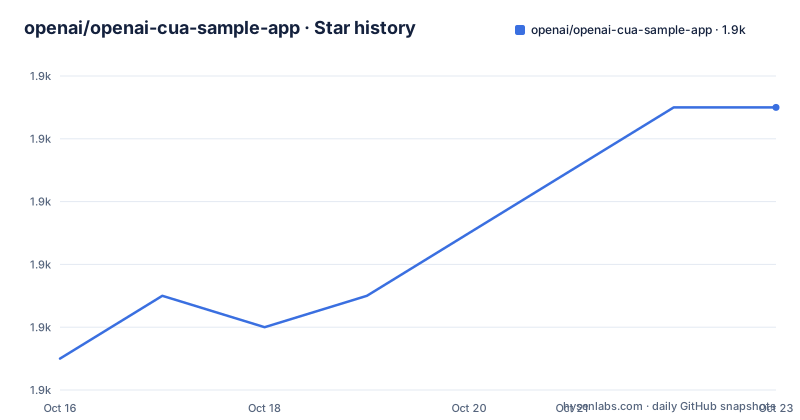
- openai/openai-cua-sample-app1,907 ★ · +8
| Repository | 2026-10-16 | 2026-10-23 |
|---|---|---|
| openai/openai-cua-sample-app | 1.9k | 1.9k |
8 Stars in the last 7 days, measured from the daily GitHub snapshot. Compare with other projects
Editorial analysis
What openai-cua-sample-app Is Designed to Demonstrate
openai-cua-sample-app addresses the practical gap between asking a model for an answer and allowing software to carry out a task through an interface. Its agents inspect the current screen, select an action, execute it, observe the result, and decide whether to inspect the environment again. The repository targets developers who want to learn this interaction pattern through runnable examples rather than through a high-level API description.
The project offers two execution paths. The JavaScript application controls a browser with Playwright locators, screenshots, and browser commands. The Python application controls a visible desktop browser through PyAutoGUI using screenshots, mouse input, and keyboard input. Both paths use the Responses API and share the same web console and lab catalog, which makes the repository useful for comparing browser automation based on semantic locators with desktop automation based primarily on visual evidence.
The labs provide bounded tasks such as changing a Kanban board, drawing on a canvas, or completing a mock hotel reservation. Each run receives a fresh lab template. That reset limits cross-run contamination, but it does not create a security boundary. The intended audience is therefore developers experimenting with computer use in environments they control, not operators looking for a finished production automation service.
The Persistent Agent Loop and Its Data Flow
The central design is a persistent execution runtime around a Responses API loop. According to the README, the model can write code that combines several actions, process observations, and return selected text or screenshots. Keeping helper functions and useful state between calls lets one generated program fill multiple fields, verify each change, and decide when another observation is needed. The documented benefit is fewer model round trips and less repeated input context than a sequence of isolated actions.
In the JavaScript path, `responses-loop.ts` is the core loop, while `javascript-worker.ts` retains JavaScript execution state. Browser code under `javascript-app/src/browser/` communicates with that worker and drives Playwright. The Python path mirrors the architecture with `responses_loop.py`, a persistent `desktop/worker.py`, and `desktop/runtime.py` for worker lifecycle and interruption. Both applications have runner and lab catalog modules, while `contracts/` contains shared request, event, and replay types.
The shared console sends a selected scenario and prompt to the chosen backend. During the run, the agent sends code and observations through the Responses API, executes actions in its environment, and checks feedback. Run artifacts then include workspaces, screenshots, replays, and model responses. This is an inspectable teaching loop, but the README does not document retry budgets, maximum action counts, token limits, or a formal guarantee that a task was completed. A normal end condition means the loop and cleanup ended normally, not that every requested change succeeded.
Installing the Shared Console and Selecting a Runtime
The repository requires Node.js 22.20.0, an OpenAI API key with access to the configured model, and the pinned pnpm 10.26.0 managed through Corepack. Clone the project, enable Corepack, install the locked workspace dependencies, create the local environment file, and export the key. The README states that both backends read the root `.env`, while shell variables take precedence.
git clone https://github.com/openai/openai-cua-sample-app.git
cd openai-cua-sample-app
corepack enable
pnpm install --frozen-lockfile
cp .env.example .env
export OPENAI_API_KEY="your_api_key_here"
After startup, the console is served at `http://127.0.0.1:3000`. Open that address, select a scenario, edit its prompt, and choose Start Run. Runs make real API calls. Stop interrupts the active run, while `Ctrl+C` stops the services. The README says to wait for shutdown before switching applications.
The root environment file can also contain optional backend overrides. These examples are commented in `.env.example`.
# CUA_DEFAULT_MODEL="your-model-id"
# HOST="127.0.0.1"
# PORT="4001"
# CUA_ALLOWED_ORIGINS="http://127.0.0.1:3000"
Environment files and generated run data are excluded from Git. The default loopback configuration reduces accidental network exposure, but keeping the services on their documented local addresses remains the reader's responsibility.
Running the JavaScript and Playwright Agent
The JavaScript application is the shorter first path because it requires the Node.js workspace setup already covered above. Install the Playwright browser through the repository script, then launch the JavaScript backend and shared console. The Playwright agent uses a persistent session, semantic locators, screenshots, and browser controls rather than raw desktop input.
pnpm playwright:install
pnpm dev:js
The reader should see the shared console become available for scenario selection. The repository points to `javascript-app/README.md` for its code walkthrough and recovery guidance. `scripts/launch.mjs` starts the selected JavaScript application together with the console, rather than requiring the reader to launch multiple services from undocumented commands.
A sensible first task is one of the included lab templates. The console copies the selected template into a fresh workspace, so edits from that run do not become the starting state of the next run. Inspect the resulting page instead of trusting the final response. Replay JSON exposes the recorded trace, and the screenshot timeline shows earlier environment states. These artifacts are especially useful for learning why a browser action succeeded, failed, or targeted the wrong interface element.
Running the Python and PyAutoGUI Desktop Agent
The Python path adds setup and operating-system concerns because it controls the user's real mouse, keyboard, and screenshots. The README requires `uv`, Python 3.10 or later, and desktop permissions. It says the repository pins Python 3.12. Keep the lab window visible and in front on the primary monitor, preferably within a dedicated desktop session.
pnpm python:install
pnpm python:playwright:install
uv run --project python-app python -m app.desktop.worker --check
pnpm dev:python
The worker check is a documented verification step before starting the development service. It should complete without an error before proceeding to the console. The `python:playwright:install` script installs Chromium for the visible browser used by the Python application.
PyAutoGUI does not provide the same locator-level browser abstraction as Playwright. Its agent must interpret screenshots and issue mouse or keyboard actions against the visible desktop. This makes visual state and window placement part of the operating conditions. A crash can also leave a desktop input key held down, so the README directs users to the interruption and recovery notes in `python-app/README.md` before using this path. Skipping that material is a poor choice for an ordinary personal desktop.
Artifacts, Validation, and the Limits of Run Completion
The repository treats validation as an operator responsibility. Each run stores workspaces, screenshots, and replays in the selected application's ignored `data/` directory. The console provides Replay JSON and a screenshot timeline for inspection. The final model response can explain what the agent believed it did, but the README explicitly warns that a final answer does not prove success.
This distinction matters for both agents. Playwright can locate controls in a browser, but a successful call may still produce the wrong business state, such as changing a card into the wrong column. PyAutoGUI adds a larger uncertainty because a click depends on the visible desktop, window order, and screenshot content. The recorded artifacts provide evidence for reviewing those cases, but the repository does not claim that they automatically validate the task.
The run status is also narrower than it may first appear. Run finished means the agent loop and cleanup ended normally. It does not certify that the requested task succeeded, that every expected artifact exists, or that the generated code respected a policy beyond the constraints described by the README. Reviewers must compare the task prompt, screenshots, trace, and final state.
There is no GitHub release history for the repository. The repository is not archived, and the last push was on 2026-09-04. That indicates recent repository activity at the recorded point, but it does not remove the operational and security costs of running generated code. There is also no documented compatibility matrix beyond the stated Node.js, pnpm, Python, and Python-version requirements.
Security Boundaries, Alternatives, and MIT Upgrade Cost
The most important limitation is explicitly documented: generated code executes with the user's permissions. These samples do not include an operating-system sandbox or the production action-review controls used by OpenAI products. In the Python application, screenshots can capture unrelated windows, while mouse and keyboard actions can affect any visible application in that desktop session. The labs are safer subjects for experiments because they provide controlled interfaces, but a lab template is not an isolation mechanism.
Playwright offers a reasonable alternative to the desktop implementation when the target is a browser. It uses locators and browser-specific controls rather than interpreting the whole visible desktop. The Python PyAutoGUI route remains relevant when the agent must operate a visible desktop application, but it brings window focus, visual recognition, permission, and recovery problems that Playwright avoids for browser-only tasks. An entirely different approach would be a dedicated automation service with an operating-system sandbox and explicit action controls. The README does not provide that service, and the sample repository should not be treated as equivalent to one.
The project is licensed under the MIT License. That permits use and modification under the license terms, but adopters still need to review the actual `LICENSE` file and comply with its notice and disclaimer requirements. This is not legal advice. The direct upgrade cost is code inspection rather than package migration alone: generated code, API model access, environment configuration, browser dependencies, Python desktop permissions, and recovery procedures all remain relevant when adapting the examples. The repository has no GitHub releases, so there is no release-based upgrade path documented there.
Editorial conclusion
Developers should adopt this repository to study or prototype the Responses API computer-use loop in a dedicated browser or desktop lab. It is not appropriate for production automation, sensitive desktops, or unattended tasks that require operating-system isolation or production review controls. Before adopting its patterns, verify desktop permissions and recovery procedures for Python, inspect Replay JSON and screenshots after every run, confirm model access through OPENAI_API_KEY, and review the exact permissions granted to generated code.
Frequently asked questions
What does openai-cua-sample-app demonstrate?
It demonstrates two computer-use agents built around the Responses API. One uses TypeScript and Playwright to control a browser, while the other uses Python and PyAutoGUI to operate a visible desktop through screenshots, mouse input, and keyboard input.
How do I install and start openai-cua-sample-app?
Clone the repository, enable Corepack, run `pnpm install --frozen-lockfile`, copy `.env.example` to `.env`, and set `OPENAI_API_KEY`. Then install the dependencies for the chosen backend and run either `pnpm dev:js` or the documented Python startup sequence.
Does openai-cua-sample-app sandbox generated code?
No. The README states that generated code runs with the user's permissions and that the samples do not provide an operating-system sandbox or OpenAI's production action-review controls. Use controlled labs or another environment you control.
How can I tell whether a computer-use run succeeded?
Do not rely on the final answer or the Run finished status alone. The README directs users to inspect the screenshots, Replay JSON, recorded trace, model response, and resulting environment state.
What special caution applies to the Python PyAutoGUI app?
It controls the real mouse and keyboard, and screenshots may capture unrelated windows. Use a dedicated desktop session, keep the lab window in front, and read the Python interruption and recovery notes because a crash can leave desktop input held down.
Official sources
Add this badge to your README
If you maintain this project, the badge below links readers to this analysis and shows its maintenance status from the daily GitHub snapshot. Paste the markdown into your README; add ?metric=license or ?metric=stars to the image URL for a different field.

[](https://hysenlabs.com/projects/openai-openai-cua-sample-app)Star history chart for your README
[](https://hysenlabs.com/projects/openai-openai-cua-sample-app)Was this useful?