systemctl-tui puts systemd units, timers and journals on one screen
A fast, simple TUI for interacting with systemd services and their logs
At a glance
- What is it?
- A Rust terminal interface for browsing systemd services and timers, reading their journals, editing unit files and driving a remote host over SSH. It is deliberately narrow, and its documentation leaves several gaps a first-time user will notice.
- Who is it for?
- systemctl-tui earns a place on a Linux machine you administer yourself, where checking a unit, reading its journal and editing its file are otherwise three separate sessions. Take it for multi-host work too, with two conditions: the far side needs systemd-stdio-bridge and journalctl, and you are not trying to edit unit files over SSH.
- Can I use it commercially?
- Yes. MIT is a permissive licence: you can use, modify and sell software built on it, as long as you keep its copyright and licence notices.
- Is it still maintained?
- Yes. The repository last received commits 6 days ago.
- What is it written in?
- Mainly Rust, according to GitHub's language statistics.
Answers come from the project's GitHub data, last synced on November 7, 2026, and from our analysis. They are not legal advice.
Star history
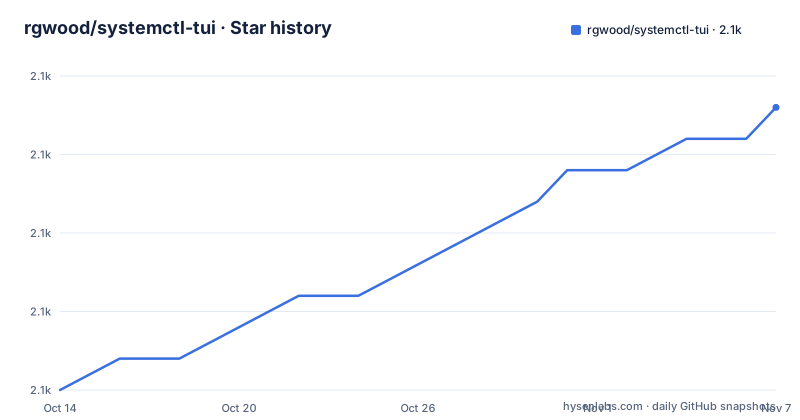
- rgwood/systemctl-tui2,098 ★ · +18
| Repository | 2026-10-14 | 2026-11-07 |
|---|---|---|
| rgwood/systemctl-tui | 2.1k | 2.1k |
18 Stars in the last 24 days, measured from the daily GitHub snapshot. Compare with other projects
Editorial analysis
Browsing and editing systemd units from one screen
systemctl-tui folds three separate chores into a single keyboard interface: finding out whether a unit is up, reading what it wrote to the journal, and changing the unit file itself. The one line description calls it a fast, simple TUI for interacting with systemd services and their logs, and the feature sentence stays small on purpose: browse service and timer status and logs, manage services and timers, and view or edit unit files, aiming to do a small number of things well.
That narrowness is the design, not an apology. Timers get the same treatment as services, so a deployment driven by a timer does not send you back to the shell for a second look. What is absent matters just as much: no socket views, no target units, no mount or path units, and no masking of features that the author did not feel like finishing.
The reader who benefits is someone with shell access to a Linux machine they are responsible for, either one host or a handful reached over SSH. Rendering comes from ratatui-template, the systemd handling code was partially taken from servicer, and the interaction model is borrowed from Lazygit, a git front end. Nothing in the project ties itself to configuration management, so the unit files it edits are the same plain files on disk that a deployment pipeline would own.
Three crates, with the GTK one outside default builds
The build is a Cargo workspace on resolver 2 with three members: `crates/systemctl-ui-core`, `crates/systemctl-tui` and `crates/systemctl-gui`. Only two are default members. The third is a GTK 4 graphical front end, held out of the default set because a plain cargo build would fail without GTK 4 system libraries, and the comment in Cargo.toml names the remedy, `cargo build -p systemctl-gui`.
Cross reading the tree against the documentation turns up a real gap. `crates/systemctl-gui` has no counterpart in the README, which never mentions a graphical mode, and `cargo install systemctl-tui --locked` hands you the terminal crate only. Meanwhile the `justfile` keeps both routes side by side with separate run and run-gui recipes, which points to work in progress rather than an abandoned crate. Build tags are kept apart too: the production profile is tuned for size, while a separate profiling profile deliberately keeps debug symbols.
One sentence covers the administrative facts. The workspace is MIT licensed, and the last push landed on 2026-10-03, well after the v0.8.0 tag dated 2026-07-27, so anything you compile from master is newer than any published binary.
Four documented ways to put the binary on a Linux box
The shortest documented path is one shell command, and the script it pipes is checked into the repository as `install.sh`. It drops the binary in `$HOME/.local/bin`, and an environment variable named DIR relocates that destination.
curl https://raw.githubusercontent.com/rgwood/systemctl-tui/master/install.sh | bashThe README itself warns about verifying whatever you pipe into bash, and the URL points at the master branch rather than a tag, so the script that runs is not pinned to the version you saw in the README. Debian and Ubuntu users get a package advertised as having no dependencies:
sudo apt install ./systemctl-tui_*.debRust users can install from crates.io or build in place:
cargo install systemctl-tui --lockedArch and Nix need no pipeline at all:
pacman -S systemctl-tui
nix-shell -p systemctl-tui
One optional detail is worth a second look. The README asks you to alias the long command to a two-letter shorthand, then to symlink `~/.cargo/bin/systemctl-tui` into `/usr/bin/systemctl-tui` so the tool still works under sudo. That symlink resolves only after a cargo install, since the curl script writes elsewhere entirely.
SSH mode without a remote install, and its limits
The remote mode is where this project earns its keep. `systemctl-tui --host user@hostname` and `systemctl-tui --remote` drive another machine with nothing installed on it, because the exchange happens over SSH through `systemd-stdio-bridge`, which ships inside the core systemd package on all major distributions, plus `journalctl` on the far side. No agent, no deploy step, no daemon.
The version claim is stated precisely, and it contains a gap worth reading closely: verified working on systemd 249 and 255, with the flags used existing back to at least systemd 239. Every version between that floor and the verified pair rests on flag history rather than on a host anyone recorded testing. On an older distribution you are relying on the second half of that sentence.
User-scope services demand more than an SSH key. The remote host needs a running user manager, either an active session or lingering enabled with `loginctl enable-linger`, or those units simply never appear in the list. Editing unit files remotely is not supported yet, which is the one limitation the README states outright.
A Windows target the documentation never promises
Here the README and the build file disagree. The documentation opens by saying the project only works on Linux, allows WSL on the condition that systemd is enabled, and states that binaries are published for x64 and ARM64 in the GitHub releases. The `justfile` then carries a recipe that builds a Windows target from a Linux host:
cross build --target x86_64-pc-windows-gnu --releaseBoth statements can hold at the same time, and the space between them is the interesting part. A maintainer cross-building a Windows target is not the same commitment as a Windows user having a supported binary. There is no Windows install instruction anywhere in the README: no archive name, no package manager entry, no note about which runtime a Windows build would need. A Windows tester also cannot reach the GUI crate discussed earlier, since that path pulls in GTK 4 system libraries.
Read that recipe as groundwork rather than a platform promise. Anyone planning a Windows rollout has no documented artifact to install.
Size tuned build profile, symbols kept for profiling
The production profile in Cargo.toml optimizes for a small binary rather than for a fast start. Link time optimization is enabled, `opt-level = 'z'` asks the compiler for size over speed, and `panic = 'abort'` turns a panic into a process abort instead of an unwind. A commented-out `strip = true` sits underneath with a note that symbol stripping gives large gains but the author was unsure about the stack traces it would leave behind.
A second profile inverts those decisions, and exists purely so the binary can be measured:
[profile.profiling]
inherits = "release"
strip = false
debug = true
The comment above it names the tools it is meant for, perf, samply and superluminal. Cross builds target x86_64-unknown-linux-musl and aarch64-unknown-linux-musl, both musl targets, so a compiled binary can be copied to a machine whose distribution ships a different glibc. The `justfile` publish recipe then copies and rsyncs those binaries to comma-separated host lists read from `.env.example`, where `PUBLISH_LOCAL_DESTINATION=~/bin` names the laptop destination.
Keybindings, config keys and rollback left unstated
Several things a new user looks for are simply not in the documentation. No key binding appears anywhere in the README, so the muscle memory has to come from the screenshot on the front page. No configuration file is named either, even though the repository root carries a `.config/` entry alongside `AGENTS.md`, `CLAUDE.md` and `TODO.md`; the README does not document how to change column layout, colours or any refresh behaviour, and the only environment variable it mentions belongs to the install script.
Rollback is the missing item that carries the most weight. Viewing and editing unit files is a headline feature, an edit applies to a live unit on a running host, and no undo, no backup path and no confirmation flow is described. A cautious user has to copy the unit file out by hand first.
Scope is narrower than the word systemd leads you to expect: services and timers get browse, manage and log views, while sockets, mounts, targets and paths go unmentioned, as does any filtering across a host with hundreds of units. The word fast carries no numbers behind it, since no startup time, memory figure or journalctl comparison appears. Tests exist at the root and `cargo test` runs them from the `justfile`, but coverage is not described.
The shell pipeline and sysz as the other route
The obvious alternative is the shell, since every job here maps to a command you could type by hand, and `journalctl` has to exist on any remote host regardless, because that is what the SSH mode drives. The difference in approach is the screen. Shell commands print a snapshot and exit, while an interface built on ratatui-template holds units, their status and their log streams together and redraws as state moves, then edits a unit file without leaving the view.
That trade is real rather than free. A pipeline of systemctl and journalctl calls composes with cron, with CI, with a tmux pane and with a runbook you can paste into a ticket. A full-screen program owns the terminal until you quit it, and gives you no output to capture.
The README credits sysz as an inspiration and links Lazygit, whose key-driven panel layout for git is the other acknowledged ancestor. Neither comparison is made in writing: no feature matrix, no note on what the other project handles differently. Choosing between two terminal front ends for systemd is left to whoever installs both and looks.
Editorial conclusion
systemctl-tui earns a place on a Linux machine you administer yourself, where checking a unit, reading its journal and editing its file are otherwise three separate sessions. Take it for multi-host work too, with two conditions: the far side needs systemd-stdio-bridge and journalctl, and you are not trying to edit unit files over SSH. Pass on it for Windows, for hosts without systemd, and for any script or CI job, since no non-interactive mode is documented. Before installing it on a shared server, confirm whether the account has lingering enabled, because user-scope services stay invisible without it.
Frequently asked questions
Can systemctl-tui manage a remote machine over SSH?
Yes. `systemctl-tui --host user@hostname` and `systemctl-tui --remote` manage a remote machine over SSH with no remote install, as long as that host has systemd-stdio-bridge and journalctl. Editing unit files remotely is not supported yet.
Does systemctl-tui run on Windows or macOS?
The README states the project only works on Linux, and that WSL works if systemd is enabled there. Binaries are published for x64 and ARM64, and the build file contains a recipe that cross builds a Windows target, but the README documents no Windows install path.
How do I install systemctl-tui from source?
Run `cargo install systemctl-tui --locked`, or clone the repository and run `cargo build --release` to get a binary at `target/release/systemctl-tui`. The GTK 4 GUI crate is excluded from a default build and needs its system libraries plus an explicit `cargo build -p systemctl-gui`.
Why do my user services not appear on a remote host with systemctl-tui?
User-scope services need a running user manager on the remote host, either an active session or lingering enabled through `loginctl enable-linger`. The host also needs systemd-stdio-bridge and journalctl, verified working on systemd 249 and 255, with the flags used existing back to at least systemd 239.
Where do systemctl-tui binaries and packages come from?
The GitHub releases page hosts binaries for x64 and ARM64 along with .deb packages that carry no dependencies, installable with `sudo apt install ./systemctl-tui_*.deb`. The curl install script reads install.sh from the master branch of the repository and installs the binary to `$HOME/.local/bin` by default.
Official sources
Add this badge to your README
If you maintain this project, the badge below links readers to this analysis and shows its maintenance status from the daily GitHub snapshot. Paste the markdown into your README; add ?metric=license or ?metric=stars to the image URL for a different field.

[](https://hysenlabs.com/projects/rgwood-systemctl-tui)Star history chart for your README
[](https://hysenlabs.com/projects/rgwood-systemctl-tui)Was this useful?