CSharpRepl's attach mode is arbitrary code execution, and the tool says so in a warning
A command line C# REPL with syntax highlighting – explore the language, libraries and nuget packages interactively.
At a glance
- What is it?
- C# REPL is a .NET global tool for experimenting with C# at the prompt, with intellisense, nuget references and a diff-based renderer. Its most consequential feature is attaching to a running application, which the project documents as equivalent to running code inside that process.
- Who is it for?
- C# REPL fits a developer who wants to try C# without a project file, inspect an object graph with a rich dump, or poke at a running service during development, and the prompt mechanics are unusually well documented for a tool this size.
- Can I use it commercially?
- Yes, with conditions. MPL-2.0 is a weak copyleft licence: you can use it inside commercial and closed-source software, but if you distribute changes to its own files, you must publish those changes under the same licence.
- Is it still maintained?
- Yes. The repository last received commits 1 day ago.
- What is it written in?
- Mainly C#, according to GitHub's language statistics.
Answers come from the project's GitHub data, last synced on November 14, 2026, and from our analysis. They are not legal advice.
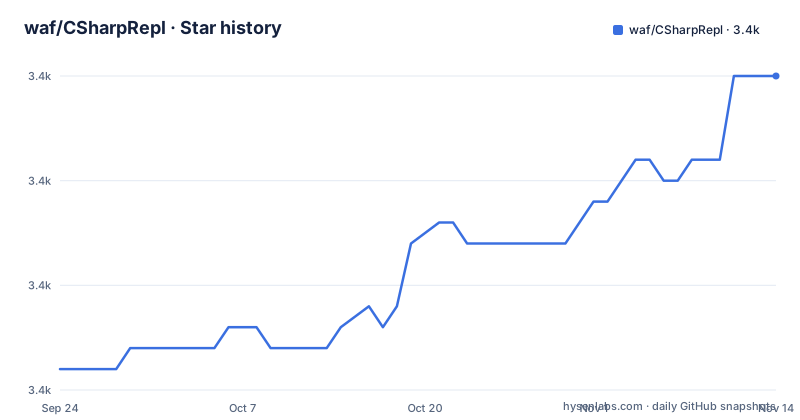
Star history
- waf/CSharpRepl3,365 ★ · +14
| Repository | 2026-09-24 | 2026-11-14 |
|---|---|---|
| waf/CSharpRepl | 3.4k | 3.4k |
14 Stars in the last 51 days, measured from the daily GitHub snapshot. Compare with other projects
Editorial analysis
Attach mode runs arbitrary code inside the target process
The feature list includes connecting to a running .NET application and running the REPL inside that application, with access to application state and the ability to replace live methods. The README puts a warning on it in bold. Connecting to a connector-enabled process is equivalent to running arbitrary code inside it, with its privileges, and the page states plainly that this is a development and diagnostics tool and that the connector should never be enabled on a production process. The mechanism explains why the warning is that strong: CSharpRepl injects a real Roslyn scripting engine into the target, so you can run unconstrained C# in that application rather than a restricted command set. Reading and writing live state is part of the point, including statics and services resolved from dependency injection, and replacing a live method is listed among the capabilities.
The target opts in with two environment variables, set in one shell
The good news in that design is that the target's source does not have to change. The bad news is that the target has to be started deliberately. The application must opt in by running from a shell that carries two special environment variables, and you get the exact lines to use by asking the tool to print them:
csharprepl connect init # this autodetects your shell, or pass e.g. --shell pwshThen you set those variables and launch the application in that same shell. The instruction is explicit that you should not set them as permanent environment variables on your machine, only in the shell where you are launching. That constraint is what keeps the capability from becoming a standing production configuration: a process started without those variables is not attachable, and the variables are gone when the shell exits.
It is a scripting host, not a debugger
The page draws the line in one sentence: this is not a debugger, and breakpoints, stepping and non-cooperative attach are not supported. That is the practical difference between this tool and the ones people reach for when they want to stop inside a running process. What you get instead is evaluation: an expression runs in the target, you can read its state, and you can change it, including replacing a live method. Non-cooperative attach being unsupported also means the target has to be willing in some sense, which connects back to the opt-in described above. If your goal during an incident is to freeze a thread and inspect it, this is the wrong tool, and the README says so rather than leaving you to discover it.
One reference directive covers assemblies, projects, solutions and nuget
The #r command is the single entry point for bringing code into a session, and it has four forms. For an assembly, either its name or a path to the file: #r "AssemblyName" or #r "path/to/assembly.dll". For a project, a path to the csproj file, and solution files can be referenced too, both the .sln format and the newer .slnx one. For a nuget package, #r "nuget: PackageName" installs the latest version, while #r "nuget: PackageName, 13.0.5" pins a specific one. Installation of a package happens as a side effect of referencing it rather than as a separate step, which is what makes a REPL session feel different from building a project. The one configuration beyond that is for ASP.NET: start the tool with the --framework option naming the Microsoft.AspNetCore.App shared framework, then reference the application assembly with the same #r command. The example command on the page carries two spaces between the option and its value, a small sign that the examples are hand written rather than copied out of a parser.
Completion is optional and takes a key you supply
One item on the feature list is AI code completion, and its shape matters more than its presence. The tool names six providers, OpenAI, Anthropic, Gemini, Grok, DeepSeek and Mistral with Codestral, then adds that any other OpenAI-compatible provider works too. The decisive detail is in parentheses: bring your own API key. Nothing is enabled by default, so the feature costs nothing until you configure a provider, and it never means the tool is talking through somebody else's account on your behalf. The rest of the inspection side of the tool comes from the same list: IL disassembly and lowered C# decompilation in both debug and release builds using ILSpy, and navigation to source through Source Link. Together with the object dump that Ctrl+Enter produces, that makes the tool usable for reading a library's internals as much as for writing new code.
Semicolons decide whether Enter runs the line or continues it
The prompt has three input gestures and the rule that connects them is about C# syntax rather than about the tool. Press Enter to run, Shift+Enter to insert a newline, and Ctrl+Enter for a detailed view of the result. A statement that is not yet syntactically complete gets a newline inserted instead of being run, so typing if (x == 5) and pressing Enter leaves the caret on the next line rather than throwing. The README also spells out the semicolon rule, because it explains the same behaviour from the other direction: expressions do not need a semicolon, statements do, and if a required one is missing the REPL adds a newline rather than attempting to run an incomplete statement. Session lifetime is equally plain, with exit or Ctrl+D to leave. Scripts loaded with #load behave as session initializers, since references, namespaces and variables they define remain available afterwards.
Three sources of colour, and an environment variable that wins
Colour is configurable in three layers. The default theme uses the same colours as Visual Studio dark mode. Custom themes are written as a theme.json file, and the link the page gives points at a Dracula theme as the example. And a command line option makes the tool use whatever palette your terminal already has, which matters when your terminal background is not black. Above all of that sits the NO_COLOR environment variable, which disables colour entirely. Rendering is also handled differently from most prompts: the feature list credits a diff algorithm for only re-rendering what changed, with fast flicker-free drawing as the result. Object output goes through a rich formatter from Spectre.Console, and Ctrl+Enter expands a value into its fields, which is how you see the internals of something like a DateTime rather than its formatted form.
A central package list, an SDK pin, and a solution header file
The repository is laid out like a maintained tool rather than a script collection. There are two projects, the tool itself and a services project, plus an injected hook directory that corresponds to the attach feature, and a Tests directory. Dependencies are managed centrally through a directory-level package props file, and a global.json pins the SDK, which is the pair of files that keeps a machine from drifting. The solution uses the newer .slnx format, and next to it sits a solution license header file, a template used to stamp headers across sources. Release work is scripted in PowerShell and documented in its own publish guide, and there is a separate architecture document. Three assistant instruction files sit at the root as well, one for agents and two for specific tools. The published version numbers are all in the 0.9 range, with 0.9.0, 0.9.1 and 0.9.2 released within a week of each other in June 2026.
Editorial conclusion
C# REPL fits a developer who wants to try C# without a project file, inspect an object graph with a rich dump, or poke at a running service during development, and the prompt mechanics are unusually well documented for a tool this size. The decision to make first is whether you will ever attach it to a live process, because the project's own warning is unambiguous: attaching is equivalent to running arbitrary code inside the target with its privileges, and the connector must never be enabled on a production process. Second, remember that it is not a debugger. Breakpoints, stepping and attach to a process that is not cooperating are all unsupported, so reach for a real debugger when you need those.
Frequently asked questions
How do I install C# REPL?
It is a .NET 10 global tool installed with dotnet tool install -g csharprepl, and it runs on Windows, macOS and Linux. Update it with dotnet tool update -g csharprepl. On macOS Catalina or later you may need to adjust PATH to use .NET global tools.
Can C# REPL attach to a running .NET application?
Yes, to a process that opts in. You print the environment variables with csharprepl connect init and launch the application in that shell, without making the variables permanent. The README warns that attaching is equivalent to running arbitrary code inside that process with its privileges, and that the connector must never be enabled on a production process.
Is C# REPL a debugger?
No. It injects a Roslyn scripting engine into the target so expressions can be evaluated there, but breakpoints, stepping and non-cooperative attach are explicitly not supported.
How do I reference a NuGet package or a project in C# REPL?
With the #r directive. Use #r "nuget: PackageName" for the latest version or #r "nuget: PackageName, 13.0.5" for a specific one, and #r "path/to/project.csproj" for projects, where .sln and .slnx solutions can also be referenced. Assembly names and paths to dll files work too.
How do I turn off colours in C# REPL?
Set the NO_COLOR environment variable. Otherwise the default theme follows Visual Studio dark mode, custom themes are written as a theme.json file, and the --useTerminalPaletteTheme option makes it use your terminal's own colours.
Official sources
Add this badge to your README
If you maintain this project, the badge below links readers to this analysis and shows its maintenance status from the daily GitHub snapshot. Paste the markdown into your README; add ?metric=license or ?metric=stars to the image URL for a different field.

[](https://hysenlabs.com/projects/waf-csharprepl)Star history chart for your README
[](https://hysenlabs.com/projects/waf-csharprepl)Was this useful?