llm-for-zotero: an .xpi you install by hand, with five ways to reach a model
An open-source research agent system for your Zotero library.
At a glance
- What is it?
- A Zotero add-on that puts a language model inside the reader, with grounded citations, agent mode and Markdown notes written to a vault. The interesting parts are the provider protocols, the cache-aware agent mode, and the local development setup that needs a Zotero binary and a profile.
- Who is it for?
- Use llm-for-zotero if you already live in Zotero and want to question a paper without leaving the reader, particularly if you want answers that cite the passage they came from and notes that land in an Obsidian vault rather than only in the library.
- Can I use it commercially?
- Yes, with strict conditions. AGPL-3.0 is a network copyleft licence: if people use a modified version over a network, for example as a hosted service, you must offer them its source code under the same licence.
- Is it still maintained?
- Yes. The repository last received commits 5 days ago.
- What is it written in?
- Mainly TypeScript, according to GitHub's language statistics.
Answers come from the project's GitHub data, last synced on November 14, 2026, and from our analysis. They are not legal advice.
Star history
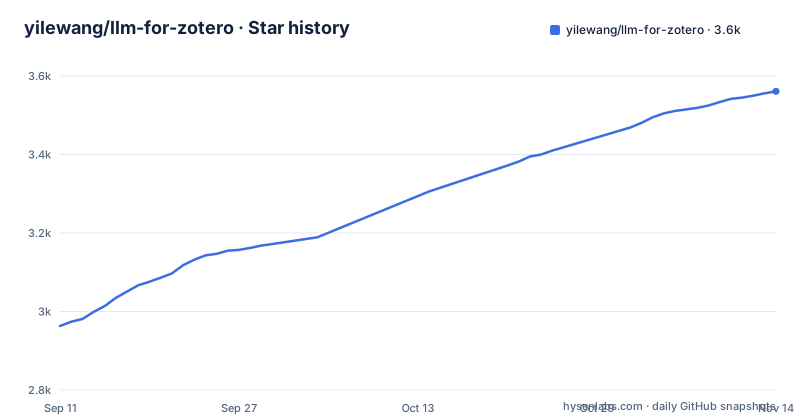
- yilewang/llm-for-zotero3,561 ★ · +598
| Repository | 2026-09-11 | 2026-11-14 |
|---|---|---|
| yilewang/llm-for-zotero | 3k | 3.6k |
598 Stars in the last 64 days, measured from the daily GitHub snapshot. Compare with other projects
Editorial analysis
Installation is a file you pick in a dialog
There is no package manager step, because a Zotero add-on is not a library. The documented path is five steps.
Download the latest `.xpi` from the releases page. In Zotero, open the add-ons manager through Tools, then Add-ons, then the gear icon, then Install Add-on From File, and select the file. Restart Zotero. Open Preferences and choose the llm-for-zotero entry, pick a provider, enter the base URL, key and model, and press Test Connection. Finally, open a PDF and click the assistant icon in the right-hand toolbar.
That last step is the one that tells you it worked: the interface appears inside the reader rather than in a separate window.
There is also a standalone window mode, which opens the assistant in its own window with paper chat, library chat and conversation history, for when the sidebar is too narrow for the work.
If you would rather not hand over a provider API key, the documentation points you at two alternatives to start with: the WebChat path and the Codex App Server path.
Four protocol names, and as many models as you want
The configuration step is three fields: a provider, an API base URL, a secret key, and a model name, followed by a connection test. The detail worth knowing is that providers are not one interface.
Four protocol names are listed: `responses_api`, `openai_chat_compat`, `anthropic_messages` and `gemini_native`. That list tells you the plugin speaks each vendor's native request shape rather than translating everything into one dialect, which matters when a model exposes features that do not survive translation.
More than one provider and model can be configured at once, and the documented example of why is task-shaped: a multimodal model for figures and a text model for summaries. So the choice is per task rather than per install.
The conversation panel also exposes model-specific reasoning levels and hyperparameters such as `temperature` and `max_tokens_output`. That is a hint that the panel is generating the request body for whichever protocol you selected, rather than offering one universal set of sliders.
Five ways in, two of which need no key
The backend story is the most unusual part of the project, because it goes well past a single API key.
There are standard API providers. There are local OpenAI-compatible models, so a model running on your own machine counts as a backend. There is WebChat. There is the Codex App Server, which the documentation calls the recommended path for ChatGPT Plus users and which runs through the local `codex app-server` runtime, configured from the Agent tab rather than from the provider settings. And there is Claude Code, run as a separate conversation system inside Zotero through a companion local bridge.
That last one carries its own warning, and it is a real limitation rather than a caveat about stability: Claude Code Mode is experimental and does not yet support native Zotero API operations. In other words the agent can talk to you and reason over the conversation, but it cannot reach into the library the way the built-in Agent Mode does.
So the two keyless paths are for people who already pay for a subscription rather than for API credits, and the two experimental-sounding paths are for people who want a local agent at the cost of library access.
Agent mode keeps paper context and compacts transcripts
Agent Mode is the part that goes beyond the reader, and the table of contents marks it as beta.
Its scope is library-wide: read, search, tagging, metadata, import, note-editing and organisation workflows. The documented flow for using it reads like an assistant operating on your collection rather than on one open paper.
What is new and interesting is the caching behaviour. The description says the mode preserves stable paper context, prior read evidence and coverage state across longer research turns, then compacts old transcript history automatically when the context window gets crowded.
Three separate things are being held on purpose: the paper context, the evidence already read, and the coverage state, which is what stops a long session from re-reading what it already covered. The automatic compaction is what keeps the turn count from being bounded by the context window alone.
On top of that sits Skills, eight of them built in, which exist to customise how Agent Mode handles research workflows, plus a portal for creating your own. General web search with Tavily extends the same loop beyond the library, reading pages and attaching source links.
Citations stay conservative until a page location is verified
The citation behaviour is unusually well specified, and it is the detail that separates this from a chat box bolted onto a PDF reader.
Answers are described as grounded, with citations that jump back to the source passage in Zotero. Clicking a generated citation moves the reader to the place the claim came from.
The release note on citation navigation adds the part that matters for trust: citation labels are kept conservative until page locations are verified, while quote based citations can jump back to the matching Zotero passage. In other words the plugin distinguishes between a citation it can prove points somewhere and one it cannot, and declines to be specific in the first case.
Grounding itself works in two stages. On the first message the current paper is loaded as context, and follow up questions use focused retrieval from the same paper rather than reloading it, which is both the speed argument and the accuracy argument. Multi-paper comparison extends the same idea by letting you open several papers in tabs and cite another paper as additional context with a slash command.
If the plugin guesses a page, you would know, because the label would have been dropped.
The build checks architecture, cycles and retired names
The scripts in the package manifest are where a mature plugin project shows its working method, and there are more checks here than most plugins have.
There is an architecture boundary check and an import cycle check, both small scripts under `scripts/`. There is a model registry validation step, which suggests capabilities are declared somewhere in a registry rather than inferred at runtime. There is a vocabulary check whose filename says it checks retired tool names, which reads like a guard against stale identifiers surviving a rename. Type checking runs twice, once against the main configuration and once against a separate workflow configuration.
The test story is layered. Unit tests run Mocha through tsx with a register file. Workflow tests, behaviour tests, a behaviour smoke tier, and a dedicated MinerU restart test each have their own runner. And the tree carries a dozen directories whose names begin with test, including several prefixed test-live for agent, loop, mineru and performance scenarios, which is a signal that this plugin is exercised against live backends rather than only against fixtures.
The packaging itself is a scaffold: start runs a serve command from the plugin tooling, build runs the build and then type checking, and release runs the tool's own release command.
Local development needs a Zotero binary and a profile
The environment template is short and each variable has a wrinkle worth knowing.
The binary path is the first, and the comment explains the platform details: the path delimiter has to be escaped for win32, and on macOS the executable lives inside the application bundle at a specific location under Contents. The profile path is the second, with instructions for creating a profile by passing a flag to the binary so you get a development profile rather than your real one. That separation is the point: a plugin under development should not be writing into the library you care about.
The data directory is third and it is empty by default, with a comment saying that leaving it empty means Zotero starts with its default data. The kill command is commented out, because the plugin tooling already carries per-platform commands and you only override it if the built-in ones do not suit you.
The last variable is a GitHub token, and it exists for one reason: the scaffold can create a release and upload assets, so a local build can publish without CI. Fill it only if you are publishing from your own machine.
The manifest's config block carries the add-on identity in five places: the name, the add-on ID, a short reference, an instance name, and the preference prefix that all settings hang off.
Editorial conclusion
Use llm-for-zotero if you already live in Zotero and want to question a paper without leaving the reader, particularly if you want answers that cite the passage they came from and notes that land in an Obsidian vault rather than only in the library. The provider list is unusually broad, which matters if you want a multimodal model for figures and a text model for summaries at the same time, or if you would rather avoid an API key entirely by going through WebChat or Codex App Server. Skip it if you need the agent to perform native Zotero API operations through the Claude Code path, because that mode is marked experimental and does not yet support them. Before you install, read the privacy and data flow section in the documentation, since you are sending your library to whichever backend you configure, and expect manual add-on installation rather than a plugin manager.
Frequently asked questions
Is there an AI plugin for Zotero?
llm-for-zotero is one: a Zotero add-on, licensed AGPL-3.0, that chats with the open PDF, selected text, figures, screenshots and uploaded documents inside the reader. You can attach up to ten screenshots and upload PDF, DOCX, PPTX, TXT or Markdown files as extra context.
Can ChatGPT be integrated with Zotero?
Yes, through two paths that do not need a provider API key: WebChat, and the Codex App Server, which the documentation recommends for ChatGPT Plus users and which runs through the local codex app-server runtime configured from the Agent tab.
Where does llm-for-zotero save its notes?
Answers, selected text, full conversations and research notes can be saved as Zotero notes, exported as Markdown, or written as Markdown files into a local folder such as an Obsidian vault, a Logseq graph or any plain Markdown directory.
Which provider protocols does llm-for-zotero support?
Four are named: responses_api, openai_chat_compat, anthropic_messages and gemini_native. You can configure several providers and models at once, for example a multimodal model for figures and a text model for summaries.
How do I install the llm-for-zotero plugin?
Download the latest .xpi from the releases page, then in Zotero open Tools, Add-ons, the gear icon, and Install Add-on From File. Restart Zotero, set your provider in Preferences and press Test Connection, then open a PDF and use the assistant icon.
Does llm-for-zotero have an agent mode?
Yes, and the table of contents marks it beta. Agent Mode covers library-wide read, search, tagging, metadata, import, note-editing and organisation, with eight built-in skills and a portal for creating your own, and it preserves paper context and coverage state across long research turns.
Official sources
Add this badge to your README
If you maintain this project, the badge below links readers to this analysis and shows its maintenance status from the daily GitHub snapshot. Paste the markdown into your README; add ?metric=license or ?metric=stars to the image URL for a different field.

[](https://hysenlabs.com/projects/yilewang-llm-for-zotero)Star history chart for your README
[](https://hysenlabs.com/projects/yilewang-llm-for-zotero)Was this useful?