unifi-protect-backup: copying UniFi Protect clips off the console
Python tool to backup unifi event clips in realtime
At a glance
- What is it?
- unifi-protect-backup is a Python tool that listens to the UniFi Protect websocket API and copies event clips to storage through rclone as they are recorded, then prunes them on a retention schedule. The README is built around a container run, a local-only Protect user with Full Management, and the event database that has to be persisted since version 0.8.0.
- Who is it for?
- Use unifi-protect-backup if your cameras record to a UniFi console you control and you want the event clips to exist somewhere else, because a console that is lost to a fire or a burglary takes the footage with it, and this tool writes each clip to rclone storage as the event arrives.
- Can I use it commercially?
- Yes. MIT is a permissive licence: you can use, modify and sell software built on it, as long as you keep its copyright and licence notices.
- Is it still maintained?
- Yes. The repository last received commits 63 days ago.
- What is it written in?
- Mainly Python, according to GitHub's language statistics.
Answers come from the project's GitHub data, last synced on November 7, 2026, and from our analysis. They are not legal advice.
Star history
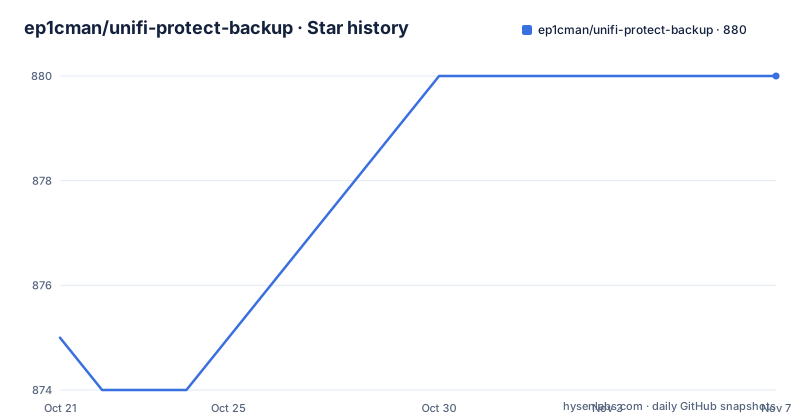
- ep1cman/unifi-protect-backup880 ★ · +5
| Repository | 2026-10-21 | 2026-11-07 |
|---|---|---|
| ep1cman/unifi-protect-backup | 875 | 880 |
5 Stars in the last 17 days, measured from the daily GitHub snapshot. Compare with other projects
Editorial analysis
The premise is that the recorder can be destroyed
The README explains where the idea came from, and the explanation is more useful than a feature list. If something happened, a fire or a burglary, and the UniFi console could no longer be reached, all the footage recorded by the cameras would have been rather pointless. That is a specific failure mode, and this tool is built around it.
So the scope is event clips, not continuous recording. Motion and smart detection clips are immediately backed up to off-site storage thanks to rclone, and kept for the configured retention period. The tool does not try to be a second recorder. It is a copy step that runs next to one.
The implementation is a Python package published on PyPI as unifi-protect-backup, licensed MIT, and it is driven by a command line interface rather than by a configuration file. The README lists four capabilities: it listens to events in real time via the UniFi Protect websocket API, it ensures any previous and missed events within the missing range are also backed up, it supports uploading to a wide range of storage systems using rclone, and it prunes old clips automatically.
The requirements section sets a floor of Python 3.10 or newer, UniFi Protect version 1.20 or higher as per the uiprotect library, and rclone installed with at least one remote configured. That last one is the real architectural choice in the project. Storage is delegated entirely to rclone, and the tool is a client of rclone rather than an owner of a storage format.
A websocket feed for the present, a range query for the gap
Real-time listening alone would leave holes. Any clip that arrived while the tool was stopped, or while the network was down, would simply be missing, and a backup that misses events during an outage is exactly the failure this project exists to prevent.
The second feature covers that: any previous and/or missed events within the missing range are also backed up. The option that sets it is --missing-range, and its default is the same as the retention time, so with the default retention of 7d the tool looks back seven days for events it has not yet copied. Both the retention value and the missing range use the same format, the --max-age argument of rclone, so an operator who already knows rclone's filtering syntax has nothing new to learn.
The mechanism behind that catch-up is the event database, and this is where the README carries a warning that applies to anyone running the container. As of version 0.8.0, the event database needs to be persisted for the tool to function properly, which is why the documented run commands mount a host directory at /config/database/. Without that volume the tool starts with an empty history and cannot know what it has already copied, so the missing-range logic has no baseline to work from.
The Dockerfile makes the same point structurally. It sets SQLITE_PATH=/config/database/events.sqlite, and the container declares volumes for /config and /data, so the configuration and the database live in one mounted directory while the clips go to the other.
Local storage first, rclone remotes second
The preferred way to run the tool, in the README's own words, is using a container. The simplest run needs four environment variables and two volume mounts:
docker run \
  -e UFP_USERNAME='USERNAME' \
  -e UFP_PASSWORD='PASSWORD' \
  -e UFP_ADDRESS='UNIFI_PROTECT_IP' \
  -e UFP_SSL_VERIFY='false' \
  -v '/path/to/save/clips':'/data' \
  -v '/path/to/save/database':/config/database/ \
  ghcr.io/ep1cman/unifi-protect-backup
By default, if no rclone config is provided, clips are backed up to /data, so the first run is a local copy on the same machine. The image carries that as its own default, with RCLONE_DESTINATION=local:/data, along with RCLONE_RETENTION=7d and UFP_PORT=443.
Moving the destination to cloud storage means supplying a rclone.conf, and the README shows how to generate one interactively with the image itself:
$ docker run -it --rm -v $PWD:/root/.config/rclone --entrypoint rclone ghcr.io/ep1cman/unifi-protect-backup configThat command produces a rclone.conf file in the current directory, which you then mount into the container and name in the destination variable:
docker run \
  -e UFP_USERNAME='USERNAME' \
  -e UFP_PASSWORD='PASSWORD' \
  -e UFP_ADDRESS='UNIFI_PROTECT_IP' \
  -e UFP_SSL_VERIFY='false' \
  -e RCLONE_DESTINATION='my_remote:/unifi_protect_backup' \
  -v '/path/to/config/rclone':'/config/rclone/' \
  -v '/path/to/save/database':/config/database/ \
  ghcr.io/ep1cman/unifi-protect-backup
The value of RCLONE_DESTINATION uses the rclone remote syntax of a remote name and a path, and the same shape appears in the command line option of the tool, where the documented example is gdrive:/backups/unifi_protect. Because the storage layer is rclone, the range of destinations is whatever rclone supports, which is the wide range of storage systems the feature list claims.
Running on the host, and the one optional dependency
The container is the preferred route, but a host install is documented as a four-step list. Install rclone, following the instructions for your platform, then configure the rclone remote you want to back up to, then install the package, and then optionally install ffprobe:
pip install unifi-protect-backupThe optional step is worth reading closely, because ffprobe is not there for playback. Its stated purpose is so that unifi-protect-backup can check the length of the clips it downloads, which is how a tool that works in rclone's max-age terms can reason about a file that is still growing when it is first seen.
On a host install the same environment variables still apply, since they are the interface between the tool and the outside world, but the paths change: the config directory and the database live wherever the host configuration puts them rather than under a container volume.
The package itself is built with hatchling, declares the console script unifi-protect-backup = unifi_protect_backup.cli:main, and pins a small set of runtime dependencies including uiprotect==10.2.2 for the Protect API, aiosqlite for the event database, apprise, and aiosqlite for the event database. The presence of apprise in that list suggests a notification path, but the README does not document notification behaviour, so treat that as a dependency rather than a feature.
The options that decide what gets copied and what gets deleted
The command line is where the policy lives. The connection options are --address, which is required, --username and --password, also required, and --port, which defaults to 443. Certificate handling is a two-sided switch, --verify-ssl and --no-verify-ssl, defaulting to verify-ssl, described as the setting to use if you do not have a valid HTTPS certificate for your instance. The Docker examples above set UFP_SSL_VERIFY='false', which is the same choice made in the environment variable form.
The copy target is --rclone-destination, required, in the format {rclone remote}:{path on remote}. Retention is --retention, defaulting to 7d, and the missing-range option defaults to the same value.
Two options pass arguments straight through to rclone, and they are the ones that matter in production. --rclone-args is passed to rclone rcat, with the documented common use being a bandwidth limit, so a backup can be rate limited on a metered or slow link. --rclone-purge-args is passed to rclone delete, with the documented example being --drive-use-trash=false so that pruning performs a permanent delete instead of using the recycle bin on the destination. That is a meaningful choice for a tool that deletes data on a schedule: by default the pruned clips land in the destination's trash, and that behaviour is a decision you make rather than one you inherit.
The --detection-types option takes a comma separated list of which types of detections to backup. The README begins listing valid options as motion, ring, line, fingerpri, and the list is cut off there, so the full set of valid values has to be read from the tool itself.
The Protect account it needs, and the permissions it asks for
Before any of this runs, a UniFi Protect account has to be created, and the README is precise about how because the wrong kind of account will not work.
You log in to the Local Portal on the UniFiOS device and open the Users section. In the Roles tab you add a role, give it a name such as unifi protect backup, and give it Full Management permissions for the unifi protect app. In the User tab you then add a user, and two fields matter: the role must be the role you just created, and the Account Type must be Local Access Only. Finally you select the new user in the list, go to the Assignments tab, and make sure all cameras are ticked.
Two details in that sequence carry the design. The tool authenticates as a local account rather than as a cloud-linked user, which is consistent with the README's opening premise, because a console that has lost its internet connection is exactly the console you still need to copy footage off. And the camera assignment is done per camera, which is where you decide whether a given camera's clips leave the premises at all.
Full Management for the Protect app is a broad permission, and it is the same permission the tool needs to read clips and camera events. That is a real consideration for a tool whose whole purpose is to move security footage off a device, and it is the reason to give the account its own role rather than reusing an administrator login.
Packaging details, and a version floor that does not match the README
The repository layout is a modern Python package rather than a script directory: pyproject.toml, a makefile, a Dockerfile, a docker_root/ directory, the unifi_protect_backup/ package, tests/, uv.lock, CHANGELOG.md, CONTRIBUTING.md and a .bumpversion.cfg for version bumps. The Dockerfile builds from an Alpine base image, installs rclone, ffmpeg and python3 with pip, and installs the package from the built sdist, with the build driven by make docker.
The environment defaults in that Dockerfile are the most compact summary of the tool's configuration surface:
ENV UFP_USERNAME=unifi_protect_user
ENV UFP_PASSWORD=unifi_protect_password
ENV UFP_ADDRESS=127.0.0.1
ENV UFP_PORT=443
ENV UFP_SSL_VERIFY=true
ENV RCLONE_RETENTION=7d
ENV RCLONE_DESTINATION=local:/data
ENV VERBOSITY="v"
ENV TZ=UTC
ENV IGNORE_CAMERAS=""
ENV SQLITE_PATH=/config/database/events.sqlite
Two of those are worth attention in a deployment. SQLITE_PATH is the file the missing-range logic depends on, and IGNORE_CAMERAS is an empty default that suggests per-camera exclusion, which is a lever for keeping some cameras off the copy path entirely.
There is a discrepancy to settle before you install anything. The README's requirements section says Python 3.10+, while the package metadata in pyproject.toml says requires-python = ">=3.11.0,<4.0" and the classifiers list Python 3.11. The metadata is what pip enforces, so a 3.10 interpreter will be refused despite the README. The dependency set is pinned tightly in places, with uiprotect==10.2.2, aiohttp==3.13.4 and click==8.0.1, and looser elsewhere.
On maintenance, the last push was on 2026-09-06 and the repository is not archived. The releases are v0.14.1 on 2025-12-26, v0.14.2 on 2026-03-09 and v0.14.3 on 2026-04-07, and the packaged version in pyproject.toml is 0.14.3, so the published package and the newest tag agree, with source changes landing after the last release. The project classifies itself as Development Status :: 5 - Production/Stable.
Editorial conclusion
Use unifi-protect-backup if your cameras record to a UniFi console you control and you want the event clips to exist somewhere else, because a console that is lost to a fire or a burglary takes the footage with it, and this tool writes each clip to rclone storage as the event arrives. Do not adopt it expecting a full recording archive, since it handles event clips and its own retention window rather than continuous video, and check the detection type list before you rely on it, because the README's list of valid detection types is cut off partway through. Before you deploy it, read the version floor from pyproject.toml rather than from the README, confirm the Protect user is a local-only account with camera assignments, and persist /config/database so the catch-up range survives a container restart.
Frequently asked questions
How do I install unifi-protect-backup?
The preferred way is the container image ghcr.io/ep1cman/unifi-protect-backup with UFP_USERNAME, UFP_PASSWORD and UFP_ADDRESS set, and with a volume mounted at /config/database/ so the event database survives a restart. On a host, install rclone, configure a remote, then run pip install unifi-protect-backup.
What does the missing-range option do?
It sets how far back the tool looks for events it has not copied yet, so clips recorded while it was stopped are still picked up. Its default is the same as the retention time, and both values use the --max-age format of rclone.
Why does unifi-protect-backup need a UniFi Protect role with Full Management?
The README's setup instructs you to create a role with Full Management permissions for the unifi protect app, then a user with that role and Account Type set to Local Access Only, and to tick all cameras in the Assignments tab. The account has to be local so the tool still works when the console has no internet connection.
What Python version does unifi-protect-backup need?
The package metadata in pyproject.toml requires Python 3.11 or newer and below 4.0, with requires-python set to >=3.11.0,<4.0, even though the README's requirements section says Python 3.10+. The metadata is what the installer enforces.
Official sources
Add this badge to your README
If you maintain this project, the badge below links readers to this analysis and shows its maintenance status from the daily GitHub snapshot. Paste the markdown into your README; add ?metric=license or ?metric=stars to the image URL for a different field.

[](https://hysenlabs.com/projects/ep1cman-unifi-protect-backup)Star history chart for your README
[](https://hysenlabs.com/projects/ep1cman-unifi-protect-backup)Was this useful?