supernote-obsidian-plugin: reading .note files in a vault, exporting them, and the vector ink switch that is on by default
Supernote A5, A5X, A6X, A6X2 (Nomad), and A5X2 (Manta) integration for Obsidian. Generate markdown, capture screen mirror, and more.
At a glance
- What is it?
- An unofficial TypeScript Obsidian plugin for the Supernote A5, A5X, A6X, A6X2 (Nomad) and A5X2 (Manta). It lets a vault open, link, embed and export the device's own .note files, pull pages across through screen mirroring, and move files with the tablet's Browse and Access transfer instead of a cloud service. Two rough edges are documented: vector ink rendering that can differ from the device unless you turn it off, and OCR customization that is still beta.
- Who is it for?
- This plugin is worth installing if your handwriting already lives on a Supernote and your organization already lives in Obsidian, because it keeps the device's .note format as the source of truth instead of asking you to convert it once.
- Can I use it commercially?
- Yes. MIT is a permissive licence: you can use, modify and sell software built on it, as long as you keep its copyright and licence notices.
- Is it still maintained?
- Yes. The repository last received commits 10 days ago.
- What is it written in?
- Mainly TypeScript, according to GitHub's language statistics.
Answers come from the project's GitHub data, last synced on October 22, 2026, and from our analysis. They are not legal advice.
Star history
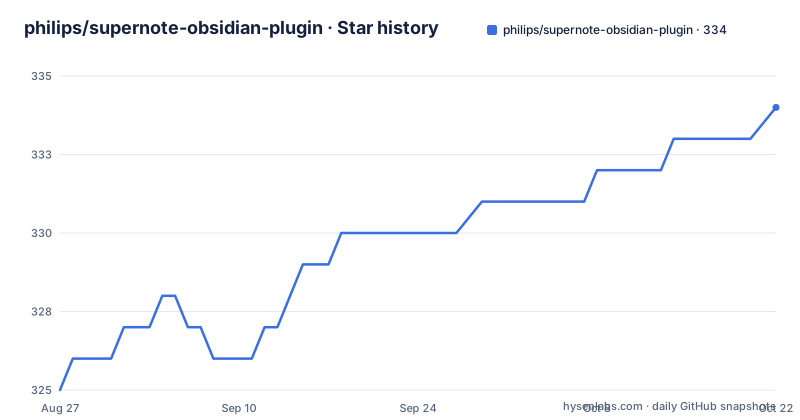
- philips/supernote-obsidian-plugin334 ★ · +9
| Repository | 2026-08-27 | 2026-10-22 |
|---|---|---|
| philips/supernote-obsidian-plugin | 325 | 334 |
9 Stars in the last 56 days, measured from the daily GitHub snapshot. Compare with other projects
Editorial analysis
Vector ink is on by default, and PNG export never turns it off
The note viewer and the exported PDFs and SVGs draw pen strokes as crisp vector paths rather than rasterizing the ink, so they stay sharp at any zoom level. That default is also the project's most commonly reported rendering complaint, because a page can look correct in shape and still not match what the tablet shows. The fix is a single toggle: switch off Vector ink under Settings, Supernote, and the view and the exports fall back to the original rasterized ink. Two details are worth holding on to. The setting is on by default, so nobody chooses this behaviour, it is simply what you get until you turn it down. And the fallback is not symmetrical: PNG export and the thumbnail sidebar stay rasterized either way, because a PNG is pixels and a small preview gains nothing from vector paths. That asymmetry means switching the setting off changes what the viewer shows and what lands in a PDF or SVG, and changes nothing about an exported PNG.
A .note file links like a file and embeds like a block
The plugin treats the device's own .note files as first class vault content rather than converting them on sight. You can view them inside Obsidian, and you can point at them from ordinary Markdown with a plain link:
[My Note](example.note)To place one inside another note, use the embed form, which arrives scrollable and with page navigation. A whole note embeds this way:
![[example.note]]and a single page of it embeds by naming the page:
![[example.note#page=2]]The practical consequence is that the device file stays the original rather than becoming a copy. Nothing about this route rounds the ink to a screenshot or flattens the pages, which is also why the vector ink setting affects what you see here. The plugin is named Supernote (Unofficial) in the store listing, it is not affiliated with Ratta, and its description names the A5, A5X, A6X, A6X2 (Nomad) and A5X2 (Manta) as the models it targets. Its own screen gallery lives in SCREENSHOTS.md, one entry per feature, which is faster than guessing what a given embed renders as.
Export writes PNG, SVG, PDF or markdown into the vault
Conversion is a separate action from viewing. A .note file can be exported as PNGs, as SVGs, as PDFs, or as markdown, and the results are attached into your vault rather than written to a folder outside it. Markdown export is the one with an obvious gap, and the gap is deliberate: the generated markdown has no table of contents, because the Obsidian Outline sidebar already covers that job and a second hierarchy inside the file would duplicate it. That answer matters if you are exporting to share, because a shared markdown file carries none of the navigation a vault gets from Outline. The PNG path is the one to reach for when you need something that survives being pasted into another application, and it is also the path that ignores the Vector ink setting entirely, since it rasterizes the pages. PDF and SVG output is where the vector ink decision actually lands, so a document that renders correctly on screen and exports badly is usually the setting, not the converter.
Import notes edited today is built around the daily note
One command exists purely for the pattern most people already keep: the daily note. Import notes edited today attaches every Supernote note you modified today, together with its text, to whichever note currently has focus. The pairing is the point. Whatever you wrote on the tablet this morning lands in the note for this morning, without a filename convention and without you sorting by date afterwards, which is what makes it usable alongside the Obsidian daily notes plugin instead of beside it. The companion command for the other direction is Insert Supernote mirror image, which copies an image from a Supernote into your current note by way of the tablet's screen mirroring feature rather than by exporting a file first. Both commands are named for what they do, and both assume you have a note open, which means neither is much use from the file explorer or the command palette with nothing focused. Together they cover the two moments that actually repeat: capturing something during the day and pulling one image back out.
File transfer goes through the tablet, not through a cloud account
The plugin does not ask you to sign in anywhere. Files move directly between the device and the vault using the Supernote Browse and Access feature, the tablet's own Wi-Fi transfer mode, which supports both download and upload. The same connection backs a sync command that pulls your Supernote files into the vault as a set rather than one page at a time. The reason this shapes the whole design is that there is no cloud step in the middle: a handwritten page goes from the tablet to a vault file over the local network, and the plugin's job ends there. OCR sits on the same local path, converting pages to markdown text during that conversion step. The transfer route also means the plugin has no account to configure, no key to paste, and no service that can be unavailable on the day you need it, and it also means the device and the machine doing the syncing have to be able to reach each other. Where things can still go wrong is documented separately: the project keeps an issue list for known problems and asks for a new issue when nothing there matches.
OCR customization is the one feature still labelled beta
Six of the seven features are settled enough to describe as ordinary behaviour. The seventh is not: extensible OCR is marked beta, and the way it works is by writing a companion plugin that customizes the OCR pages during conversion to markdown. The mechanism is described in ocr-plugins.md inside the repository, so customization happens at conversion time rather than as a post-processing pass over exported markdown. That matters for expectations. The link, embed, export, import, mirror and transfer features all move the device's own content, and the ink you see is the ink the tablet recorded. OCR is the one route where what lands in the vault is a machine reading of that ink rather than the ink itself, and it is the route the project flags as unfinished. The repository also carries a separate web component, with its own esbuild configuration, publishing notes in webcomponent-publishing.md, usage notes in webcomponent-usage.md, and a demo/ directory holding demo/index.html, demo/atelier.html and a sample demo/rtr.note for trying it outside Obsidian. DEVELOPER.md is where the notes on building, releasing, OCR plugins and that web component live.
Beta testing through BRAT fails quietly until you reload the vault
Beta builds are installed through BRAT, Obsidian's own beta release tool, in three steps: install BRAT from the community plugin search, read the BRAT documentation, then add `https://github.com/philips/supernote-obsidian-plugin` as the repository to track. The step that catches people out comes after. If you are testing a beta to check a bug fix, you have to close and reopen your Obsidian vault, or run the Obsidian command Reload app without saving. Without that, not all of the code is reloaded and the test tells you nothing about whether the fix works, which looks like the bug still being present. Manual installation is the third route and the least forgiving about layout: copy `main.js` and `manifest.json` into `VaultFolder/.obsidian/plugins/obsidian-plugin-supernote/`, taken from the releases page, and nothing else in the archive is needed for the plugin to load. Two files in the right folder is the whole requirement, and a plugin folder with the wrong name in it is the usual reason a manual install does not appear in the plugin list.
Three esbuild bundles, a forked library, and no donations accepted
The repository is a TypeScript project with three separate build targets, one for the plugin and two for web components, plus a test setup that includes browser automation:
"build": "tsc -noEmit -skipLibCheck && node esbuild.config.mjs production",
"build:webcomponent": "tsc -noEmit -skipLibCheck && node esbuild.webcomponent.config.mjs production",
"test": "vitest run",
"test:webcomponent:playwright": "npm run build:webcomponent && node scripts/test-webcomponent-playwright.mjs",
Each build typechecks before bundling, and the web component targets have their own esbuild configuration files alongside the plugin's. The runtime dependencies are small and say what the features are made of: pdf-lib for PDF output, fast-png and image-js for raster work, and sql.js, a SQLite engine compiled to WebAssembly. The initial Supernote TypeScript library was written by Tiemen Schuijbroek and forked by the plugin's author, which explains the supernote-typescript directory and the .gitmodules file at the top level. Contributor and planning files sit alongside it: AGENTS.md, CLAUDE.md, plans/, CODE_OF_CONDUCT.md, and DEVELOPER.md, which holds the notes on building, releasing, OCR plugins and the web component. Releases move fast, with 3.1.3 published on 2026-08-26 and beta builds 3.1.3-beta.5 and 3.1.3-beta.6 published in the days around it. Money is not part of it: the author accepts no funding or donations for the project and suggests the Signal Foundation or the Internet Security Research Group instead.
Editorial conclusion
This plugin is worth installing if your handwriting already lives on a Supernote and your organization already lives in Obsidian, because it keeps the device's .note format as the source of truth instead of asking you to convert it once. It is the wrong tool if you want handwriting to become editable text, since that path runs through OCR that is explicitly labelled beta, or if you need a table of contents baked into generated markdown, which the project leaves to the Obsidian Outline sidebar on purpose. Before you judge the rendering, turn off Vector ink under Settings and compare, because the default vector path is the documented cause of ink looking different from the device, and PNG export and the thumbnail sidebar stay rasterized either way. Check two more things: that your beta copy actually reloaded, since Obsidian keeps stale code unless the vault is reopened or you run Reload app without saving, and that no other copy of the plugin is installed alongside the one you mean to run. The licence is MIT, the author takes no donations for the project, and the last push to main landed on 2026-09-21 after 3.1.3 shipped on 2026-08-26.
Frequently asked questions
How do I get handwritten Supernote notes into Obsidian?
Install the plugin from the Obsidian Community Plugin Store by searching for Supernote (Unofficial), then use the import and mirror commands. Files move straight between the device and the vault over the tablet's Browse and Access Wi-Fi transfer, with no cloud service in between, and Import notes edited today attaches the pages you changed today to the note you currently have open.
Why does my exported PDF ink look different from the Supernote screen?
The viewer and PDF and SVG exports draw pen strokes as vector paths by default so they stay sharp at any zoom, and that is often not what the tablet shows. Switch off Vector ink under Settings, Supernote, and both the view and those exports fall back to the original rasterized ink. PNG export and the thumbnail sidebar stay rasterized regardless of the setting.
Does supernote-obsidian-plugin generate a table of contents in its markdown?
No, and that is deliberate. Generated markdown carries no table of contents because the Obsidian Outline sidebar covers the same feature, so a second hierarchy inside the file would only duplicate what the vault already shows. A gallery of what each of the seven features renders as lives in SCREENSHOTS.md.
How do I install a beta build of supernote-obsidian-plugin?
Through BRAT: install BRAT from the community plugin search, read the BRAT documentation, then add `https://github.com/philips/supernote-obsidian-plugin` as the repository. After a beta update you must close and reopen the vault or run Reload app without saving, because otherwise not all of the code is reloaded and the test is meaningless.
Can I customize the OCR that turns Supernote pages into markdown?
There is a hook for it, labelled beta. You build a companion plugin that customizes the OCR pages during conversion to markdown, and ocr-plugins.md in the repository explains that path. Ordinary guidance and the other seven features do not depend on it.
Official sources
Add this badge to your README
If you maintain this project, the badge below links readers to this analysis and shows its maintenance status from the daily GitHub snapshot. Paste the markdown into your README; add ?metric=license or ?metric=stars to the image URL for a different field.

[](https://hysenlabs.com/projects/philips-supernote-obsidian-plugin)Star history chart for your README
[](https://hysenlabs.com/projects/philips-supernote-obsidian-plugin)