A macOS front end for two command line tools, and one architecture on the button
Beautiful native macOS video downloader. Download and trim in one app.
At a glance
- What is it?
- Media Downloader is a native Swift app whose real work is done by yt-dlp and ffmpeg. That makes the app's own surface small and its update story unusual: it compares a GitHub release tag against a bundle version string, and the only download button in the documentation serves one architecture.
- Who is it for?
- Judgment: this is a well-executed wrapper rather than a downloader of its own, and the value it adds is exactly the parts a command line tool cannot give you, a paste-and-go window, a download history with thumbnails, copying to the clipboard on completion, trimming without touching a converter, and a Finder reveal. Nothing in it is hard to replace, which is a feature as much as a limitation.
- Can I use it commercially?
- Not without permission. GitHub finds no licence file in the repository, and without a licence all rights are reserved by default: you may read the code but not reuse it. Check the README, or ask the authors, before using it.
- Is it still maintained?
- Activity is slowing. The repository last received commits 6 months ago.
- What is it written in?
- Mainly Swift, according to GitHub's language statistics.
Answers come from the project's GitHub data, last synced on November 15, 2026, and from our analysis. They are not legal advice.
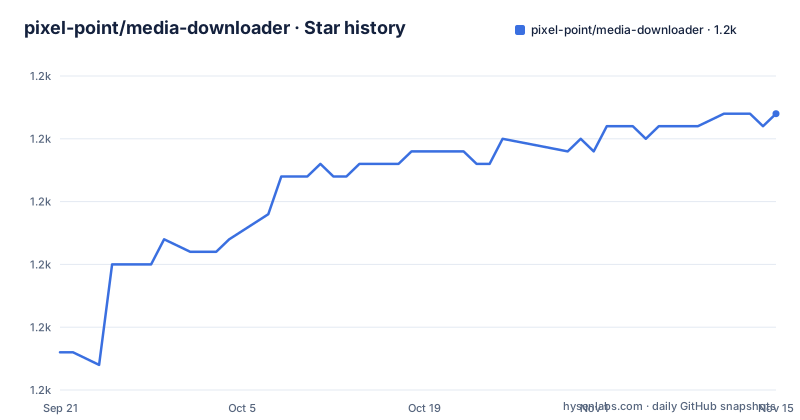
Star history
- pixel-point/media-downloader1,222 ★ · +19
| Repository | 2026-09-21 | 2026-11-15 |
|---|---|---|
| pixel-point/media-downloader | 1.2k | 1.2k |
19 Stars in the last 55 days, measured from the daily GitHub snapshot. Compare with other projects
Editorial analysis
The app is a window around yt-dlp and ffmpeg
The division of labour is stated plainly and it defines everything else. yt-dlp fetches the media, and ffmpeg merges, converts, trims and exports the file. Downloads are converted and merged into broadly compatible MP4 output with H.264 video and AAC audio where that is possible, which is a deliberate choice about compatibility over fidelity. State is kept in two places: preferences go into the platform's standard user defaults, while the download history and the thumbnails generated for it live under the app's Application Support directory. That split is the usual macOS arrangement and means there is no database, no account and no sync. The interface itself is described as Spotlight-style, with one window where you paste a URL and the download starts, and the platform list named in the documentation covers YouTube, Instagram, X, TikTok, Vimeo and Reddit among others, all of them reachable because yt-dlp supports them.
Site support is a property of the installed yt-dlp, not of the app
The notes section says the quietest and most useful thing in the document: site support depends on the version of yt-dlp you have installed, and if a site stops working you should update yt-dlp first. That is the correct ownership model for a wrapper, and it has a practical consequence for anyone reading the feature list, which advertises support for thousands of sites. The count belongs to yt-dlp and moves with it. The app itself has no site table, no per-site code and no allowlist to update, so there is nothing in this repository that will ever say a specific site is unsupported. It also means the local development requirements list yt-dlp as a genuine prerequisite rather than a convenience, alongside ffmpeg, and the documented verification step is to print the version of each tool and confirm both respond.
Two releases on one afternoon, and one tag lost its prefix
The release history is short. Version 0.1.0 was published on 7 May 2026 at 13:43 and 0.2.0 the same day at 20:28, and the last push to the repository also landed on 7 May 2026. Nothing has been committed in the five months since, so the repository is not archived but it is quiet, and the two tags are closer together than a day. One detail is worth noticing if you script against the tags: the earlier one is published without the version prefix while the later one carries it, and the documentation refers to tags in the prefixed form when it explains the update check. So a tool that assumes every tag starts with a v will miss the first release. The repository also carries no licence file and no stated licence, which for a small native app means anyone reusing the code is left guessing at the terms.
Updates are a string comparison against a hand-maintained version
The update mechanism is worth understanding because it explains a recurring chore. The app calls the public GitHub releases endpoint for the repository and compares the tag on the newest release, in the form of a prefixed version string, against the app's own bundle short version string. If the tag is ahead of the bundle, an update is offered. Nothing automates that bump: the bundle version comes from the release template file, where the app version is written out literally as 0.2.0 alongside a separate build number. So a release that forgets to edit the template ships an app that does not know it is out of date, and there is no test that would catch it. Checking releases is offered from the settings menu, which is a deliberate design, since it keeps the app from phoning home on launch.
Signing credentials live in a template file that must never be committed
Release credentials are described with the kind of care that comes from having got this wrong once. They belong in a local environment file copied from the template, and the list of things that must never enter version control is explicit: the environment file itself, App Store Connect key files, certificates, provisioning profiles and private keys. The repository ignores them. The template also records where to find the signing identity, with the command that lists the Developer ID Application certificates installed on the machine. Two notarisation paths are supported and the preference is stated. The preferred one uses an App Store Connect API key, which needs a key identifier, an issuer identifier and a path to the key file. The alternative is an Apple ID with an app-specific password read from the keychain, plus a team identifier, and the template leaves those lines commented out with a note to unset them when using the key-based route.
The release script signs, notarizes, staples, zips, wraps and uploads
Publishing is one command with a version argument, and the sequence it performs is the standard hardened path for distributing a Mac app outside the store. It runs the tests, builds a release application bundle, signs it with the hardened runtime enabled, submits it to Apple's notarisation service, staples the returned ticket to the bundle, then produces two artefacts per architecture: a zip and a disk image. The image contains the application and a shortcut to the Applications folder, so it behaves like the drag-to-install disk images people expect. Both artefacts then go to the matching GitHub release, which is why the version argument matters, since the script uploads to a release rather than creating one. A second script does everything except the upload, producing signed and notarised artefacts locally, which is the one to use when you only need to check that signing works on your machine.
The download button serves one architecture
The single call to action at the top of the documentation points at a specific release asset: a disk image built for Apple Silicon. The release script, meanwhile, publishes per-architecture artefacts, a zip and a disk image for each architecture it builds, into a directory named after that architecture. So both architectures exist in the release, and only one of them is behind the button. An Intel Mac user has to open the release list, find the other asset and download it by name, which is a small thing but the kind of small thing that makes an application look less finished than it is. The rest of the distribution story is consistent with that: no Homebrew cask, no site package, no notarisation guidance for command line installers, just a link into a release.
Five script modes stand in for a proper developer menu
The local build path is a single shell script with a small set of modes, and it covers the things a developer would otherwise assemble by hand. Running it with no arguments builds the package, assembles a development application bundle in the generated output directory and launches it. The modes are named rather than self-evident: one to verify, one to show logs, one for telemetry, one to debug and one to set up. A second script creates the disk image from an already built bundle. Underneath, the plain package manager commands still work, so building and running the test suite directly is a supported path rather than a fallback. The requirements are modest and specific: macOS 14 or newer, and either the command line tools or a full Xcode installation with Swift 5.9, with the two runtime tools installed separately:
brew install yt-dlp ffmpegThe unit tests live in their own target beside the source, which is what the release script runs before it signs anything.
Editorial conclusion
Judgment: this is a well-executed wrapper rather than a downloader of its own, and the value it adds is exactly the parts a command line tool cannot give you, a paste-and-go window, a download history with thumbnails, copying to the clipboard on completion, trimming without touching a converter, and a Finder reveal. Nothing in it is hard to replace, which is a feature as much as a limitation. Two things to know before you rely on it. Site support tracks whatever yt-dlp version you have installed, so a site breaking is a yt-dlp problem and the fix is upgrading it, not the app. And the whole application is a single architecture on the download button, so on an Intel Mac you are reading the release list rather than clicking. For anyone packaging this internally, the signing and notarisation path is the part to copy, since it is fully scripted from a template file.
Frequently asked questions
What does the Media Downloader app for macOS do?
It downloads, copies, reveals and trims videos from social and video platforms in one native app. You paste a URL from a site such as YouTube, Instagram, X, TikTok, Vimeo or Reddit, and it downloads an MP4, copies it to the clipboard, saves it to your folder and keeps a local history with thumbnails.
Which sites does Media Downloader support?
Whatever the installed yt-dlp version supports, which the documentation describes as thousands of sites. The app has no site list of its own, so if a site stops working the note says to update yt-dlp first rather than waiting for an app update.
What does Media Downloader need to run?
yt-dlp and ffmpeg do the actual work; the app is the interface. Local development additionally needs macOS 14 or newer and either the Xcode Command Line Tools or Xcode with Swift 5.9 or newer, and the documented check is to print the version of each command line tool.
How does Media Downloader check for updates?
It queries the public GitHub releases endpoint for the repository and compares the newest release tag with the app's own bundle short version string. The bundle version is written literally in the release template file, so it has to be bumped by hand for the update notice to appear.
How do I build a signed and notarised release of Media Downloader?
Put your credentials in a local environment file copied from the template, with a Developer ID Application identity and either an App Store Connect API key or an Apple ID with a keychain-stored app-specific password. Then run the release script with the version number; it runs the tests, signs with the hardened runtime, notarises, staples the ticket and uploads a zip and a disk image per architecture.
Official sources
Add this badge to your README
If you maintain this project, the badge below links readers to this analysis and shows its maintenance status from the daily GitHub snapshot. Paste the markdown into your README; add ?metric=license or ?metric=stars to the image URL for a different field.

[](https://hysenlabs.com/projects/pixel-point-media-downloader)Star history chart for your README
[](https://hysenlabs.com/projects/pixel-point-media-downloader)Was this useful?