NaturalVoiceSAPIAdapter: Azure voices behind a SAPI 5 engine
Make Azure natural TTS voices accessible to any SAPI 5-compatible application.
At a glance
- What is it?
- NaturalVoiceSAPIAdapter is a C++ SAPI 5 text-to-speech engine that exposes the natural voices shipped with Windows Narrator, Edge Read Aloud and Azure AI Speech to any SAPI 5 program. It suits a developer who needs neural voices in a desktop application, and the README is candid that the approach relies on extracted keys and can break at any update.
- Who is it for?
- Adopt NaturalVoiceSAPIAdapter when you need modern neural voices inside a SAPI 5 application, because the engine is the only practical way to get them without a native Azure dependency, and it covers local Narrator voices as well as the online Edge and Azure ones.
- Can I use it commercially?
- Yes. MIT is a permissive licence: you can use, modify and sell software built on it, as long as you keep its copyright and licence notices.
- Is it still maintained?
- Yes. The repository last received commits 11 days ago.
- What is it written in?
- Mainly C++, according to GitHub's language statistics.
Answers come from the project's GitHub data, last synced on November 7, 2026, and from our analysis. They are not legal advice.
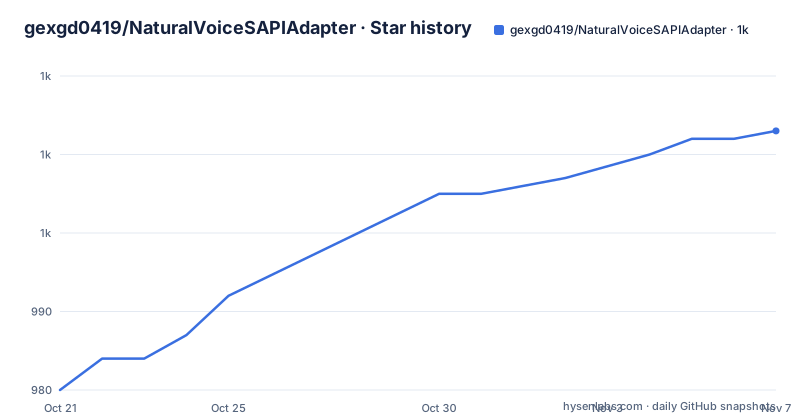
Star history
- gexgd0419/NaturalVoiceSAPIAdapter1,013 ★ · +33
| Repository | 2026-10-21 | 2026-11-07 |
|---|---|---|
| gexgd0419/NaturalVoiceSAPIAdapter | 980 | 1k |
33 Stars in the last 17 days, measured from the daily GitHub snapshot. Compare with other projects
Editorial analysis
What the adapter makes available
NaturalVoiceSAPIAdapter is a SAPI 5 text-to-speech engine that can use the natural, or neural, voices provided by the Azure AI Speech Service, and the README lists the three sources.
There are the natural voices for Narrator on Windows 11. There are the online natural voices from Microsoft Edge's Read Aloud feature. And there are the online natural voices from the Azure AI Speech Service, if you have a proper subscription key.
Any program that supports SAPI 5 voices can use those natural voices through this engine, which is the whole point. The Windows speech stack is a long-standing interface that most desktop accessibility software, screen readers and older utilities already speak, and the neural voices Microsoft ships are not exposed through it. The adapter is a translation layer that puts them there.
That also explains the shape of the project. It is a native engine registered with the speech subsystem, not a client library, so the repository has an Installer/ directory, a solution file and a build directory for the DLLs, alongside a ttsapplication folder for the test harness, an AzureSpeechSDKShim directory, an Arm64XForwarder directory, include/ and lib/ folders, and a release_notes.md.
The project is MIT licensed, the primary language is C++, and the last push to the master branch was on 2026-10-14, the same day as v0.2.10, with v0.2.9 from 2026-01-02 before it.
The platform requirements, which are wide
The system requirements section lists three minimums, and they are stated precisely enough to be useful.
The minimum tested platform is Windows XP SP3, and Windows XP Professional x64 Edition SP2 in 32-bit only. The minimum platform that supports local Narrator voices is Windows 7 RTM, x86 32/64-bit. The minimum platform that supports installing Narrator voices via the Microsoft Store is Windows 10, build 17763.
So the range runs from Windows XP to current Windows, which is unusual for a project that depends on extraction of system files, and the XP support is not accidental. The dependencies explain it. YY-Thunks is listed specifically for Windows XP compatibility.
That support comes with a cost, and the cost is the thing to understand before you install it. This engine uses some encryption keys extracted from system files to use the voices, so the README says it is more like a hack than a proper solution. And Microsoft has not yet allowed third-party applications to use the Narrator and Edge voices, and this can stop working at any time, for example after a system update.
The stability question therefore has a definite answer: the adapter works until Microsoft changes something, and the adapter's author is candid about that. That is a different risk profile from a normal dependency, and it belongs in your planning rather than in a footnote.
The Narrator voice situation, and why the latest version is not the one to use
There is a specific problem with the newest Narrator voices on Windows 11, and the README gives a direct recommendation.
It is no longer recommended to install Narrator natural voices on Windows 11 if you want to use this program, because the latest version of those voices stopped working with the program. It is recommended to download and use the last working version of the voices instead.
There is a second workaround, for a related symptom. If Narrator stops working when the program is installed, try uninstalling all Narrator voice packs as a temporary workaround. That is a blunt instrument and it affects the accessibility feature itself, so it is a last resort rather than a first step, but it is what the README suggests.
The FAQ then covers the older platforms, and the answer differs by version in a way that is easy to get wrong.
On Windows XP and Vista, local Narrator voices are not supported on those platforms, but online voices, including the Edge and Azure ones, still work.
On Windows 10 at build 17763 or above, you can choose and install Windows 11 Narrator voices using the links the README provides.
On Windows 7, 8 and 10 before build 17763, the procedure is five steps. Download the MSIX file of the voice. Prepare a folder to store the voice folders, making sure its path contains no non-ASCII character. Unzip the MSIX file as if it were a ZIP file, into its sub folder, and you can have multiple voice sub folders in the same parent folder, with the sub folder name also containing no non-ASCII character. Set the parent folder as the Local voice path in the installer. And do not put anything other than voice sub folders inside that parent folder, or voice loading may fail.
The non-ASCII requirement is a real constraint, and it is the kind that only shows up when your user profile path contains an accented character.
Installing, and the choice of voices to enable
The installation is a numbered list, and the middle steps are where the decisions are.
You download the zip file from the Releases section, extract the files into a folder, and the README is emphatic that you must not move, rename or delete the files after installation, and that if you want to move or delete them you should uninstall first. Then you run Installer.exe, which tells you in the Installation Status section whether the 32-bit and 64-bit versions have been installed.
The two architectures are separate. The 32-bit version works with 32-bit programs and the 64-bit version with 64-bit programs, and on a 64-bit system you need to install both to make it work with every program. On a 32-bit system the 64-bit row is not shown at all.
Then you click Install or Uninstall, which requires administrator's permission, and choose what kinds of voices you want. By default, local Narrator voices if supported, and the Microsoft Edge Read Aloud online voices, are enabled.
The online voices need internet access and can be slower and less stable, so if you only want the local Narrator voices you can uncheck the options to enable the Edge online voices and the Azure online voices. There is also a language filter, because there are many online voices and by default only those in your preferred languages and in English (US) are included, to avoid cluttering the voice selection list. There is a Change button for that.
Azure voices need a subscription key, which is the API key, and its region, entered with a Set Azure key button. The README points at the Azure Portal and the path to it, Resource Management then Keys and Endpoint, to copy the key and the region.
Finally you close the Installer window to apply the changes, and you can reopen it later to change settings, which does not require reinstallation or administrator's permission.
There is also a manual route for advanced users, using regsvr32 to register the DLL files, and a wiki page listing the program's configurable registry values.
Testing, and the libraries underneath
There are two ways to test the engine once it is installed, and the first is the most direct.
You can use the TtsApplication.exe in the x86 and x64 folders to test the engine. It is a modified version of the TtsApplication in the Windows-classic-samples repository, with a Chinese translation added and more detailed information for phoneme and viseme events, which makes it a useful tool in its own right and not only a smoke test.
The other route is the system one. You can go to Control Panel then Speech on Windows XP, or Control Panel then Speech Recognition then Text to Speech on Windows Vista and later.
The library list shows how the pieces fit. Microsoft.CognitiveServices.Speech.Extension.Embedded.TTS is the embedded speech extension, and websocketpp provides the WebSocket layer the online voices need. ASIO in the standalone version handles the audio output, and OpenSSL does the transport security. nlohmann/json is the JSON handling, spdlog is the logging, and YY-Thunks is there specifically for Windows XP compatibility.
The Chinese translation in the test application and the Chinese README at README.zh.md are consistent with the fact that the natural voices Microsoft ships are language-specific, and the adapter's whole job is making them reachable.
Editorial conclusion
Adopt NaturalVoiceSAPIAdapter when you need modern neural voices inside a SAPI 5 application, because the engine is the only practical way to get them without a native Azure dependency, and it covers local Narrator voices as well as the online Edge and Azure ones. Do not adopt it as a stable production dependency, because the README says outright that the mechanism is more like a hack than a proper solution and that it can stop working at any time, for example after a system update. Before you build on it, read the release notes for the current version, and if you deploy it, keep the last working version of the voices available so you have a fallback.
Frequently asked questions
What does the NaturalVoiceSAPIAdapter do?
It is a SAPI 5 text-to-speech engine that makes the natural, neural voices available to any program that supports SAPI 5 voices. It covers the Narrator natural voices for Windows 11, the online natural voices from Microsoft Edge's Read Aloud feature, and the online natural voices from the Azure AI Speech Service if you have a subscription key.
How do I install the NaturalVoiceSAPIAdapter?
Download the zip from the Releases section, extract it into a folder and do not move, rename or delete the files afterwards, then run Installer.exe. On 64-bit systems you install both the 32-bit and 64-bit versions so it works with every program, and administrator's permission is required. You can also register the DLL files manually with regsvr32.
Which Windows versions does the NaturalVoiceSAPIAdapter support?
The minimum tested platform is Windows XP SP3 and Windows XP Professional x64 Edition SP2 in 32-bit only, local Narrator voices need Windows 7 RTM, and installing Narrator voices through the Microsoft Store needs Windows 10 build 17763. On Windows XP and Vista the local Narrator voices are not supported, but the online Edge and Azure voices still work.
Why is the latest Windows 11 Narrator voice not recommended for this adapter?
The README says the latest version of those voices stopped working with the program, and recommends downloading the last working version instead. It also notes that the engine uses encryption keys extracted from system files, so it is more like a hack than a proper solution, and that this can stop working at any time, for example after a system update.
Official sources
Add this badge to your README
If you maintain this project, the badge below links readers to this analysis and shows its maintenance status from the daily GitHub snapshot. Paste the markdown into your README; add ?metric=license or ?metric=stars to the image URL for a different field.

[](https://hysenlabs.com/projects/gexgd0419-naturalvoicesapiadapter)Star history chart for your README
[](https://hysenlabs.com/projects/gexgd0419-naturalvoicesapiadapter)Was this useful?