OpenClaw Windows: a paired node gets shell execution by default, and the uninstall rules clear tokens in a surprising case
Windows companion suite for OpenClaw - System Tray app, Shared library, Node, and PowerToys Command Palette extension.
At a glance
- What is it?
- A Windows tray application that registers a PC as a node for an OpenClaw gateway, advertising eight capabilities from screen capture to command execution, with a sandbox page, a gateway allowlist, and a first-launch wizard that can install a Linux distribution. The installation and removal instructions are where this page is unusually specific, and both deserve reading before you install.
- Who is it for?
- Treat this as an agent control surface for one machine rather than as a background utility, because the capabilities it advertises include running shell commands, driving a browser, recording the screen, and reading the location, and the page itself says to keep those off unless you mean to use them. Three things to decide first.
- Can I use it commercially?
- Yes. MIT is a permissive licence: you can use, modify and sell software built on it, as long as you keep its copyright and licence notices.
- Is it still maintained?
- Yes. The repository received new commits within the last day.
- What is it written in?
- Mainly C#, according to GitHub's language statistics.
Answers come from the project's GitHub data, last synced on November 14, 2026, and from our analysis. They are not legal advice.
Star history
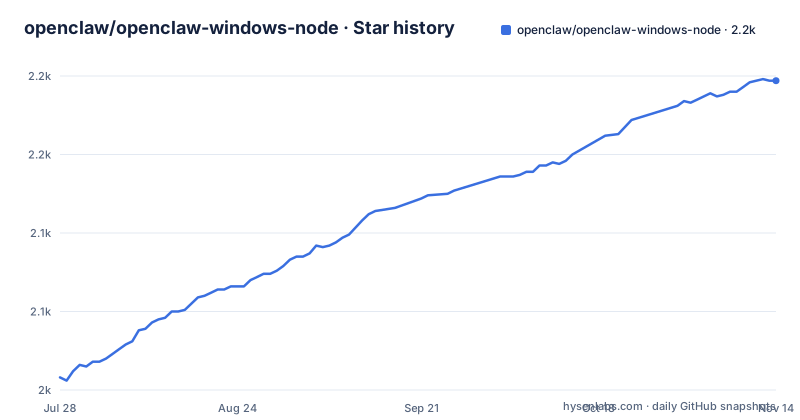
- openclaw/openclaw-windows-node2,197 ★ · +189
| Repository | 2026-07-28 | 2026-11-14 |
|---|---|---|
| openclaw/openclaw-windows-node | 2k | 2.2k |
189 Stars in the last 109 days, measured from the daily GitHub snapshot. Compare with other projects
Editorial analysis
A paired node already receives shell execution
The gateway allowlist section is the most important block on the page, and it is folded away. The configuration shape is short.
{
  "gateway": {
    "nodes": {
      "allowCommands": [
        "system.notify",
        "canvas.present",
        "canvas.hide",
        "screen.snapshot",
        "device.info",
        "device.status"
      ]
    }
  }
}
Those six entries are what an operator adds by hand, and the page is explicit that patterns such as a wildcard over one namespace are not expanded, so the list is exact strings. Then a sentence changes the picture: a canonically paired Windows node already receives the desktop defaults, which include three system commands for running, preparing, and locating executables. The commands that are not in those defaults, and therefore need a deliberate opt-in, are screen recording, camera stills, camera clips, speech-to-text, and text-to-speech. So command execution is on the default side of the line and the passive capabilities are on the opt-in side, which is the opposite of the order the capability table implies, since that table lists running shell commands first.
Three local checks sit between the default and your shell
Receiving the default does not mean executing, and the page names the layers in order. The Permissions page decides what this PC advertises at all, and node mode advertises only the capabilities enabled there. The Connection page holds pairing and reapproval requests, and after you change the gateway's command policy you are told to approve any pending reapproval request the app shows and then reconnect the node. Command Center explains which commands the gateway policy filtered out and hands you copyable repair commands. A schema-guided editor for the gateway's own configuration sits behind an advanced entry. On top of all of that, the local machine keeps its own switch for running system tools, a second approval generation for execution, and the sandbox policy. The page also states that the app never silently opts into privacy-sensitive gateway commands. That is four distinct places a single command can be refused, and a reader deciding whether to enable node mode should know that turning on the PC-side capability is only the first of the four.
The first launch can register a Linux distribution
The install table is unremarkable: two signed installers, one for x64 and one for ARM64, pulled from the latest release, requiring Windows 10 version 20H2 or newer or Windows 11, with no source build needed. The sentence after it is the one with consequences. On first launch the setup wizard can install a dedicated local gateway inside the Windows subsystem for Linux, or it can connect the companion to a gateway that already exists, and the page tells you to choose the local option if you do not have one yet. So a tray application install can proceed to register a distribution, generate state, and create an identity record for a gateway, and all of that outlives the app in the ways the removal section then spends a paragraph explaining. It is a reasonable design for someone evaluating the whole stack, and it is a system change a user installing a companion app may not have expected to trigger from a first-run wizard.
The uninstall rules clear tokens in a case the wording hides
The removal section is the longest prose block on the page, and one sentence in it will surprise anyone who assumes removal means removal. Uninstalling from the installed-apps list asks whether to also remove the local Linux gateway; answering yes unregisters its distribution and its generated state. The settings file in the application data folder is not removed automatically. Identity files belonging to gateways other than the one you removed are preserved. Answering yes also removes the removed gateway's own identity directory. And then this: root operator and node tokens are preserved only while an external gateway record remains, and otherwise they are cleared, even if another local or loopback gateway record remains. So the condition for keeping credentials is the existence of an external record, and the existence of a local one does not save them. The page closes the section by telling you to delete the application data folder by hand for a genuinely clean removal, and by pointing at a headless command-line path with a confirmation flag, used for testing.
The sandbox has three named levels and a fourth set of knobs
The sandbox page governs the programs the node launches through its run capability, and it offers three presets with a fourth escape. Locked Down blocks the internet, the clipboard, and the standard user folders. Recommended turns on internet access, read-only access to common folders, and clipboard reads. Unprotected allows broad folder and clipboard access, and the page says to use it only when you accept the added risk. Underneath the presets sit custom controls for folder access, network access, clipboard access, a timeout, and output limits, so the presets are starting points rather than the only options. One more mechanism is named in the same section: when it is enabled and available, the node uses a process isolation technology from a vendor SDK for the run capability. Two things sit alongside the sandbox in practice. Notifications and basic device status work whenever node mode is active, and Windows itself may ask for consent before camera, microphone, location, or screen features run at all, so the operating system adds a fifth check that has nothing to do with the gateway. The vendor SDK is also the entire reason this repository contains a Node manifest at all, which is the subject of the next section.
A Node manifest exists to copy one executable into the build
This is a C# repository, and it also has a package manifest with one dependency.
{
  "name": "openclaw-windows-node-mxc",
  "version": "0.0.0",
  "private": true,
  "description": "MXC sandbox dependency used by the OpenClaw tray build to copy wxc-exec.exe into the app output.",
  "dependencies": {
    "@microsoft/mxc-sdk": "^0.8.0"
  }
}
Its stated purpose is to bring in the sandbox SDK so the build can copy a single executable into the application output. It is private, permanently at version zero, and it carries a caret range on the only thing it depends on. So the sandbox that contains agent-run programs is a build-time acquisition of one tool binary at a floating minor version, and a reader auditing the supply chain of this project is looking at a Node package manager as well as a NuGet configuration and a solution file. The rest of the build story is conventional for a Windows desktop application: a PowerShell build script, an installer script for the setup packaging, a version configuration that derives release numbers from git tags, shared build properties and targets, a pinned SDK file, and a NuGet configuration.
Seven alpha builds of one version, and a promised extension nobody documents
The release record is a single pre-release line. The three most recent tags are all the same version with different pre-release numbers, ninety, ninety-three, and ninety-seven, and they landed on two consecutive days. That numbering implies a long chain of builds of one version, all before a stable tag, which fits a project shipping to a small set of paired machines. The rest of the repository is coherent with that: a testing document for Windows nodes at the command level, a document explaining the pairing and trust model for operators and nodes, a setup guide, a development guide, and agent instruction files. One gap sits between the repository's own description and its page. The description lists a system tray app, a shared library, a bundled Node, and a PowerToys Command Palette extension. The page documents the tray app, the node, the sandbox, and the allowlist, and the Command Palette extension appears nowhere in the visible text. Elsewhere on the page, sharing a local model service on Windows is documented properly, as a separate opt-in that advertises two model commands and does not touch the app-managed provider, with a version split worth knowing: older gateways need both exact commands written into the allowlist by hand, while newer gateways carrying the bundled plugin expose them through a different agent tool instead. The node mode walkthrough makes one more point that a reader skimming will miss: it says you should not need to edit the gateway configuration file by hand at all.
Editorial conclusion
Treat this as an agent control surface for one machine rather than as a background utility, because the capabilities it advertises include running shell commands, driving a browser, recording the screen, and reading the location, and the page itself says to keep those off unless you mean to use them. Three things to decide first. Whether you want the app to register a WSL distribution on first launch, because that is a separate system change from installing a tray program. Whether the gateway-side default grant of shell execution is acceptable, remembering that three local checks sit in front of it and each can be tightened. And what you want left behind on uninstall, since the documented behaviour is deliberate and there is a command-line path for a clean removal if you want one.
Frequently asked questions
How do I turn on node mode for a Windows PC in OpenClaw?
From the tray menu open Companion Settings, connect to a gateway and complete any pending pairing approval, choose how agent-run programs are contained on the Sandbox page, turn on Node mode under Permissions, choose which capabilities the PC offers, and then check Command Center for allowlist or reapproval warnings.
What can an OpenClaw node do on a Windows PC?
Eight capabilities are listed: run shell commands and scripts, drive a compatible Chromium browser, capture camera stills and short clips, present visual content in a hosted window, take screenshots and short screen recordings, read approximate location, speak text aloud, and transcribe microphone audio locally.
Does uninstalling OpenClaw Companion remove everything it created?
No. The settings file in the application data folder is not removed automatically, identity files for other gateways are kept, and root operator and node tokens are cleared only while an external gateway record remains. The page says to delete that app data folder by hand for a fully clean uninstall.
Which sandbox modes does the OpenClaw Windows node offer?
Three named levels: Locked Down blocks the internet, the clipboard, and standard user folders; Recommended enables internet, read-only access to common folders, and clipboard reads; Unprotected allows broad folder and clipboard access. Custom controls cover folders, network, clipboard, timeout, and output limits.
Official sources
Add this badge to your README
If you maintain this project, the badge below links readers to this analysis and shows its maintenance status from the daily GitHub snapshot. Paste the markdown into your README; add ?metric=license or ?metric=stars to the image URL for a different field.

[](https://hysenlabs.com/projects/openclaw-openclaw-windows-node)Star history chart for your README
[](https://hysenlabs.com/projects/openclaw-openclaw-windows-node)Was this useful?