demo-magic.sh for repeatable Bash demonstrations
A handy shell script that enables you to write repeatable demos in a bash environment.
At a glance
- What is it?
- demo-magic is a Bash helper for presenting commands as if they were being typed live while controlling whether each command executes or remains hidden. It is aimed at developers demonstrating terminal workflows, especially demos where timing, network access, or setup must remain predictable.
- Who is it for?
- Developers should adopt demo-magic.sh when a live presentation needs controlled pauses, realistic command entry, or hidden setup commands. It is unsuitable for unattended automation or terminals that cannot support the interaction model.
- Can I use it commercially?
- Yes. MIT is a permissive licence: you can use, modify and sell software built on it, as long as you keep its copyright and licence notices.
- Is it still maintained?
- Yes. The repository last received commits 51 days ago.
- What is it written in?
- Mainly Shell, according to GitHub's language statistics.
Answers come from the project's GitHub data, last synced on November 7, 2026, and from our analysis. They are not legal advice.
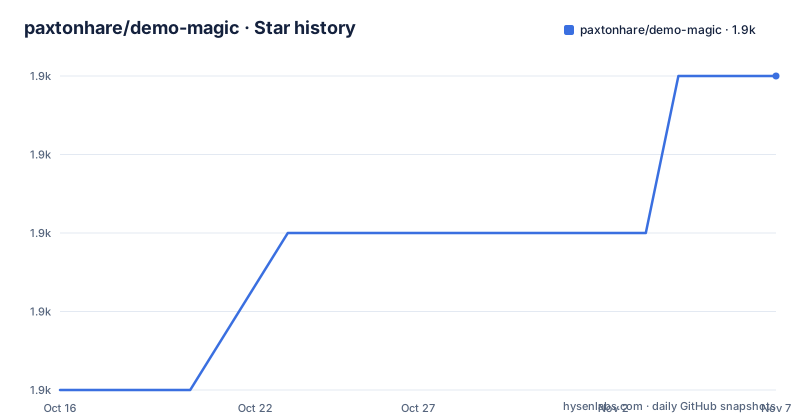
Star history
- paxtonhare/demo-magic1,902 ★ · +4
| Repository | 2026-10-16 | 2026-11-07 |
|---|---|---|
| paxtonhare/demo-magic | 1.9k | 1.9k |
4 Stars in the last 22 days, measured from the daily GitHub snapshot. Compare with other projects
Editorial analysis
Why demo-magic.sh belongs in a terminal presentation
A live terminal demonstration often depends on timing. The presenter needs to type a command, let the audience read it, execute it at the right moment, and move on without breaking the flow. demo-magic.sh addresses that specific problem by wrapping commands in functions that simulate typing and control execution. The README describes the goal directly: presenters can script commands rather than type every command manually during the demonstration.
The intended user is a developer who presents work through a Bash environment. Typical cases include showing a sequence of Git commands, launching an application, or demonstrating setup steps that are already prepared. The script does not replace the commands being demonstrated. It creates a presentation layer around them through functions such as `pe`, `pei`, `p`, and `wait`.
This distinction matters. demo-magic.sh is not a general task runner and does not make commands more reliable. Its value is control over what the audience sees and when the presenter advances. That makes it a fit for a recorded talk, workshop, or terminal-based product demonstration where the command sequence is known in advance.
How pe, pei, and p divide presentation behavior
The documented functions provide three related execution paths. `pe` is the Print and Execute function. According to the README, it waits for the presenter to press `ENTER` unless `-n` is used, simulates typing the supplied command, waits for another `ENTER`, and then runs it. This gives the presenter control over both the appearance of entry and the moment of execution.
`pei` removes the initial waiting step. It simulates typing and immediately executes the command. It is the least interactive option, which makes it useful when several commands need to run in sequence or when the presenter does not need a deliberate pause before each command.
`p` performs only the visible portion. It waits for `ENTER`, simulates typing, and waits for `ENTER` again, but does not execute the command. This is useful when a command should appear in the presentation without changing the environment. The documentation also gives `wait` as an explicit pause. If `PROMPT_TIMEOUT` is defined and greater than zero, `wait` proceeds automatically after that many seconds. The central design is therefore a separation between what appears on screen and what actually runs.
Bash setup and a first command
The README instructs users to create a Bash script and source `demo-magic.sh`. The example begins with a Bash shebang and a source command. It then clears the terminal before the demonstration begins. This is the first concrete use documented by the project.
Create a file containing the following shell script, then run it from a directory where `demo-magic.sh` is available. The script sources the helper, clears the terminal, and displays an `ls -l` command through `pe`. The command is executed only after the documented `ENTER` prompts.
#!/bin/bash

########################
# include the magic
########################
. demo-magic.sh

# hide the evidence
clear

pe "ls -l"
Run the script with Bash from the shell. On a terminal that supports the helper's input behavior, the `ls -l` text should appear to be typed, followed by the prompt to continue and the directory listing. The README also includes samples in `samples/`, including `samples/demo-template.sh`, which can serve as a starting point after the basic source-and-call sequence works.
Controlling pauses with wait and PROMPT_TIMEOUT
Presentation timing is controlled through `wait` and the `PROMPT_TIMEOUT` environment variable. A timeout of zero waits until the presenter presses `ENTER`. A positive timeout allows the script to continue after the specified number of seconds. The documented examples use five seconds for the automatic case.
PROMPT_TIMEOUT=0
wait
This waits for manual input. The next example allows the script to advance after five seconds if the presenter does not intervene:
PROMPT_TIMEOUT=5
wait
The command-line option `-n` changes the default waiting behavior for `p` and `pe`, while `-w` sets a maximum timeout. The README's usage text describes `-w5` as a way to wait at most five seconds before proceeding. These controls are useful when a demo needs a predictable rhythm without requiring a human to press `ENTER` at every point.
The boundary is important: a timeout changes when the script advances, not whether a command succeeds. The README does not document retry logic, output validation, or automatic recovery after a failed command. A presenter who relies on a timeout still needs to inspect the terminal and ensure that the preceding command produced the expected result.
Hiding setup and faking network-dependent output
demo-magic.sh explicitly supports commands that run outside the visible presentation flow. The README says that commands can be hidden for behind-the-scenes work. Its network example prepares a local application, creates a symbolic link to cached dependencies, and prints a captured installation log instead of running a live package installation.
ln -s cached_node_modules node_modules
cat node-modules-install.log
In that example, `p "npm install"` displays the installation command without executing it. The hidden commands create the state that the later command expects, and the captured log provides output that resembles a successful installation. This approach can make a demo less dependent on an unreliable network connection, but it also creates a presentation risk. The displayed command must correspond to the state and output the audience is meant to understand.
The `self-setup` directory is documented as a way to prepare an environment before the demonstration. The `remote-exec` directory covers local and remote execution through `ssh`. These examples show two separate concerns: preparing the environment before visible work, and deciding where the Bash session runs. Neither example changes the core execution model.
Interactive modes and command-line switches
The `cmd` function enters interactive mode and allows commands typed by the user to execute within the script. The `repl` function enters a similar interactive workflow, with `exit` used to leave repl mode. These modes are useful when the exact sequence cannot be written entirely in advance, although the README gives only short descriptions and does not document prompt customization or command history behavior.
The script also accepts command-line options. `-d` disables simulated typing for debugging, `-h` prints usage text, `-n` disables the default wait after `p` and `pe`, and `-w` sets a maximum wait, as shown by the documented `-w5` example.
./my-demo.sh -hThe resulting usage text identifies the same options. `-d` is particularly relevant when a command fails and the presenter needs to inspect the real shell behavior rather than the simulated entry effect. The option list does not include flags for changing output formatting, logging, terminal size, or simulated typing speed. Developers who need those features would need to inspect or modify the shell script directly.
Limitations and the practical alternative
The clearest limitation is that demo-magic.sh changes presentation behavior, not execution reliability. It simulates typing, but the README does not claim that it validates command output, handles failures, or reproduces a different machine's state. It is also explicitly a Bash shell script, so a workflow that cannot provide Bash terminal interaction is outside its documented model.
The network example makes the trade-off visible. Faking `npm install` can protect a presentation from a slow connection, but it can also show output that was not produced during the presentation. That is acceptable only when the purpose is to explain the workflow and the presenter is comfortable with the distinction.
A conventional Bash demo script is the real alternative. Instead of sourcing demo-magic.sh, it can print commands, execute them directly, sleep for fixed periods, and use ordinary shell control flow. That approach offers fewer presentation conveniences, but it avoids simulated typing and makes command execution explicit. demo-magic.sh is the better fit when audience pacing and the appearance of live typing matter; the conventional script is the better fit when execution fidelity is more important than presentation effects.
Maintenance, licensing, and upgrade considerations
The repository is not archived, and its last push was on 2026-09-17. That is the maintenance information available from the repository metadata. The project has no GitHub releases, so the repository documents no release-based upgrade path. Upgrading therefore means reviewing changes to the shell script and comparing its behavior with the README examples.
The project is distributed under the MIT license. The repository includes `license.txt`, and the license permits use, modification, distribution, and reuse subject to its conditions. This article does not interpret the license as legal advice. For a team embedding the script into an internal demo repository, the relevant upgrade work is limited to checking that the documented functions and options still match the version being copied. Since `demo-magic.sh` is sourced into another Bash script, replacing it can affect every demonstration that depends on those functions.
Editorial conclusion
Developers should adopt demo-magic.sh when a live presentation needs controlled pauses, realistic command entry, or hidden setup commands. It is unsuitable for unattended automation or terminals that cannot support the interaction model. Verify first that every displayed command produces representative output on the presentation machine, including any network-dependent results that the demo may fake.
Frequently asked questions
How do I install and use demo-magic.sh?
The README says to create a Bash script, source `demo-magic.sh`, and call helper functions such as `pe`, `pei`, or `p`. It does not document a package-manager installation command.
What is the difference between pe and pei in demo-magic.sh?
The README says `pe` waits before simulated typing, then executes the command after another `ENTER`. It says `pei` simulates typing and runs the command immediately.
Can demo-magic.sh run commands without executing them?
Yes. The `p` function simulates typing but does not execute the command. Commands can also be run directly in the script as hidden behind-the-scenes actions.
How does demo-magic.sh handle unreliable network commands?
The README suggests preparing dependencies locally, displaying captured output, and faking the network-dependent command. Its example uses a cached `node_modules` directory and a log file instead of performing a live `npm install`.
Official sources
Add this badge to your README
If you maintain this project, the badge below links readers to this analysis and shows its maintenance status from the daily GitHub snapshot. Paste the markdown into your README; add ?metric=license or ?metric=stars to the image URL for a different field.

[](https://hysenlabs.com/projects/paxtonhare-demo-magic)Star history chart for your README
[](https://hysenlabs.com/projects/paxtonhare-demo-magic)Was this useful?