capcap: cloud storage keys go into a preferences plist, and delete all history keeps the starred items
⌘⌘ - A lightweight, native macOS screenshot tool that lives in your menu bar. Double-tap ⌘ Command to capture any region of your screen - instantly copied to clipboard, or annotate first with pen and mosaic tools.
At a glance
- What is it?
- A native macOS menu bar screenshot tool with no Dock icon, no telemetry and a free open source licence. The install path asks you to trust a third-party tap and strip a quarantine flag, three vendors' storage credentials are kept in user preferences rather than the keychain, and the feature list claims zero third-party dependencies above a third-party licence section.
- Who is it for?
- Use capcap if you want a screenshot tool that is a native app, starts with a gesture, and keeps everything on your machine, and if you do not turn on the cloud upload feature. Five things to know first.
- Can I use it commercially?
- Yes. MIT is a permissive licence: you can use, modify and sell software built on it, as long as you keep its copyright and licence notices.
- Is it still maintained?
- Yes. The repository last received commits 5 days ago.
- What is it written in?
- Mainly Swift, according to GitHub's language statistics.
Answers come from the project's GitHub data, last synced on November 13, 2026, and from our analysis. They are not legal advice.
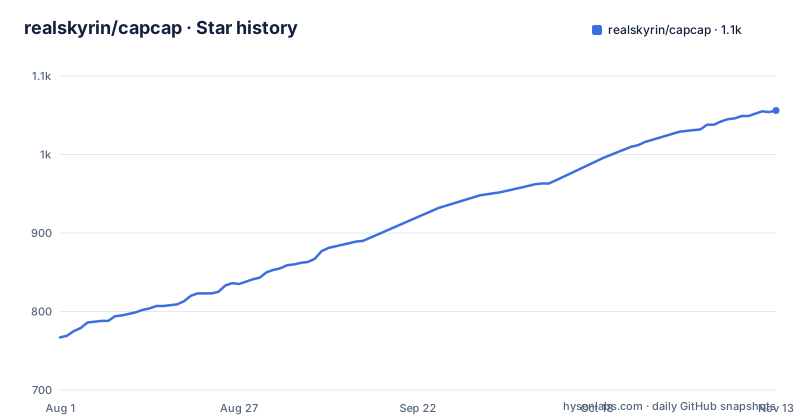
Star history
- realskyrin/capcap1,056 ★ · +289
| Repository | 2026-08-01 | 2026-11-13 |
|---|---|---|
| realskyrin/capcap | 767 | 1.1k |
289 Stars in the last 104 days, measured from the daily GitHub snapshot. Compare with other projects
Editorial analysis
Three vendors' credentials go into a preferences plist
The upload feature is optional and the page says the keys never leave the machine. Where they are kept is the part to read carefully: user preferences, locally, for three separate object storage services, one domestic cloud provider, one domestic provider with its own branding, and one international provider. The credentials include the signing material the code needs to produce authenticated upload requests, and the project structure confirms there is a dedicated upload directory with request signing implemented by hand. User preferences on macOS is a property list in the user's preferences folder. It is not encrypted, it is not the keychain, and it is included in ordinary backups. The privacy claim holds in the sense that nothing goes to the tool's author; it does not hold in the sense that the secrets are protected from anything else running as that user.
The install path asks you to trust a tap, then to strip a quarantine mark
There are two trust steps before the app runs, and both are in the documented instructions. First, the Homebrew cask lives in a personal tap, and installing it requires trusting that tap by name so Homebrew will load a cask from it:
brew tap realskyrin/tap
# 将 capcap 加入 Homebrew 信任列表,允许加载其 Cask
brew trust realskyrin/capcap
brew install --cask realskyrin/tap/capcap
Second, a section exists for when the system refuses to open the app, and its answer is to remove the quarantine attribute from the bundle and try again:
xattr -dr com.apple.quarantine /Applications/capcap.appThe page is careful to say that this is only for builds you trust, which is the right caveat. What it never says is whether the released build is signed and notarised, which is the usual reason that prompt appears at all.
The tagline says zero dependencies, and a licence section lists one
The summary paragraph makes three claims in a row: no telemetry, no subscription, zero third-party dependencies. The end of the page has a third-party licence section, and it lists one component, a permission flow library, with its own licence file stored in a third-party directory inside the repository. The tree confirms that directory exists. So one of the three headline claims is contradicted by the bottom of the same page, and the reconciliation is probably that the dependency is vendored rather than pulled in, which is a real and defensible engineering choice but not the same as having none. Two other directories at the root, a share extension and an agent tools bundle, are also absent from the project structure section, which lists nine subdirectories and does not mention them.
Delete all history leaves everything you starred behind
History lives in a folder under the user's application support directory and holds recent screenshots, screen recordings, colour picks and text records, with a configurable count of between five and twenty. The panel offers filtering, search, preview, deleting selected items, and opening the cache folder in the file manager. It also has a star. And the paragraph describing all of this is explicit that starred items are not removed by automatic cleanup, are not removed when the cache is switched off, are not removed by the delete-all command, and are not removed by deleting the selected items, and remain viewable even with the cache disabled. So the destructive-sounding command in that panel is partial by design, and a screenshot you starred years ago is still on disk after you have emptied what looks like an empty history.
The editor is deliberately capturable by other applications
One feature bullet exists purely to say the selection overlay and the editor can be captured by external screen recording software by default, with no extra setting. That is a compatibility decision, and it is the opposite of what a privacy tool would do. Consider what the editor is for: it is where you paint a mosaic over a name, a serial number or an address, and where you draw a highlight or an arrow. Every one of those annotations lives in a window that any recorder can capture, so the act of obscuring a detail puts the un-obscured original in a frame that is trivially grabbed. There is no setting listed for excluding the editor from capture, and the history panel is the only place the finished image is said to be kept.
Two permissions are shown at launch and the third arrives unannounced
The requirements list three permissions with a stated purpose for each: accessibility for the default double-tap trigger, screen recording for the capture framework, and Finder automation for the edit-an-existing-image feature. The first launch behaviour is described as opening the settings window and showing two permission statuses, and then the app is usable once both are granted. The third is described as popping on first use of the Finder feature, with no mention that it exists beforehand. So an app that opens the screen recording gate for the capture path waits until you select a file in a file manager to ask for the one that lets it read that file, which is a reasonable choice and an unhinted one.
Double-tap Command is a system shortcut before it is yours
The default trigger is a double-tap of the Command key, in any application, and the app runs without a Dock icon as a menu bar extra. Both choices are stated as features. Neither is free. Double-tap Command is already bound by macOS itself to the zoom accessibility action, so the app is competing with an operating system behaviour for the same gesture, and the page offers only a setting to record a different global shortcut or restore the default, with no note about the conflict. An app with no Dock icon and one status item has exactly one surface, and if that item is hidden or the process is killed the only route back is the menu bar and the gesture that may now belong to the system.
Tags carry a prefix the versions do not
The three most recent releases have tags named with a prefix in front of the version while the release names carry the bare version. So the tag for the current release is not the version string, and anything that resolves a build by tag has to add the prefix. The version itself is on a patch cadence of roughly every other day across the last three releases, which is a fast-moving native app rather than a settled one. The build side is thin: a makefile with three targets that all shell out to scripts, a bundle script, a compile-check script and a rebuild-and-run script, and a test directory that no make target invokes. The root also carries an output directory and a design directory, and the documentation says packaged output goes to a different directory under the build tree.
Editorial conclusion
Use capcap if you want a screenshot tool that is a native app, starts with a gesture, and keeps everything on your machine, and if you do not turn on the cloud upload feature. Five things to know first. The history panel has a starred category that survives turning the cache off, survives deleting selected items and survives the delete-all command, which means the button labelled delete all does not do what it says for anything you starred. The upload feature keeps three vendors' secret keys in user preferences, which is a preferences file rather than the system keychain, so weigh that before you switch it on. The editor window is by design visible to other screen recording software, so a mosaic you paint over a sensitive region is itself on screen. The install needs a third-party tap trusted and, if the system blocks the app, a documented command that removes the quarantine mark. And the release tags carry a prefix the version numbers do not, so anything scripted against the tag needs to know that.
Frequently asked questions
Where does capcap store cloud upload keys?
In user preferences on the local machine, for Tencent Cloud COS, Qiniu Kodo or Aliyun OSS. The feature is optional and the upload button only becomes active once one of the three is chosen as the default.
Does delete all history remove starred screenshots?
No. Starred items are not removed by automatic cleanup, by turning the cache off, by the delete-all command or by deleting selected items, and they stay viewable in the panel even with the cache disabled.
Why does macOS block capcap and what does the page say to do?
The page documents a section for the system warning that it cannot verify the app, and its answer is to remove the quarantine attribute from the app bundle with xattr and reopen it, adding that this should only be done for builds you trust.
What are the system requirements for capcap?
macOS 14.0 or newer, a universal build for both processor families, accessibility permission for the default trigger, screen recording permission for capture, and Finder automation permission the first time you edit a selected image. On-device translation needs macOS 15.
Does capcap run in the Dock?
No. It runs as a menu bar extra with no Dock icon, and the menu bar icon can be hidden in settings, which leaves the global shortcut as the way in.
Official sources
Add this badge to your README
If you maintain this project, the badge below links readers to this analysis and shows its maintenance status from the daily GitHub snapshot. Paste the markdown into your README; add ?metric=license or ?metric=stars to the image URL for a different field.

[](https://hysenlabs.com/projects/realskyrin-capcap)Star history chart for your README
[](https://hysenlabs.com/projects/realskyrin-capcap)Was this useful?