Hongguo Desktop and Android TV: Installation and Playback Limits
红果短剧|Windows 10/11 桌面版 + Android TV 测试版。真人剧、漫剧、AI 剧;电视 APK 4.08 MB,Android 5.0+ / ARM64,支持遥控、续播与换一部;免费使用,由渠道有数独立维护。
At a glance
- What is it?
- Hongguo is an unofficial Windows 10/11 and Android TV client for browsing and playing short-form drama categories. It offers local history and favorites, but playback depends on a separate content service and progress does not synchronize across devices.
- Who is it for?
- Adopt Hongguo if you want a free, platform-specific player with local favorites and watch progress, and your content service and device architecture are supported. Do not adopt it as a cross-device library, a guaranteed offline player, or a universally compatible Android TV solution.
- Can I use it commercially?
- Not without permission. GitHub finds no licence file in the repository, and without a licence all rights are reserved by default: you may read the code but not reuse it. Check the README, or ask the authors, before using it.
- Is it still maintained?
- Yes. The repository last received commits 1 day ago.
- What is it written in?
- GitHub does not report a main language for this repository.
Answers come from the project's GitHub data, last synced on October 23, 2026, and from our analysis. They are not legal advice.
Star history
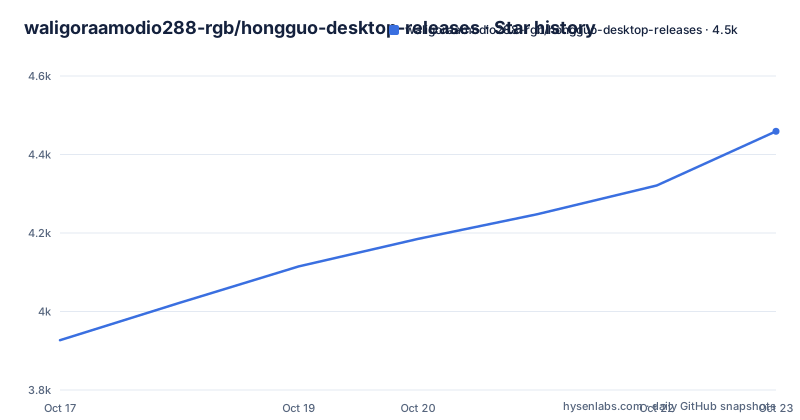
- waligoraamodio288-rgb/hongguo-desktop-releases4,459 ★ · +532
| Repository | 2026-10-17 | 2026-10-23 |
|---|---|---|
| waligoraamodio288-rgb/hongguo-desktop-releases | 3.9k | 4.5k |
532 Stars in the last 6 days, measured from the daily GitHub snapshot. Compare with other projects
Editorial analysis
What Hongguo Desktop and Android TV Provides
Hongguo addresses a specific gap between viewing short dramas on a computer and watching them on a television. The Windows 10 and 11 build is aimed at users who want a television-style browsing interface without installing an Android emulator. It provides category browsing, title search, favorites, local playback progress, episode selection, playback speed, automatic consecutive playback, and a hidden-window shortcut that pauses during concealment and resumes afterward. Version 1.0.13 also adds a dark mode and fixes one class of video-loading failures.
The Android TV build serves televisions, set-top boxes, projectors, and tablets. Its categories separate live-action dramas, animated dramas, and AI dramas. The documented controls include remote navigation, favorites, resume playback, episode selection, and a quick "换一部" action for choosing another title. The README says the temporary speed control activated by holding a remote button requires Android 6.0 or later, even though the base application supports Android 5.0 and later.
This is not a documented account client for the original Hongguo mobile service. The project describes itself as independently maintained by 渠道有数 and says it is free to use. Its useful scope is narrower than a full cross-platform media library: the Windows and television builds keep separate records, and their history is not synchronized with each other or with the original Hongguo mobile app. That boundary matters for anyone expecting favorites and viewing history to follow a user across devices.
Windows Playback Through a Local Service
The repository publishes binaries rather than application source code, and its top-level entries contain documentation, release material, and assets. Based on the README, the Windows application is a packaged desktop client around a content service. Startup can also require Microsoft Edge WebView2. An existing WebView2 installation is reused, while a missing runtime may be downloaded during installation.
The user-facing flow starts in discovery, category, or search results. Selecting a title opens its detail page, where playback becomes available once the desktop content service is ready. Playback state, favorites, and history are stored on the local Windows installation rather than synchronized to a mobile account. The player also maintains an internal signature service on a loopback port allocated by the operating system. The README states that this subprocess checks its owning process, reducing startup conflicts associated with a fixed port.
That local-service design does not make the catalog or video files self-contained. The README repeatedly limits playback claims by reference to the external content service and network conditions. A page can show "桌面内容服务尚未就绪", leaving the play button disabled. In that state, the documentation says to wait about one minute, open "设置" → "播放服务", and select "检查连接". This action checks local service status but does not restart it. If the status remains "未连接", the documented recovery is to exit through "设置", reopen the application, wait again, and repeat the connection check.
Closing the window with the upper-right × does not fully terminate the program. The application can remain in the system tray, which is why the recovery path explicitly uses the exit control in Settings. This behavior may matter when diagnosing stale service state, but it also means that closing the visible window should not be interpreted as a complete restart.
Installing the Windows Build and Starting Playback
Normal Windows installation does not require the source ZIP, a `.sig` file, or `latest.json`. The documented installer is `hongguo-1.0.13-windows-x86_64-setup.exe`, supplied for 64-bit Windows 10 or 11. The README states a file size of 108.6 MiB and separately gives an exact byte count of `113873296`. Download it from the fixed release URL or the latest-release entry.
The first-use sequence is short. Download the `.exe`, run the installer, and let it reuse an available WebView2 runtime or fetch a missing one. If the installer appears stuck while executing `guoban-webview2-setup.exe`, the README advises waiting rather than repeatedly launching the Hongguo installer.
This is the documented installer address from a browser download:
https://github.com/waligoraamodio288-rgb/hongguo-desktop-releases/releases/download/v1.0.13/hongguo-1.0.13-windows-x86_64-setup.exeAfter installation, open the application, browse a category or search for a title, enter its detail page, and select playback. If the content service is not ready, wait about one minute and perform the connection check described above. Local history begins accumulating once the application saves a playback position. It remains specific to that computer and does not import the original mobile app's history.
Before installation, the project supplies a SHA-256 value for the Windows installer:
e0ce83c3a5373ea861787ab0f5a4be99c52aff7a8aefa50a350ed5b5b75f06beThis checksum can confirm that the downloaded bytes match the published file. It does not authenticate the publisher. The README states that Windows publisher code signing is not configured, so Windows may display an unknown-publisher or SmartScreen warning. Users are told to verify the download source rather than disable system protection.
Selecting the Correct Android TV APK
The television build must match the Android device's system architecture, not merely the physical processor family. Release `tv-v0.5.6` provides separate packages: `HongguoTV-0.5.6-arm32.apk` for 32-bit ARMv7 and `HongguoTV-0.5.6-arm64.apk` for ARM64. The README explicitly warns that a device with a 64-bit chip may still run a 32-bit Android system, so processor marketing labels are not a sufficient basis for selection.
The ARM64 package is documented as 4.08 MB, while the ARM32 package is 1.24 MB. These are platform-specific installation choices rather than optional feature tiers. The Windows installer cannot be used on a television, and the two packages should not be treated as interchangeable.
Existing users of versions 0.5.2 through 0.5.5 can check for updates from the 64-bit application. The first ARM32 release is described as requiring manual installation. Later updates follow the installed architecture. If the package has the same signing identity, installing it over the previous version preserves records without requiring uninstalling first.
The documentation reports visible playback, remote pause and resume, and long-press speed behavior on a Xiaomi Android 13 tablet, including an actual 32-bit process, with the 64-bit regression passing. It does not claim equivalent verification across real older televisions, older firmware, and physical remote controls. Compatibility on those categories remains unconfirmed, so the minimum Android version and APK architecture are necessary conditions, not proof that every television implementation will work.
The repository's exact ARM64 APK address is:
https://github.com/waligoraamodio288-rgb/hongguo-desktop-releases/releases/download/tv-v0.5.6/HongguoTV-0.5.6-arm64.apkUse that package only for an ARM64 Android system. For an Android 5.0 device that lacks a 64-bit system, the README points to the ARMv7 package instead.
Boss Key, Episode Switching, and Playback Recovery
The Windows boss key defaults to `Ctrl+Shift+B` and can be changed in Settings. Hiding the window automatically pauses playback. Restoring it resumes from the stored position and retains the selected playback speed, unless the viewer had manually paused the video before concealment. This feature is documented for version 1.0.10 and later.
Finding another season is a manual title-matching operation. During playback, select "查找其他季" in the episode area, inspect the candidate's complete title and season number, then choose "选择此季". The selected entry starts at its first episode. Candidates can be incomplete, and a title without a season suffix may be only the beginning portion of a series. This is a useful control for ambiguous catalogs, but it does not guarantee that every matching entry remains playable.
For an interrupted episode, the documentation recommends selecting "重试" once, trying another title as a control, and then checking "设置" → "播放服务". A feedback report should state the application version, whether failure happened immediately or after some playback, the connection status, and the results of retrying and changing titles. Users are specifically asked not to submit account credentials, tokens, complete logs, or private viewing records.
These procedures do not identify one universal cause behind playback interruption. The README says the condition can correspond to several failures. Likewise, version 1.0.13's loading fix addresses one class of failure but does not establish that every title, network, or device will play successfully.
Hongguo Compared with Account-Based and Local Players
The most useful alternative is the original Red Fruit short-drama mobile app with a separate television or large-screen experience, where that is officially available for the user's region. The approach differs in state ownership. Hongguo's documented history and favorites remain on the current computer or television, while an account-centered native client can associate a user's viewing state with a service identity across supported devices. The README does not document cross-device synchronization for Hongguo and explicitly says that computer, television, and mobile histories are separate.
A conventional local media player is another alternative when the viewer already owns video files. Such a player can open local media without depending on Hongguo's content-service readiness or remote catalog availability. Hongguo instead targets discovery and playback of short-drama content exposed through its service, with categories and title search, but the documentation does not promise offline playback or direct ownership of the underlying files.
For a television buyer, choosing between architecture packages is not an alternative product decision. It is a compatibility decision within Hongguo. The correct APK depends on whether Android itself reports ARMv7 or ARM64. Selecting the wrong architecture package may prevent installation or prevent the application from working as intended, and the README does not document a universal fallback path for mismatched packages.
Hongguo is therefore most suitable as a free, platform-specific viewing client with local convenience features. It is the wrong choice for viewers whose primary requirement is synchronized history across devices, guaranteed availability of every catalog item, broad verification across legacy television hardware, or a self-contained media library.
Release Activity, Signing Boundaries, and Upgrade Cost
The repository is not archived, and its last push was on 2026-10-17. Recent releases show several Windows and television updates in October 2026. `tv-v0.5.6` added ARMv7 support, `tv-v0.5.5` corrected the television home page and categories, and `v1.0.13` was published for Windows. This indicates recent release activity, but it does not establish a guaranteed update schedule or support commitment.
Upgrade cost is low for routine binary replacement. Existing ARM64 television versions can check for updates inside the application. Same-signature coverage installation is documented to retain records. Windows uses the fixed latest-release entry to reduce the chance of following an outdated article, while users who are already on the current release and working normally need not download it again.
The signing story has two separate layers. The Windows executable is not documented as having a publisher code signature, which can produce operating-system trust warnings. In-app updates use a fixed public key to verify update-package signatures. Those mechanisms solve different problems: the update key checks update integrity, while publisher signing communicates Windows publisher identity. The README explicitly says the checksum does not replace publisher authentication.
The repository description gives no license identifier, and the README excerpt does not state licensing terms. No conclusion about permission to copy, modify, or redistribute the binaries can be drawn from the project documentation. The application also includes links for feedback, original-version access, and installation-signature verification under "设置" → "关于与帮助".
Editorial conclusion
Adopt Hongguo if you want a free, platform-specific player with local favorites and watch progress, and your content service and device architecture are supported. Do not adopt it as a cross-device library, a guaranteed offline player, or a universally compatible Android TV solution. Verify the Windows package SHA-256 and source first, or confirm that the television runs Android 5.0 or later with the required ARM architecture before installing.
Frequently asked questions
Which Hongguo APK should I install on an Android TV device?
Install `HongguoTV-0.5.6-arm64.apk` for an ARM64 Android system and `HongguoTV-0.5.6-arm32.apk` for a 32-bit ARMv7 system. A 64-bit chip does not necessarily mean the device runs a 64-bit Android system.
Does Hongguo synchronize watch history between Windows, Android TV, and mobile?
No. The README says the computer and television each store progress locally, and neither is synchronized with the other or with the original Hongguo mobile app account history.
What should I do if a Hongguo Windows video will not load or playback stops?
For an interruption, retry once, try another title, and check "设置" → "播放服务". If the content service remains unavailable, exit through Settings, reopen the application, wait about one minute, and check again.
Does the Hongguo Windows installer support older televisions or all Android TV devices?
The Windows installer is for 64-bit Windows 10 and 11, not Android TV. The television APK supports Android 5.0 or later with the matching ARM architecture, but the README says real older televisions, older firmware, and physical remote controls still require device-by-device testing.
Official sources
Add this badge to your README
If you maintain this project, the badge below links readers to this analysis and shows its maintenance status from the daily GitHub snapshot. Paste the markdown into your README; add ?metric=license or ?metric=stars to the image URL for a different field.

[](https://hysenlabs.com/projects/waligoraamodio288-rgb-hongguo-desktop-releases)Star history chart for your README
[](https://hysenlabs.com/projects/waligoraamodio288-rgb-hongguo-desktop-releases)Was this useful?